PAGE GUIDEWhat the page does and how to use it8 sections. Choose a role to highlight what matters to you.
Everyone
1What it is and why
What it is
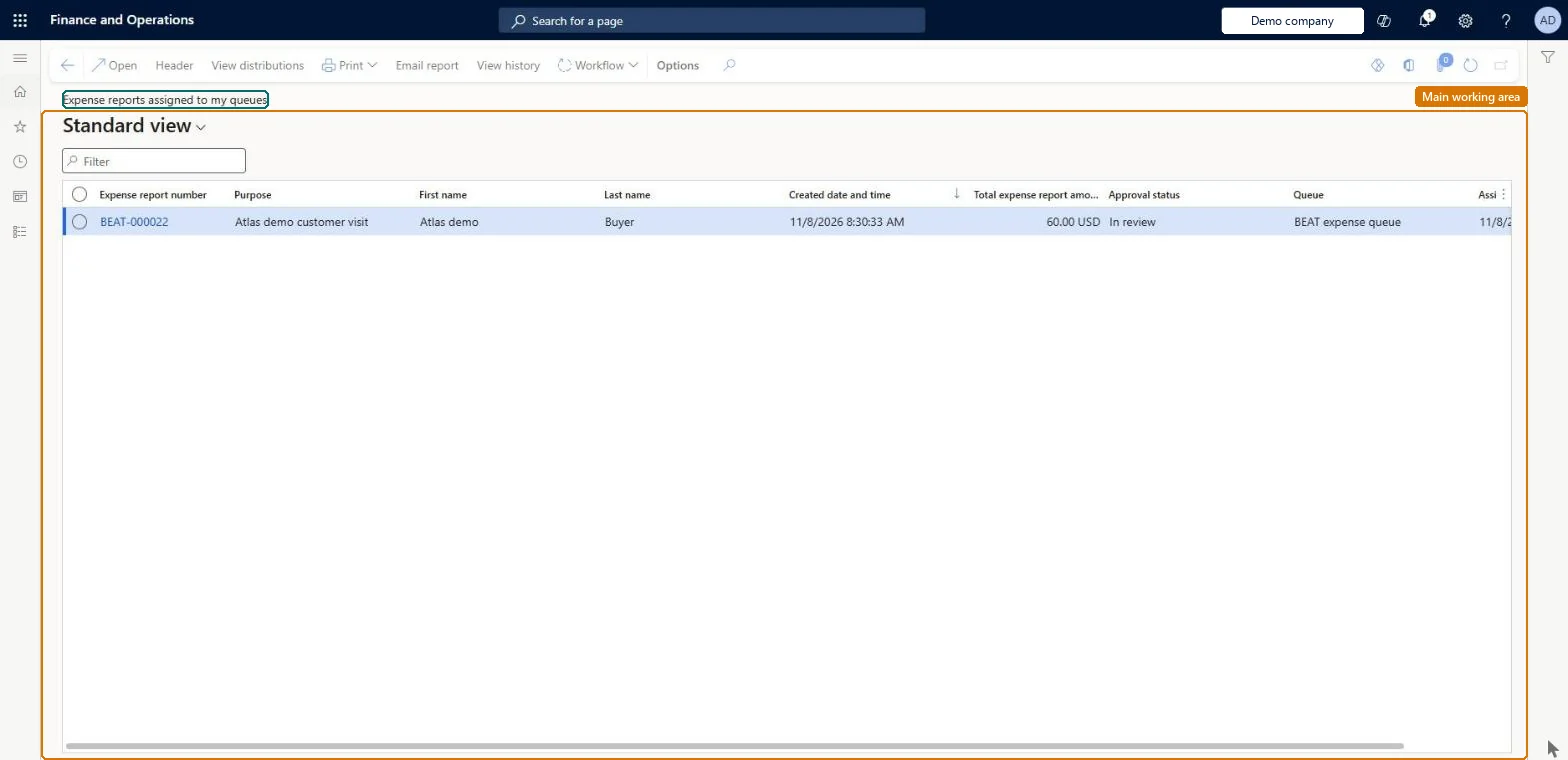
An inquiry that lists expense reports whose workflow task is assigned to a work item queue you are a member of, rather than to you personally.
What you do here
Use this page to take the next report from your team's queue, review it, and complete, release or reassign it.
Example
For example, three accounts payable clerks share an expense audit queue; one accepts a report, checks the receipts against the card lines, and completes the task, while the other two no longer see it as open.
The page in Dynamics 365. page title tab to open what to set or check
About the examples: Examples and screenshots in this guide use BEAT, a demo company in a Dynamics 365 test environment. Use your own company's codes and values instead of copying them.
When to run it
When to run it
When your team handles expense review through a shared queue, for example an expense audit queue.
How often
Daily, or whenever the queue has new items.
What the output shows
Expense reports waiting in your queues. Only one queue member can complete each task; a report that disappears was taken by another member.
Finishes the task so the workflow moves on; only one queue member completes it.Microsoft Learn
Common errors and fixes
Message
What to do
You do not have access to enter expense reports because you are not mapped to an employee record. Contact your manager or support team for assistance.
Link the user to an employee with active employment and set a company on the user account. In the live system the pages under My expenses, Process expense reports and Process cash advances showed this message for a user with no employee record. Checked in Dynamics 365
The queue shows no reports
The workflow element must assign the task to the work item queue, and the user must be a member of that queue. Microsoft Learn
Test checklist
Create a work item queue with two members and assign a task of the expense report workflow to it.
Submit a report; as member one, accept it from this page.
As member two, check the report shows as taken.
As member one, complete it and check the workflow moves on.
Use a queue for a review step done by a team (such as receipt audit), and have members accept a report before they start, then complete or release it.A queue task can be seen by several people but only one completes it; accepting shows the others it is taken.
In this system Employee and Contractor enter their own expenses, and Expense administrator sets up the module and processes documents. The expense mobile app needs the Employee role, a company on the user account and a link to an employee with active employment. Members of an expense review queue use this page; no Feature management feature is needed.
Per queue member: the list shows reports in the queues the signed-in user belongs to, in the current legal entity. Microsoft Learn
Can it be undone
No: Completing or rejecting moves the report on in the workflow; releasing returns it to the queue. Microsoft Learn
If you change it later
Completing or rejecting moves the report on in the workflow; Release puts it back in the queue; Reassign moves it to another queue. Microsoft Learn
Technical architect
6Technical
Menu item
TrvExpRptListPage_AssignedToMyQueuesChecked in Dynamics 365
Data entities
TrvExpTableMobileEntityExpense reports (the expense report header used by the mobile app) Checked in Dynamics 365
Roles to set it up and use it
To set it up or change itExpense administrator ExpenseAdministratorGive people one of these roles. On this system, 1 role can open this page.Checked in Dynamics 365
WorkflowWorkItemQueueAssignmentRuleEntity (Workflow work item queue assignment rule): loads the rules that send work items to queues.Load order: Set up the queues and their members first, then the assignment rules; workflow tasks themselves don't move.Load first: Work item queues, UsersMicrosoft data model