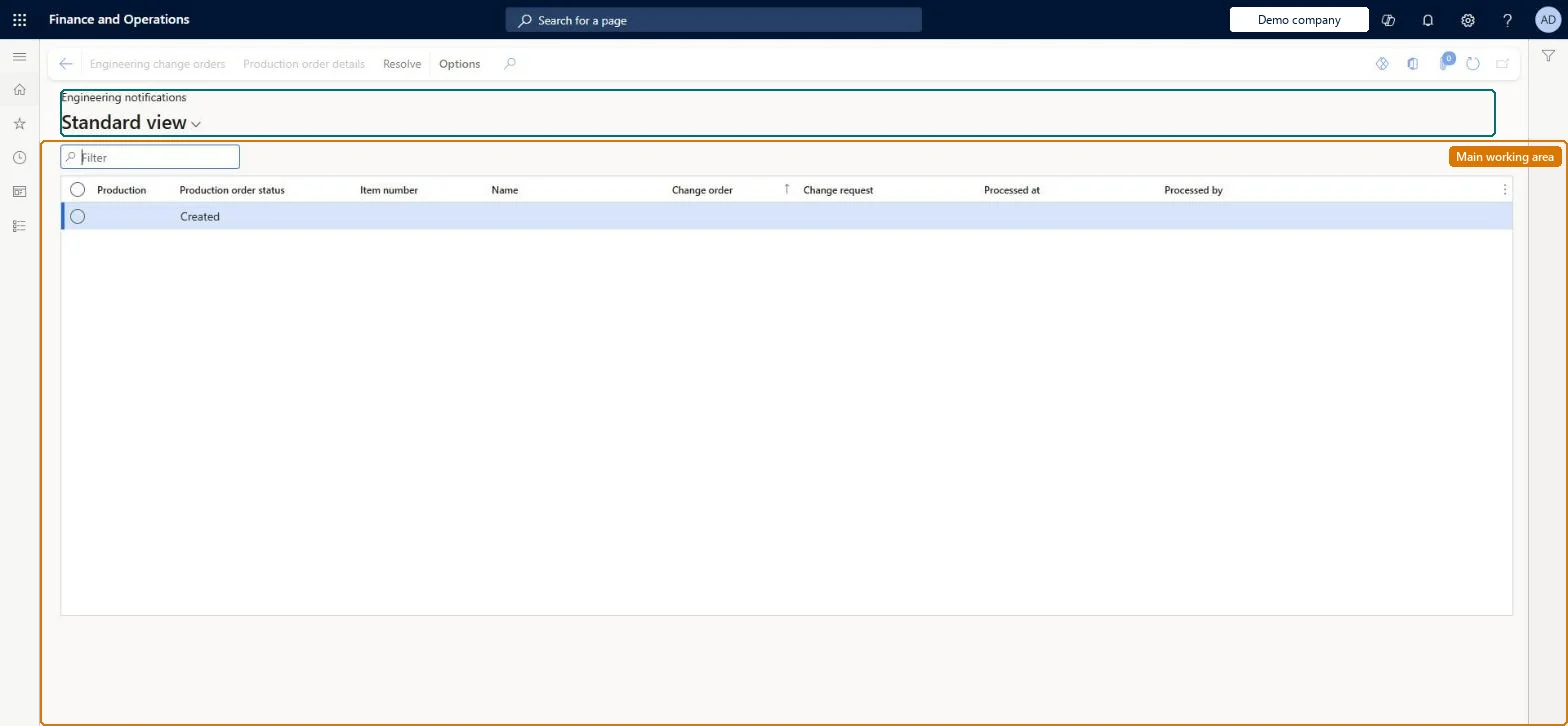
A list page showing the change notifications sent for production orders from the Business impact inquiry (Notify production), so that production supervisors and planners can review which production orders are affected by an engineering change.
Engineering change managementInquiries and reports
EngChgEcmProductionDependencyNotifications
Used by
Production supervisor
Business process
Approve and process a change order in Dynamics 365 Supply Chain Management
Menu item
EngChgEcmProductionDependencyNotifications
Main table
EngChgEcmProductionDepen
Show what matters for
PAGE GUIDEWhat the page does and how to use it8 sections. Choose a role to highlight what matters to you.
Everyone
1What it is and why
What it is
A list page showing the change notifications sent for production orders from the Business impact inquiry (Notify production), so that production supervisors and planners can review which production orders are affected by an engineering change.
What you do here
Use this page to review production orders flagged by an engineering change request, follow links to the related change order or production order, and mark each notification as resolved once the production order has been checked, cancelled or modified.
Example
For example, a planner filters the Production floor management workspace to their resources, opens the Production orders with changed products tile, cancels an affected order and then selects Resolve.
The page in Dynamics 365. page title tab to open what to set or check
About the examples: Examples and screenshots in this guide use BEAT, a demo company in a Dynamics 365 test environment. Use your own company's codes and values instead of copying them.
Steps from Microsoft
Go to Engineering change management > Inquiries and reports > Engineering notifications.
Alternatively, open All production orders and, on the Production order tab, in the Engineering change request group, select Engineering notifications.
Review each notification and follow the links to the related change order or production order.
Cancel or modify the affected production orders as required.
Select the notification and, on the Action Pane, select Resolve to remove it from all users' views.
Open an engineering change request for a product that has open production orders.
In the Business impact group, select Search, open the Production orders tab, select an order and select Notify production.
Go to Production orders > All production orders, select Engineering notifications on the Production order tab, and check the notification is listed with links to the change order and the production order.
Select the notification and select Resolve; check it no longer appears for any user.
Hard to reverse: Selecting Resolve on a notification removes it from all users' views. Learn describes no action to reopen a resolved notification, so resolve only after the affected production orders have been cancelled or modified. Microsoft Learn
If you change it later
Resolving a notification removes it for every user, so it should only be done after the affected production orders have been evaluated and adjusted. Microsoft Learn
Technical architect
6Technical
Menu item
EngChgEcmProductionDependencyNotificationsChecked in Dynamics 365
Form
EngChgEcmProductionDependencyNotificationsChecked in Dynamics 365
Table
EngChgEcmProductionDepenShown as “PRODUCTION DEPENDENCIES” in Record infoKey field: EngineeringChangeOrderId, EngineeringChangeOrderCompanyId, ProdId, ProdCompanyIdChecked in Dynamics 365
Who can open it
PrivilegesMaintain production order dependencies EngChgEcmProductionDependencyMaintainDutiesMaintain production orders ProdProductionOrderMaintain1 security roleProduction supervisor ProdProductionSupervisorChecked in Dynamics 365
Roles to set it up and use it
To set it up or change itProduction supervisor ProdProductionSupervisorGive people one of these roles. On this system, 1 role can open this page.Checked in Dynamics 365
Actions on the page
(Action Pane without tabs): Engineering change orders, Production order details, ResolveChecked in Dynamics 365