About the examples: Examples and screenshots in this guide use BEAT, a demo company in a Dynamics 365 test environment. Use your own company's codes and values instead of copying them.
Steps from Microsoft
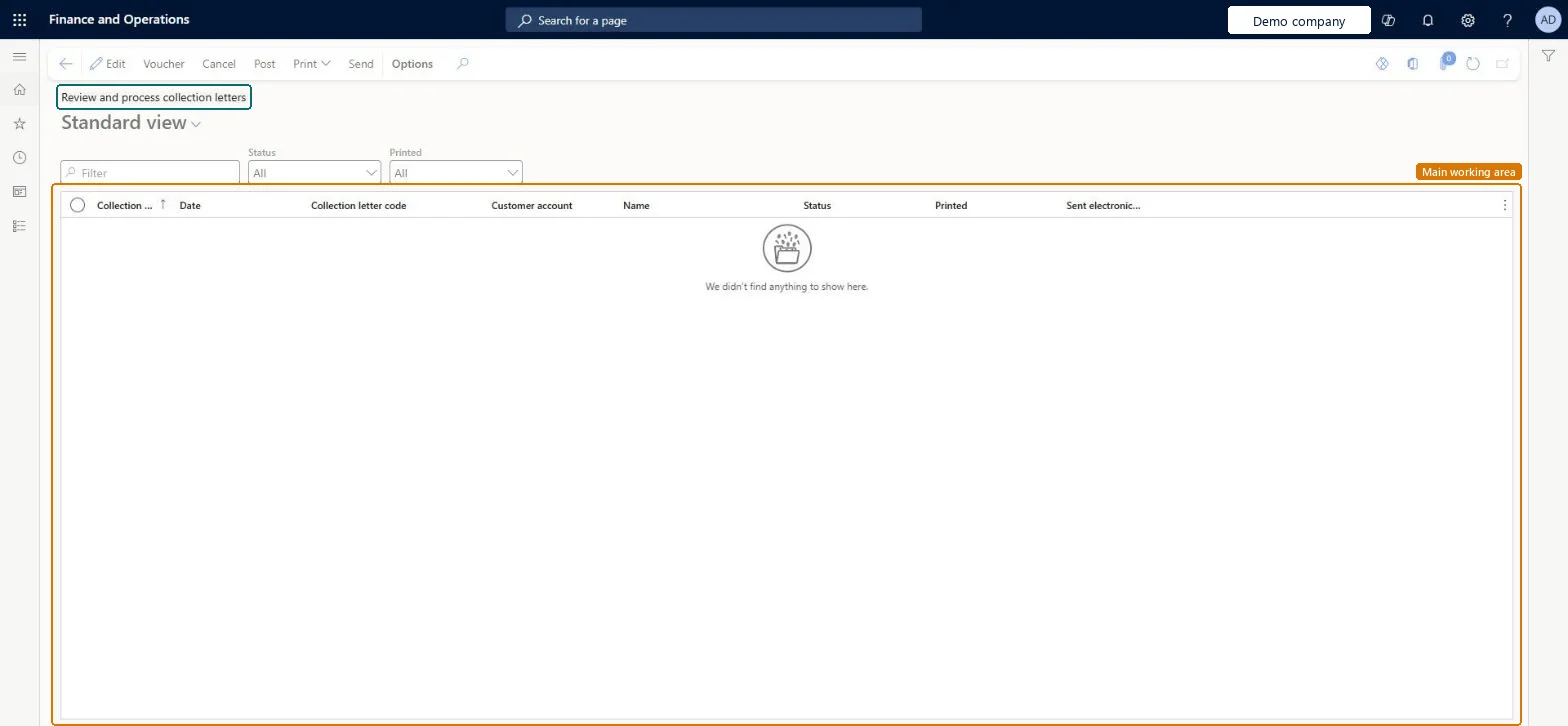
Go to Credit and collections > Collection letter > Review and process collection letters.
In the Status field, select Created, and in the Printed field, select Not printed.
Select Print, and then select Collection letter note.
Enter the cutoff date for postings and the records to include, and select OK.
Select Post, enter the posting date and the records to include, and select OK.
In the Status field, select Posted to check the result.
Hard to reverse: Before posting you can change fees and wording or cancel letters. Once a letter is posted, no changes are allowed. Learn suggests leaving fee letters unposted until the customer pays the fee, and cancelling them after the invoice is paid. Microsoft Learn
If you change it later
After a collection letter is posted, it can't be changed. Microsoft Learn
Technical architect
5Technical
Menu item
CustCollectionLetterNoteChecked in Dynamics 365
Form
CustCollectionLetterNoteChecked in Dynamics 365
Table
CustCollectionLetterJourShown as “Collection letter journal” in Record infoKey field: CollectionLetterNum, CollectionLetterDate, CollectionLetterCode, CustBillingClassification, CustBillingClassification_BillingClassificationChecked in Dynamics 365
Data entities
CustCollectionsBICollectionLetterCollection letters per customer Microsoft data model
Who can open it
PrivilegesMaintain collection letter notes CustCollectionLetterNoteMaintainView collection letter notes CustCollectionLetterNoteViewDutiesReview collections process performance CollectionLetterCollectionProcPerfRevieInquire into collections status CollectionLetterCollectionsStatusInquirMaintain collections transactions CollectionLetterCollectionsTransMaintaiInquire into customer invoice status CustInvoiceCustomerInvoiceStatusInquireMaintain customer invoice transactions CustInvoiceCustomerInvoiceTransMaintainInquire into customer payments status PaymCustomerPaymentsStatusInquire12 security rolesAuditor AuditPolicyManagerCollections agent CollectionLetterCollectionsAgentCollections manager CollectionLetterCollectionsManagerChief financial officer CompanyChiefFinancialOfficerAccounts receivable clerk CustInvoiceAccountsReceivableClerkAccounts receivable manager CustInvoiceAccountsReceivableManagerAccountant LedgerAccountantAccounting manager LedgerAccountingManagerAccounting supervisor LedgerAccountingSupervisorFinancial controller LedgerFinancialControllerAccounts receivable centralized payments clerk PaymAccountsReceivableCentralPaymClerkAccounts receivable payments clerk PaymAccountsReceivablePaymentsClerkChecked in Dynamics 365
Roles to set it up and use it
To set it up or change itCollections manager CollectionLetterCollectionsManagerCollections agent CollectionLetterCollectionsAgentTo use itAccounts receivable manager CustInvoiceAccountsReceivableManagerAccounting manager LedgerAccountingManagerAccounting supervisor LedgerAccountingSupervisorAccounts receivable payments clerk PaymAccountsReceivablePaymentsClerkAccounts receivable clerk CustInvoiceAccountsReceivableClerkGive people one of these roles. On this system, 12 roles can open this page.Checked in Dynamics 365
Actions on the page
Options: Personalize, Page options, ShareChecked in Dynamics 365