BeyondERP.Newsletter
Menu

Job page · Credit and collections

Create collection letters

A periodic job that creates collection letters for the open transactions of the selected types.

Business process
Manage credit and collections
Menu item
action:CustCollectionLetterCreate
Show what matters for
PAGE GUIDEWhat the page does and how to use it7 sections. Choose a role to highlight what matters to you.
Everyone

1What it is and why

What it isA periodic job that creates collection letters for the open transactions of the selected types.
What you do hereUse this periodic task to choose the transaction types, the collection letter option, the collection letter date and the customers, and create the letters to review before printing and posting.
ExampleFor example, you set Invoice and Credit note to Yes, enter a collection letter date and filter on one customer, such as US-045, to create that customer's letter.
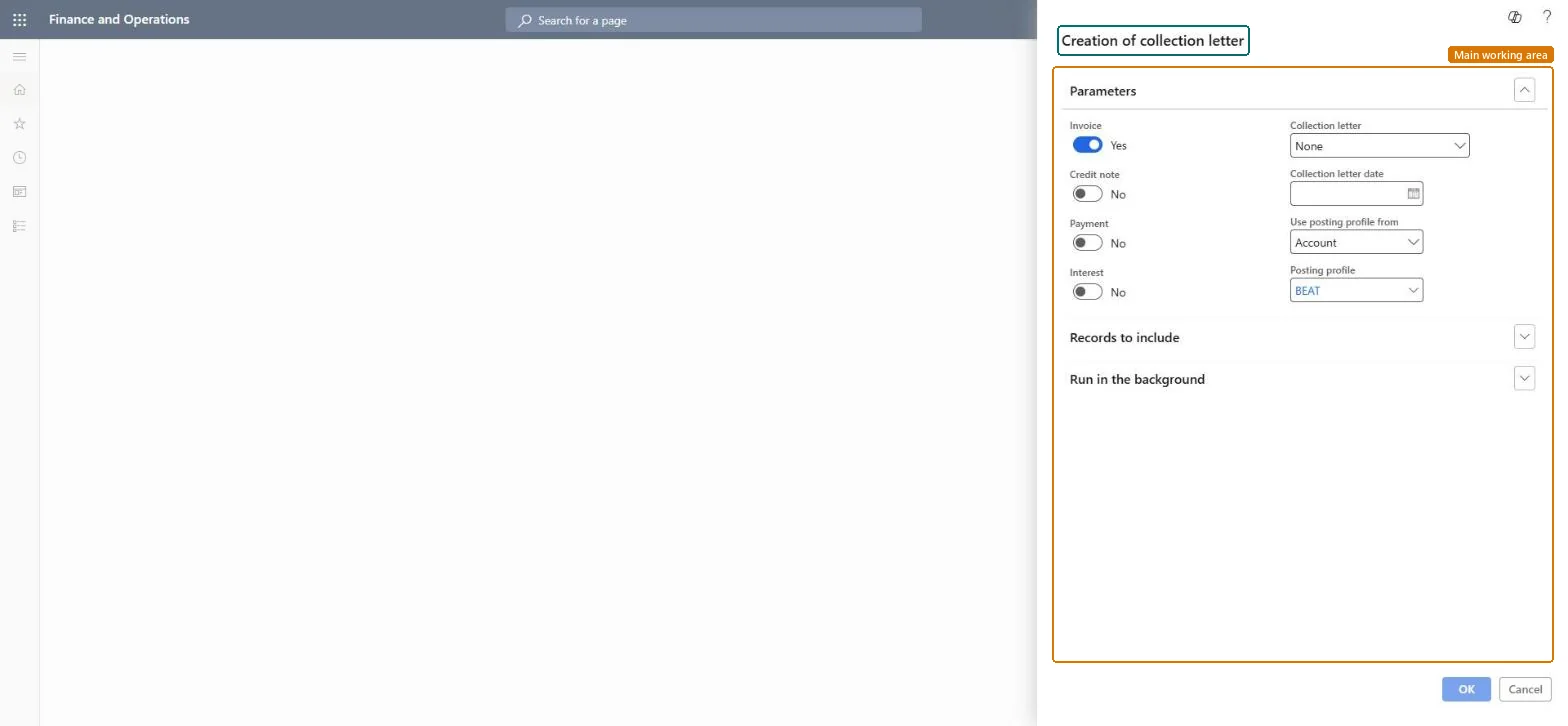
Create collection letters page in Dynamics 365
The page in Dynamics 365. page title tab to open what to set or check
Functional consultant · Solution architect

2Where it fits

Business processManage credit and collections
Menu pathCredit and collections › Collection letter › Create collection letters
Set up firstSet up collection letter sequence Microsoft Learn Customer posting profiles Microsoft Learn
Used next byReview and process collection letters Microsoft Learn
End user · Functional consultant

3How to do it

About the examples: Examples and screenshots in this guide use BEAT, a demo company in a Dynamics 365 test environment. Use your own company's codes and values instead of copying them.

When to run it

When to run itWhen overdue transactions have passed the grace days of the next collection letter in the sequence.
How oftenOnce per collection run, in line with the grace days of your collection letter sequence.
Batch settingsRun it in the background when you create letters for many customers.
What the output showsCollection letters with status Created for customers with overdue transactions. With letters per transaction, one customer can get several letters at different levels; set Create collection letter per to Customer for one letter per customer.

Source: Microsoft Learn

Steps from Microsoft

  1. Go to Credit and collections > Collection letter > Create collection letters.
  2. Select the transaction types to include; all open transactions of these types are considered.
  3. In Collection letter, choose which letters to create; Collection per customer creates one letter per customer.
  4. Enter the Collection letter date, and if Use posting profile from is Select, choose the posting profile.
  5. In Records to include, select Filter and enter the customers.
  6. Open Review and process collection letters with Status Created and check the letters before printing and posting.

Source: Microsoft Learn

Fields on the page

FieldWhat it means
Collection letterWhich letters to create; Collection per customer creates one letter per customer.Microsoft Learn
Collection letter dateDate of the collection letter.Microsoft Learn
Use posting profile fromWhether to use each customer's posting profile or one posting profile you select.Microsoft Learn

Test checklist

  1. Review and process collection letters shows new letters with status Created.
  2. Each letter lists only overdue transactions of the selected types.

Source: Microsoft Learn

Solution architect

4Design impact

Can it be undoneYes, before posting: Created letters can be reviewed and left unposted; only posting records them against the customer. Microsoft Learn
If you change it laterCreates collection letters with status Created; nothing is posted until you post them. Microsoft Learn
Technical architect

5Technical

Menu itemaction:CustCollectionLetterCreate Checked in Dynamics 365
FormDialog Checked in Dynamics 365
Roles to set it up and use itTo use itCollections manager CollectionLetterCollectionsManagerCollections agent CollectionLetterCollectionsAgentGive people one of these roles. On this system, 2 roles can run this page.Checked in Dynamics 365
Developer

6Developer

Open it by URLhttps://<your-environment>/?mi=action:CustCollectionLetterCreate
Everyone

7Sources