Accounts payable manager, Budget clerk, Budget contributor and 8 more roles
Business process
Consolidate online in Dynamics 365 Finance
Menu item
MainAccountConsolidateAccount
Main table
MainAccountConsolidateAccount
Data entity
LedgerConsolidateAccountGroupEntity
Setup steps
1 on this page
Show what matters for
PAGE GUIDEWhat the page does and how to use it8 sections. Choose a role to highlight what matters to you.
Everyone
1What it is and why
What it is
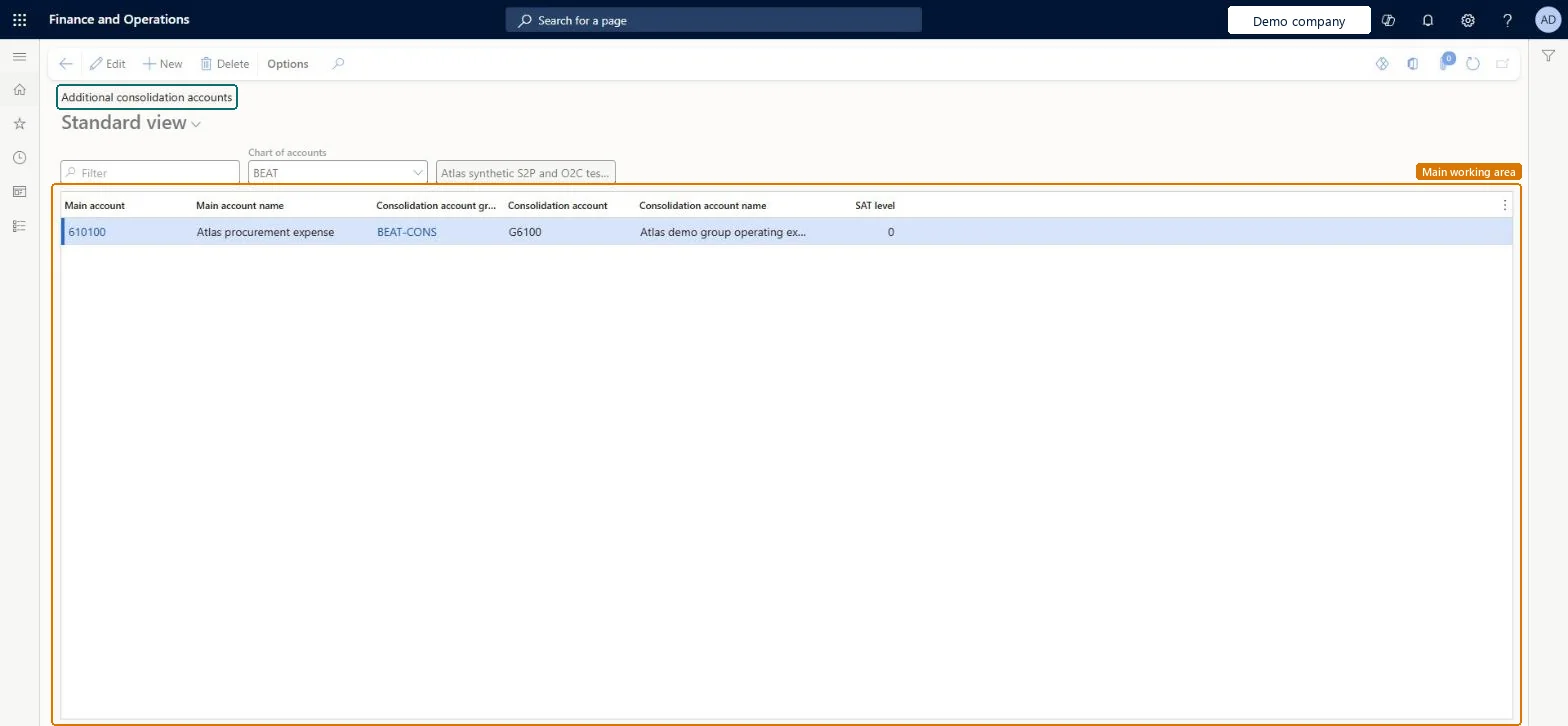
Mappings that assign main accounts from an existing chart of accounts to a consolidation account group, with a consolidation account value and name.
What you do here
Use this page to map each main account to the consolidation account and name that appear on consolidation inquiries and reports.
Example
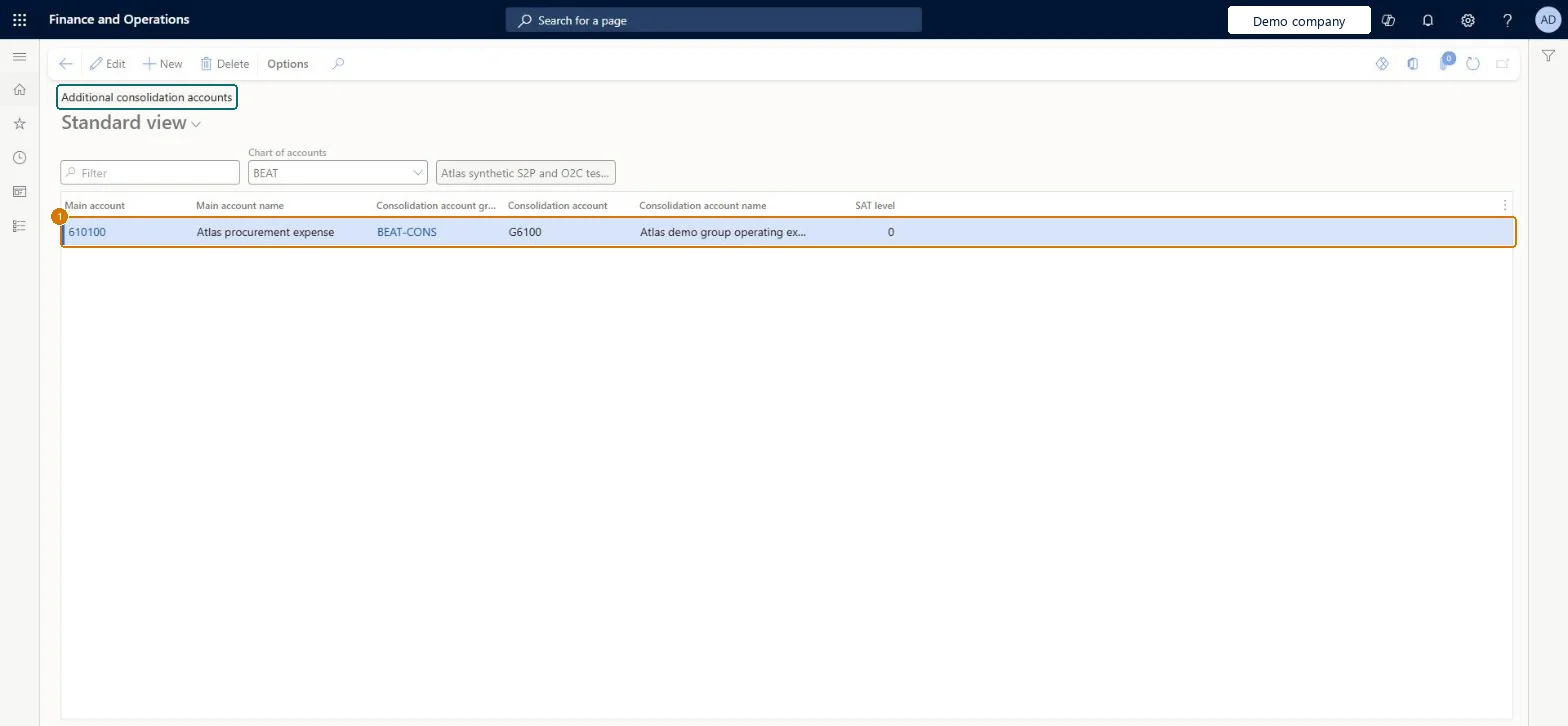
For example, in BEAT the chart of accounts BEAT maps main account 610100 (procurement expense) to group BEAT-CONS with consolidation account G6100 Group operating expenses.
The page in Dynamics 365. page title tab to open what to set or check
About the examples: Examples and screenshots in this guide use BEAT, a demo company in a Dynamics 365 test environment. Use your own company's codes and values instead of copying them.
Step by step, with screenshots
Set up Additional consolidation accounts1 screen
Use this page to map each main account to the consolidation account and name that appear on consolidation inquiries and reports.
Screen 1
Map the main account to a consolidation account
Go to General ledger > Chart of accounts > Accounts > Additional consolidation accounts
Select the chart of accounts
Select New
Enter the main account, consolidation account group and consolidation account
1Main account
610100
Chart of accounts
BEAT
Consolidation account group
BEAT-CONS
Consolidation account
G6100
Consolidation account name
Group operating expenses
Show the full screen page title tab to open what to set or check
Steps from Microsoft
Go to Consolidations > Setup > Additional consolidation accounts.
Select New.
In the Main account field, select the main account to map.
In the Consolidation account group field, select the group.
In the Consolidation account field, enter the account value to consolidate to.
In the Consolidation account name field, enter a name.
Used to report account statements to the Mexican tax authorities.Microsoft Learn
0
STULevel_MX
Chart of accounts
The chart of accounts whose main accounts are mapped; the Main account lookup shows its accounts.Microsoft Learn
BEAT
Common errors and fixes
Message
What to do
The consolidation stops with an error because account numbers don't correspond
With a shared chart of accounts set Use consolidation account to No; otherwise set the Consolidation account on each subsidiary main account, or use a consolidation account group, and set Use consolidation account to Yes. Microsoft Learn
Test checklist
Select the chart of accounts, then add a line with Main account, Consolidation account group, Consolidation account and Consolidation account name.
If you consolidate in more than one way, add the same main account to each consolidation account group you use.
Run Consolidate online with that group selected.
Check the consolidation account name appears on the consolidation inquiries for the mapped main account.
Map every main account that must consolidate into each consolidation account group you consolidate withEach mapping assigns a main account to one group with a consolidation account and name; if you consolidate in more than one way, the same main account must be added to every group used.
Consolidations is part of General ledger in Dynamics 365 Finance. In this system Accountant, Accounting manager, Accounting supervisor, Chief financial officer and Financial controller hold the consolidation duties. The controller maintains the mappings. No Feature management feature is needed for this page.
Shared: the mappings belong to a chart of accounts and a consolidation account group; their entities are shared by all companies in Data management. Checked in Dynamics 365
Can it be undone
Reversible: Mappings can be changed at any time and are used when the group is selected in the next Consolidate online run; rerun an earlier consolidation to reprocess it with the new mapping. Microsoft Learn
If you change it later
Mappings are used when the group is selected in Consolidate online; changes apply from the next run, and the consolidation account name shows on inquiries and reports. Microsoft Learn
Technical architect
6Technical
Menu item
MainAccountConsolidateAccountChecked in Dynamics 365
Form
MainAccountConsolidateAccountChecked in Dynamics 365
Table
MainAccountConsolidateAccountShown as “MAIN ACCOUNT CONSOLIDATION ACCOUNT” in Record infoChecked in Dynamics 365
Data entities
LedgerConsolidateAccountGroupEntityConsolidation groups and accounts Microsoft data model LedgerConsolidateAccountGroupV2EntityConsolidation main accounts Microsoft data model
Who can open it
PrivilegesMaintain main account consolidation accounts MainAccountConsolidateAccountMaintainView main account consolidation accounts MainAccountConsolidateAccountViewDutiesInquire into chart of account master LedgerChartOfAccountsInquireMaintain chart of accounts master LedgerChartOfAccountsMaintain11 security rolesBudget clerk BudgetBudgetClerkBudget contributor BudgetBudgetContributorBudget manager BudgetBudgetManagerChief executive officer CompanyChiefExecutiveOfficerChief financial officer CompanyChiefFinancialOfficerAccounts receivable manager CustInvoiceAccountsReceivableManagerAccountant LedgerAccountantAccounting manager LedgerAccountingManagerAccounting supervisor LedgerAccountingSupervisorFinancial controller LedgerFinancialControllerAccounts payable manager VendInvoiceAccountsPayableManagerChecked in Dynamics 365
Roles to set it up and use it
To set it up or change itAccounting supervisor LedgerAccountingSupervisorAccounting manager LedgerAccountingManagerTo use itAccountant LedgerAccountantChief financial officer CompanyChiefFinancialOfficerFinancial controller LedgerFinancialControllerBudget clerk BudgetBudgetClerkBudget manager BudgetBudgetManagerGive people one of these roles. On this system, 11 roles can open this page.Checked in Dynamics 365
LedgerConsolidateAccountGroupEntity (Consolidation groups and accounts): shared; chart of accounts, main account, group, consolidation account and name, SAT level.LedgerConsolidateAccountGroupV2Entity (Consolidation main accounts): shared; the same mapping with main account type and category.Load order: Microsoft's template 020 - GL Shared loads Consolidation groups and accounts at execution unit 1, level 20, sequence 30, after the chart of accounts and main accounts.Load first: Chart of accounts, Main accountsChecked in Dynamics 365
Checked in a working Dynamics 365 system, version 10.0.49: the menu item, form, table and security, the page, the demo records and the values in the screenshots.