PAGE GUIDEWhat the page does and how to use it8 sections. Choose a role to highlight what matters to you.
Everyone
1What it is and why
What it is
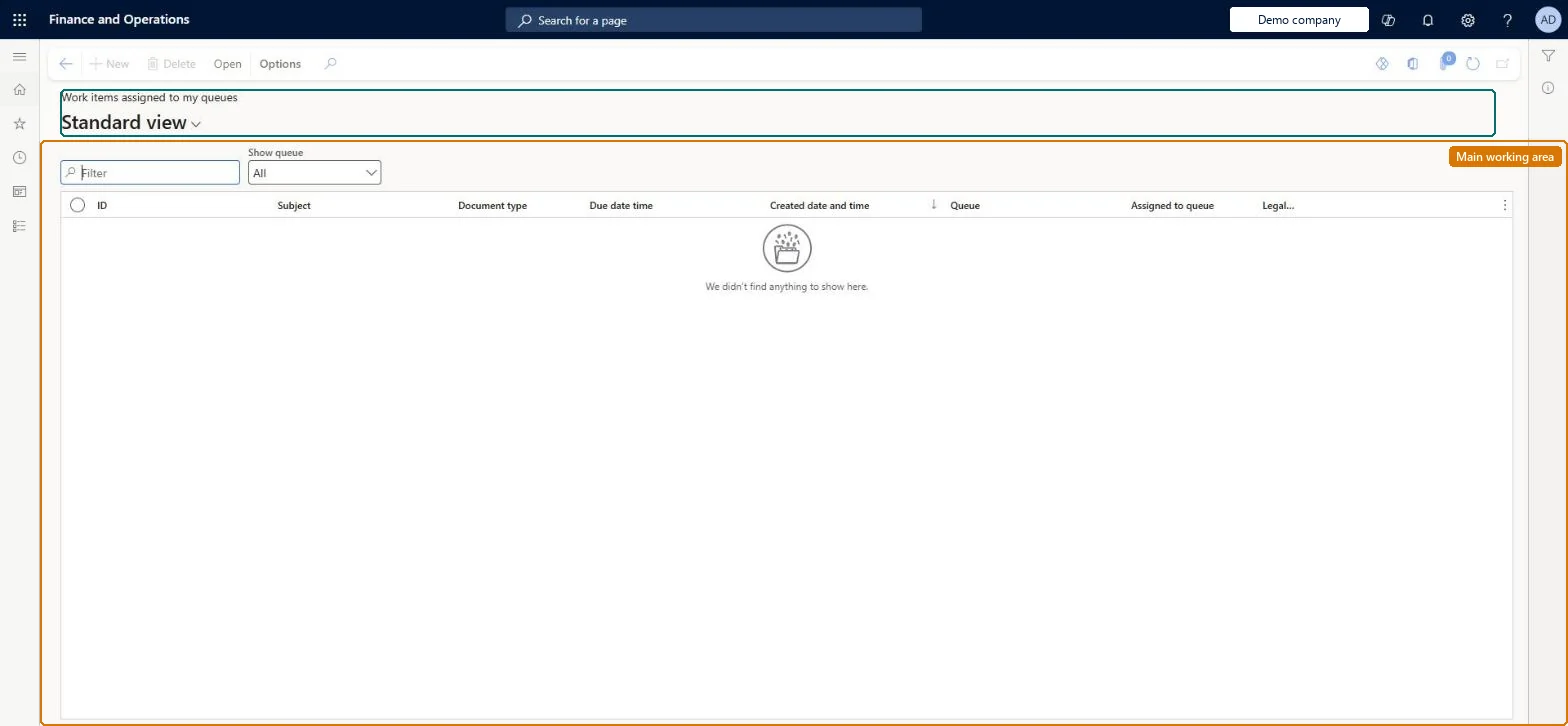
A list of the workflow work items that are waiting in the work item queues you are a member of.
What you do here
Use this page to find documents in your queues that need processing, accept one to work on it, and complete, reassign or release it.
Example
For example, a member of BEAT's Expense review queue accepts expense report EXP-00381, finds a missing receipt and can't finish today, so they release it back to the queue for a colleague.
The page in Dynamics 365. page title tab to open what to set or check
About the examples: Examples and screenshots in this guide use BEAT, a demo company in a Dynamics 365 test environment. Use your own company's codes and values instead of copying them.
Setup steps on this page
Pick up work from my queues
Accept, complete or release documents waiting in the queues you belong to.
Steps from Microsoft
Go to Common > Common > Work items > Work items assigned to my queues.
Select the work item you want to work on and select Open to view the document.
Accept the task so that it is assigned to you.
Complete, reject, request change, reassign it to another queue, or release it back to the queue.
Accept only the items you will finish now; release the restOnly one person can complete a task, and an accepted task is hidden from the other members until it is released.
On the live system, these roles can open the page: System user, TestEssentialsRole, Retail store IT, Retail service.
Checked in Dynamics 365
Solution architect
5Design impact
Shared or per company
Per queue member: the list shows the work items in the queues you belong to. Microsoft Learn
Can it be undone
Hard to reverse: Accepting a task can be undone by releasing it back to the queue, and a document can be reassigned to another queue. Completing or rejecting is different: complete sends the document to the next user in the workflow, and reject ends the workflow process, which the originator must resubmit. Microsoft Learn
If you change it later
Releasing a task returns the document to the queue so another member can complete it. Microsoft Learn
Technical architect
6Technical
Menu item
WorkflowWorkListAssignedToMyQueuesChecked in Dynamics 365
Form
WorkflowWorkListChecked in Dynamics 365
Table
WorkflowWorkItemTableShown as “WORK ITEMS” in Record infoChecked in Dynamics 365
Who can open it
PrivilegesWorkflow essentials WorkflowEssentialsDutiesUse basic functionality SysServerAXBasicMaintain6 security rolesAifTestSecRoleEventTestRoleRetail service RetailServiceRetail store IT RetailStoreITSystem user SystemUserTestEssentialsRoleChecked in Dynamics 365
Roles to set it up and use it
To set it up or change itSystem user SystemUserTestEssentialsRole Retail store IT RetailStoreITRetail service RetailServiceGive people one of these roles. On this system, 4 roles can open this page.Checked in Dynamics 365
Actions on the page
(Action Pane without tabs): OpenChecked in Dynamics 365
Load order: Work items assigned to my queues has no data entity in Data management. Work items are created by workflows; queue membership is set up on Work item queues.Load first: work item queuesMicrosoft Learn