Lease accountant, Lease manager, Accountant and 1 more role
Business process
Define leasing policies
Menu item
AssetLeaseCentreDetails
Main table
AssetLeaseLocationDetail
Data entity
AssetLeaseLocationEntity
Setup steps
1 on this page
Show what matters for
PAGE GUIDEWhat the page does and how to use it8 sections. Choose a role to highlight what matters to you.
Everyone
1What it is and why
What it is
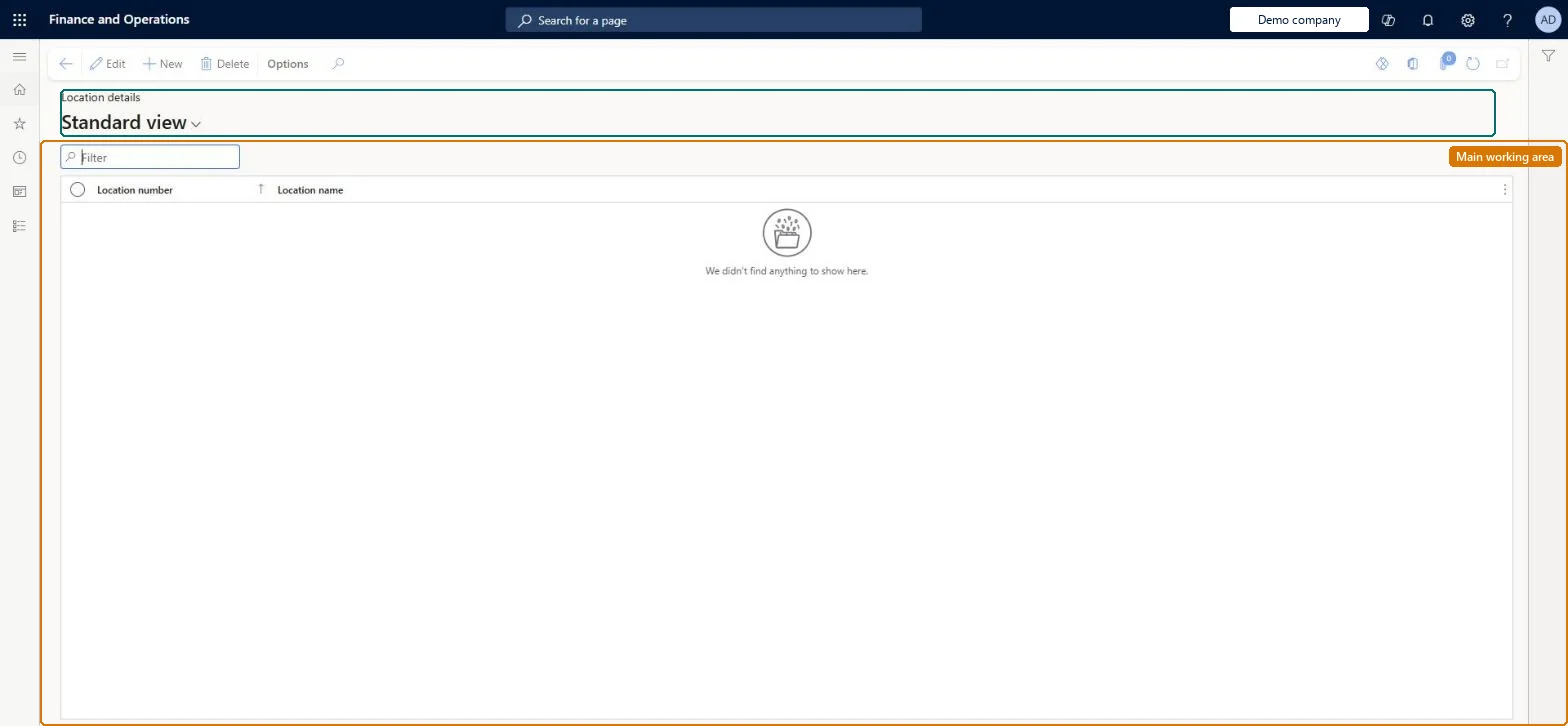
A setup page where you define the locations, each with a number and a name, that leases can refer to.
What you do here
Use this page to maintain the list of lease locations so leases and lease queries can show where a leased asset is.
Example
For example, BEAT adds location BEAT-LOC for its head office and sets it on each office lease there, so the Expiring lease query can be filtered by location.
The page in Dynamics 365. page title tab to open what to set or check
About the examples: Examples and screenshots in this guide use BEAT, a demo company in a Dynamics 365 test environment. Use your own company's codes and values instead of copying them.
One location per site where leased assets are used, numbered with the company prefix, such as BEAT-LOC.The location shows on each lease version and in Expiring lease query, so a consistent list lets lease managers filter by site.
Asset leasing must be turned on in Feature management (feature Asset leasing). Microsoft Learn describes three Asset leasing roles: Maintain lease (add, edit and post leases), View lease (view leases and schedules and run reports) and Lease clerk (create new leases only). Maintain lease users keep the list.
Reversible: Locations can be renamed or added at any time; it's a reference list with no postings. Checked in Dynamics 365
If you change it later
The location is part of each lease version: Lease version history shows the location of every version, so a location change on a confirmed lease is recorded with the lease's versions. Microsoft Learn
Technical architect
6Technical
Menu item
AssetLeaseCentreDetailsChecked in Dynamics 365
Form
AssetLeaseCentreTableChecked in Dynamics 365
Table
AssetLeaseLocationDetailShown as “LOCATION DETAILS” in Record infoKey field: LocationNumberChecked in Dynamics 365
Data entities
AssetLeaseLocationEntityLocation details Checked in Dynamics 365
To set it up or change itLease accountant AssetLeaseLeaseMaintainAccountant LedgerAccountantTo use itLease manager AssetLeaseLeaseViewAccounting manager LedgerAccountingManagerGive people one of these roles. On this system, 4 roles can open this page.Checked in Dynamics 365
AssetLeaseLocationEntity data entity Checked in Dynamics 365
Data migration
AssetLeaseLocationEntity (Location details): the locations.Load order: Load the Asset leasing setup in Microsoft's order: lease books, lease groups, then the parameters (journal names, posting accounts, executory cost accounts), expense types, payment amount types, index rate types and locations, and only then the leases.Microsoft Learn