BeyondERP.Newsletter
Menu

Job page · Accounts receivable

Automatic netting

A process that runs automatic netting once, based on the active netting rules.

Business process
Use netting agreements to settle customer balances with vendor balances in Dynamics 365 Finance
Menu item
action:CustVendNettingProposalBatch
Show what matters for
PAGE GUIDEWhat the page does and how to use it7 sections. Choose a role to highlight what matters to you.
Everyone

1What it is and why

What it isA process that runs automatic netting once, based on the active netting rules.
What you do hereUse this page to trigger a one-time automatic netting of open customer and vendor balances under the selected netting agreements.
ExampleRunning netting before creating the payment journal, so that only the remaining open amounts between customers and vendors are paid.
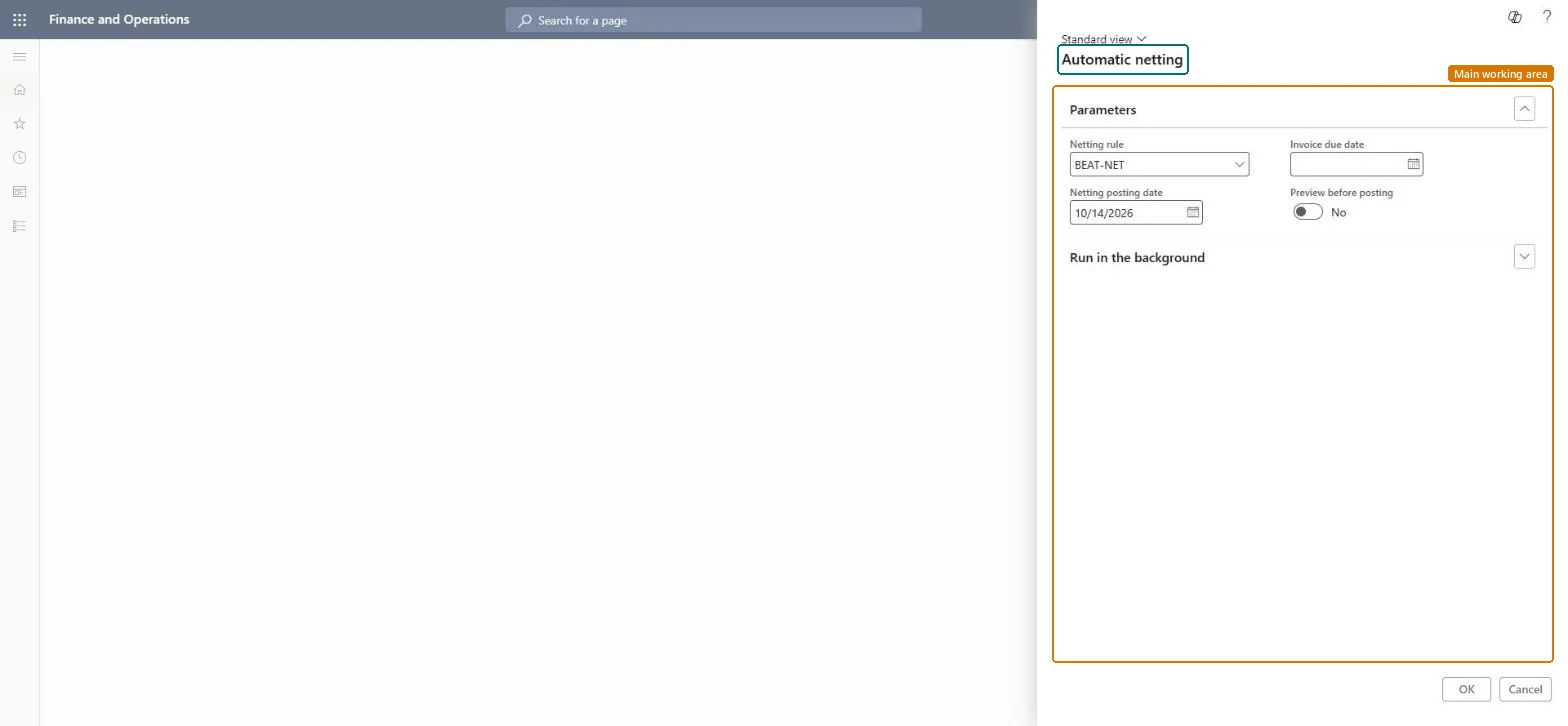
Automatic netting page in Dynamics 365
The page in Dynamics 365. page title tab to open what to set or check
Functional consultant · Solution architect

2Where it fits

End user · Functional consultant

3How to do it

About the examples: Examples and screenshots in this guide use BEAT, a demo company in a Dynamics 365 test environment. Use your own company's codes and values instead of copying them.

When to run it

When to run itAs part of the periodic routine before payment journals are created, so customer and vendor balances are final before payments.
How oftenBefore each payment run; use process automation for scheduled netting.
Batch settingsRun it in the background for many netting agreements; schedule periodic netting with Process automation.
What the output showsNetting journals that settle open customer invoices against open vendor invoices for the same party, for the lower of the two balances. A pair that wasn't netted often has invoices already marked in a payment journal.

Source: Microsoft Learn

Steps from Microsoft

  1. Go to Accounts receivable > Periodic tasks > Automatic netting.
  2. Choose the active Netting rule to apply; its netting agreement scope decides which customer and vendor pairs are netted.
  3. Keep the Netting posting date for the period you are closing and set the Invoice due date cutoff.
  4. Use Preview before posting when you want to see the netting amounts first, then start the run.
  5. Afterwards, check Cash and bank management > Inquiries and reports > Netting > Netting history for the posted pairs.

Source: Microsoft Learn

Test checklist

  1. Netting history lists the netted pairs for the posting date.
  2. Customer and vendor open balances dropped by the netting amount.
  3. No transaction in a payment journal was netted.

Source: Microsoft Learn

Solution architect

4Design impact

Can it be undoneYes, by reversing: Reverse the netting from Netting history; it unsettles the invoices and reverses the netting journal. Microsoft Learn
If you change it laterTransactions that are already in a payment journal aren't netted, so netting should run before payment journals are created. Microsoft Learn
Technical architect

5Technical

Menu itemaction:CustVendNettingProposalBatch Checked in Dynamics 365
FormCustVendNettingProposalDialog Checked in Dynamics 365
Roles to set it up and use itTo use itAccounts receivable payments clerk PaymAccountsReceivablePaymentsClerkAccounts payable payments clerk PaymAccountsPayablePaymentsClerkGive people one of these roles. On this system, 2 roles can run this page.Checked in Dynamics 365
Developer

6Developer

Open it by URLhttps://<your-environment>/?mi=action:CustVendNettingProposalBatch
Everyone

7Sources