About the examples: Examples and screenshots in this guide use BEAT, a demo company in a Dynamics 365 test environment. Use your own company's codes and values instead of copying them.
Step by step, with screenshots
Set up Process automations5 screens
Schedules recurring automatic netting runs through the process automation framework so that open customer and vendor balances under active netting agreements are settled against each other without manual intervention.
Screen 1
Schedule an automatic netting run
Go to Accounts receivable > Payments > Netting > Process automations, Scheduled tab
Select Create new process automation
Choose the Automatic netting type and the company
Set the netting rule, the posting date and when it runs, then save
Name
Netting
Type
Automatic netting
Netting rule
BEAT-NET
Repeats
Once
Start date
10/14/2026
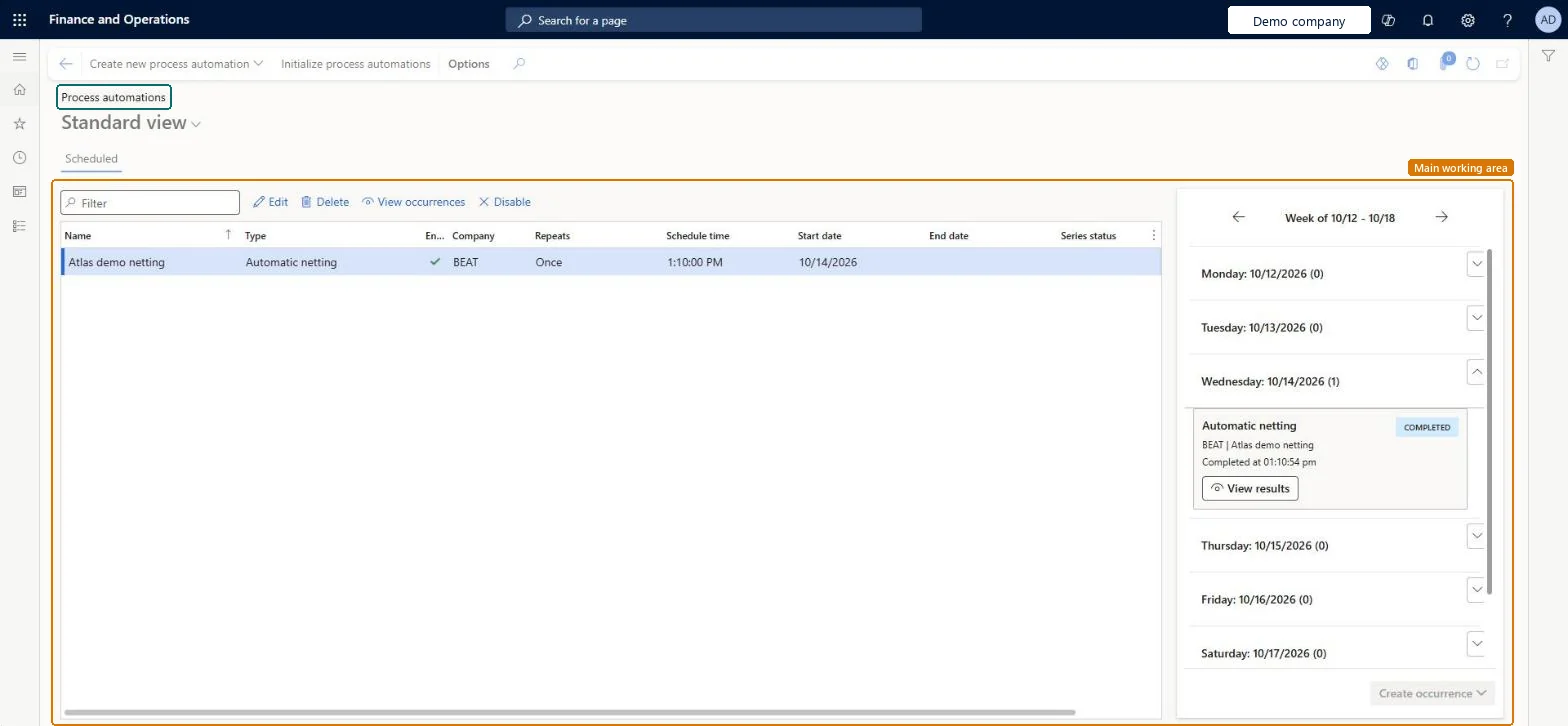
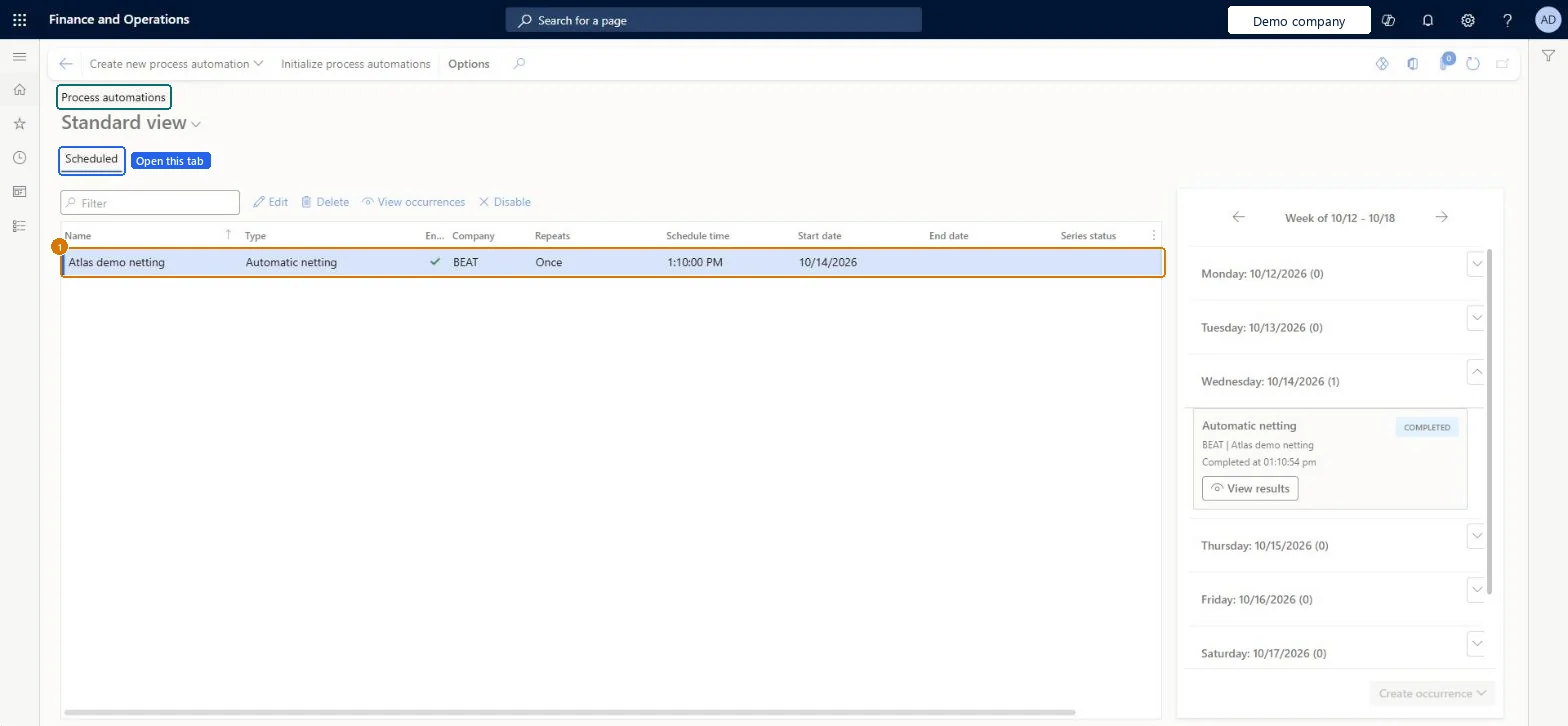
Check On Wednesday 10/14/2026 the calendar shows the Automatic netting run as Completed, with View results.
Show the full screen page title tab to open what to set or check
Screen 2
Confirm the customer invoice is posted
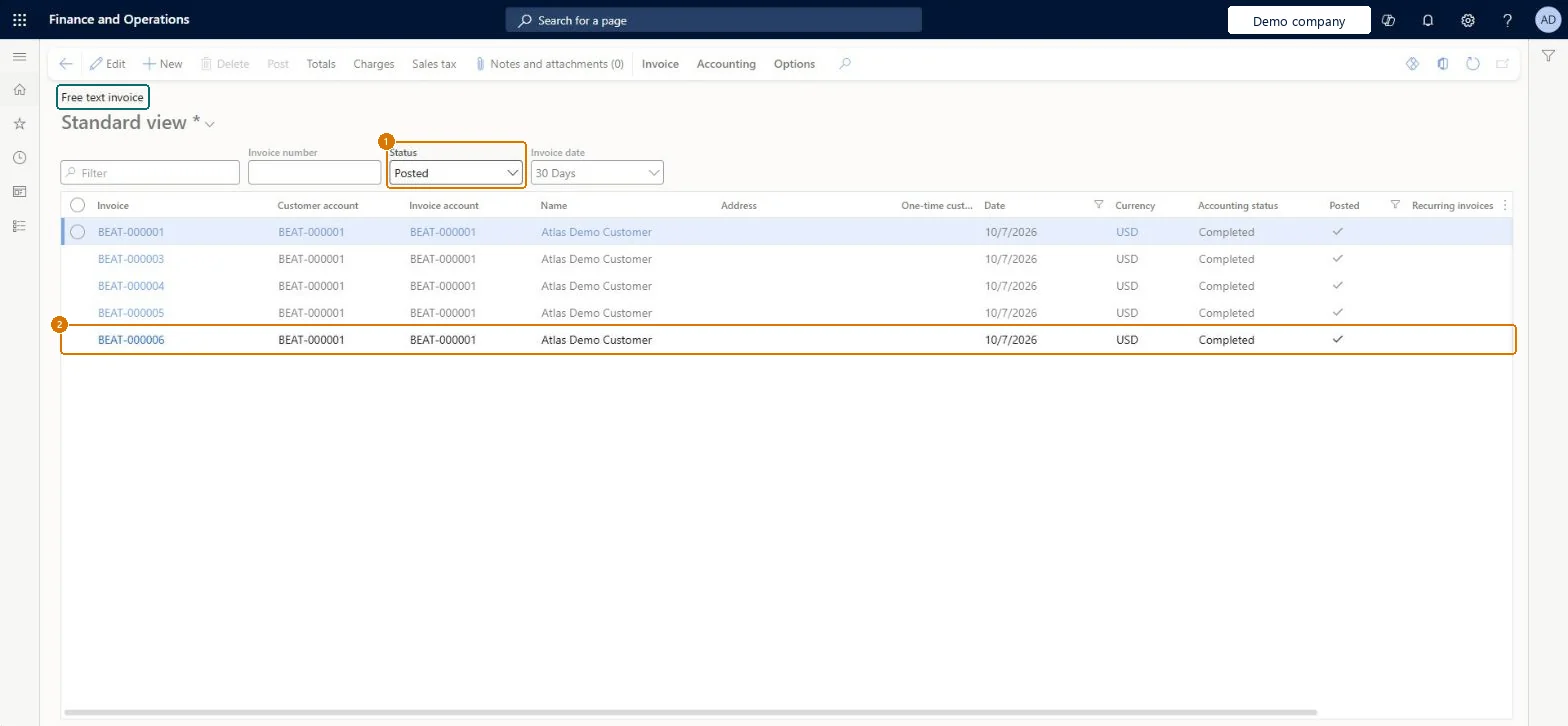
Go to Free text invoice list, Status set to Posted
Open the free text invoice list
Set the Status filter to Posted
Check Invoice BEAT-000006 for customer BEAT-000001 is listed with date 10/7/2026, USD, accounting status Completed and Posted ticked.
Show the full screen page title tab to open what to set or check
Screen 3
Review the netting journal
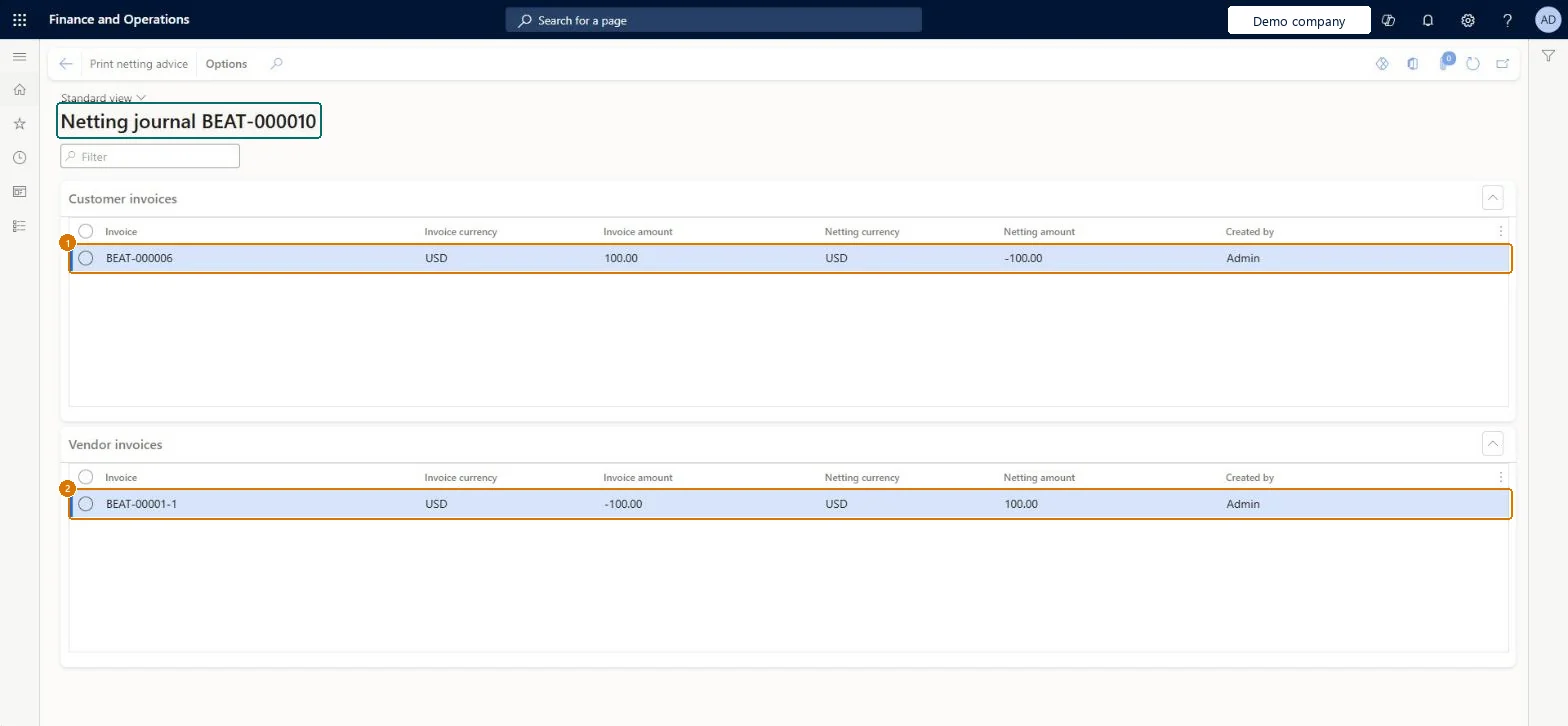
Go to Netting journal BEAT-000010
Open netting journal BEAT-000010
Review the Customer invoices and Vendor invoices FastTabs
Check Customer invoice BEAT-000006 (100.00 USD) is netted -100.00 and vendor invoice BEAT-00001-1 (-100.00 USD) is netted +100.00.
Show the full screen page title tab to open what to set or check
Screen 4
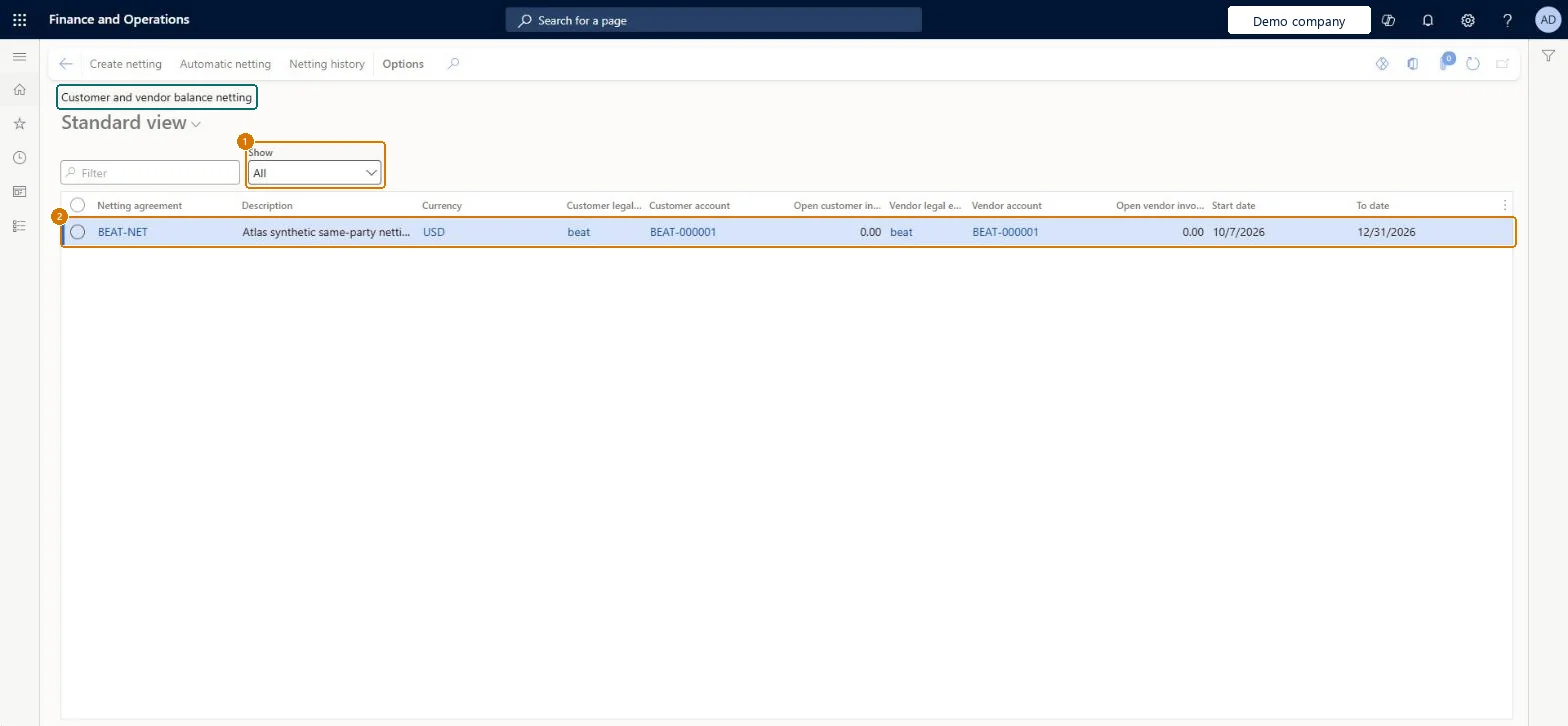
Check the netting agreement in the netting history
Go to Accounts receivable > Payments > Netting > Customer and vendor balance netting
Set Show to All
Check The BEAT-NET agreement is listed for customer and vendor BEAT-000001 in USD, from 10/7/2026 to 12/31/2026, with open invoices of 0.00.
Show the full screen page title tab to open what to set or check
Screen 5
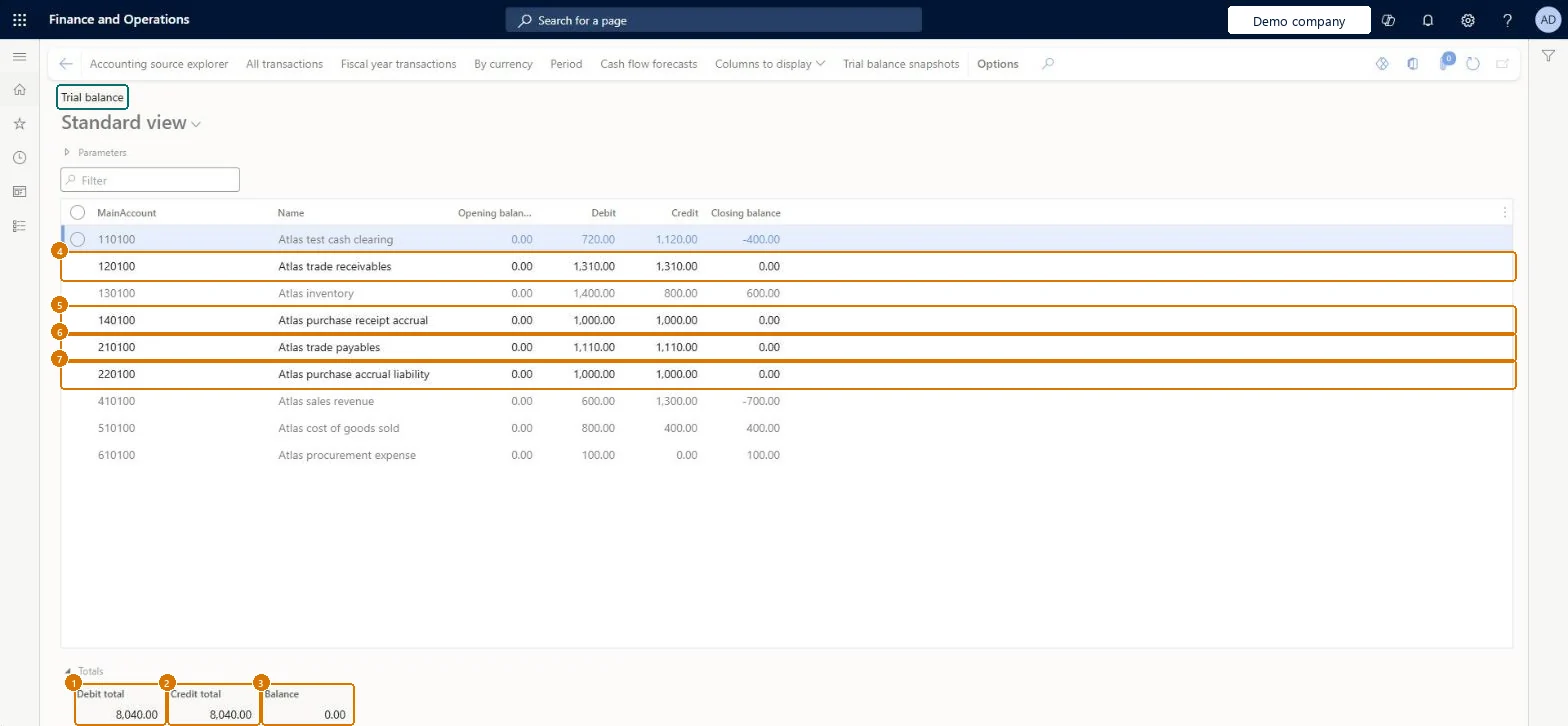
Check the trial balance
Go to Trial balance
Open the trial balance
Review the closing balances and the totals
Check Trade receivables 120100, trade payables 210100 and the accruals 140100 and 220100 all close at 0.00, and total debit 8,040.00 equals total credit 8,040.00 with a balance of 0.00.
Show the full screen page title tab to open what to set or check
How to use it
Go to Accounts receivable > Payments > Netting > Process automations.
Select Create new process automation.
Select Initialize process automations if you need to set them up.
Select an automation in the Scheduled list to review its Name, Type, Company, Repeats, Schedule time and Start date.
Use Edit, Delete, View occurrences or Disable for the selected automation.
A recurring netting automation that runs before each payment run, before payment proposals and payment journals are created.Netting is designed to run before a payment journal is created so that only the remaining open amounts go to payment. Transactions that are already in a payment journal aren't netted.
Scheduling netting after the payment proposal has run. Invoices already in the payment journal are skipped, so they're paid in full instead of netted. Use the All marked transaction details report to see what's already marked for settlement.Test: Scheduled netting runs before payments
Feature management and licence
Feature to turn on
Customer and vendor netting (Mandatory, on by default)
Hard to reverse: Stopping or changing the schedule is easy, but netting already posted by a run stays until you select Reverse netting on the Netting history page, which unsettles the invoices and reverses the netting journal. Microsoft Learn
If you change it later
Transactions that are already in a payment journal aren't netted, so netting should run before payment journals are created. Microsoft Learn
Technical architect
6Technical
Menu item
CustVendNettingAutomationScheduleSeriesChecked in Dynamics 365
Form
ProcessScheduleSeriesChecked in Dynamics 365
Table
ProcessScheduleSeriesShown as “Schedule series” in Record infoChecked in Dynamics 365
To set it up or change itAccounts receivable payments clerk PaymAccountsReceivablePaymentsClerkAccounts payable payments clerk PaymAccountsPayablePaymentsClerkGive people one of these roles. On this system, 2 roles can open this page.Checked in Dynamics 365
Actions on the page
Buttons: Create new process automation, Initialize process automationsChecked in Dynamics 365
Checked in a working Dynamics 365 system, version 10.0.49: the menu item, form, table and security, the page, the demo records and the values in the screenshots.