Accounts receivable clerk, Accounts receivable manager, Auditor and 15 more roles
Business process
Use netting agreements to settle customer balances with vendor balances in Dynamics 365 Finance
Menu item
CustVendNettingRule
Main table
CustVendNettingRule
Show what matters for
PAGE GUIDEWhat the page does and how to use it8 sections. Choose a role to highlight what matters to you.
Everyone
1What it is and why
What it is
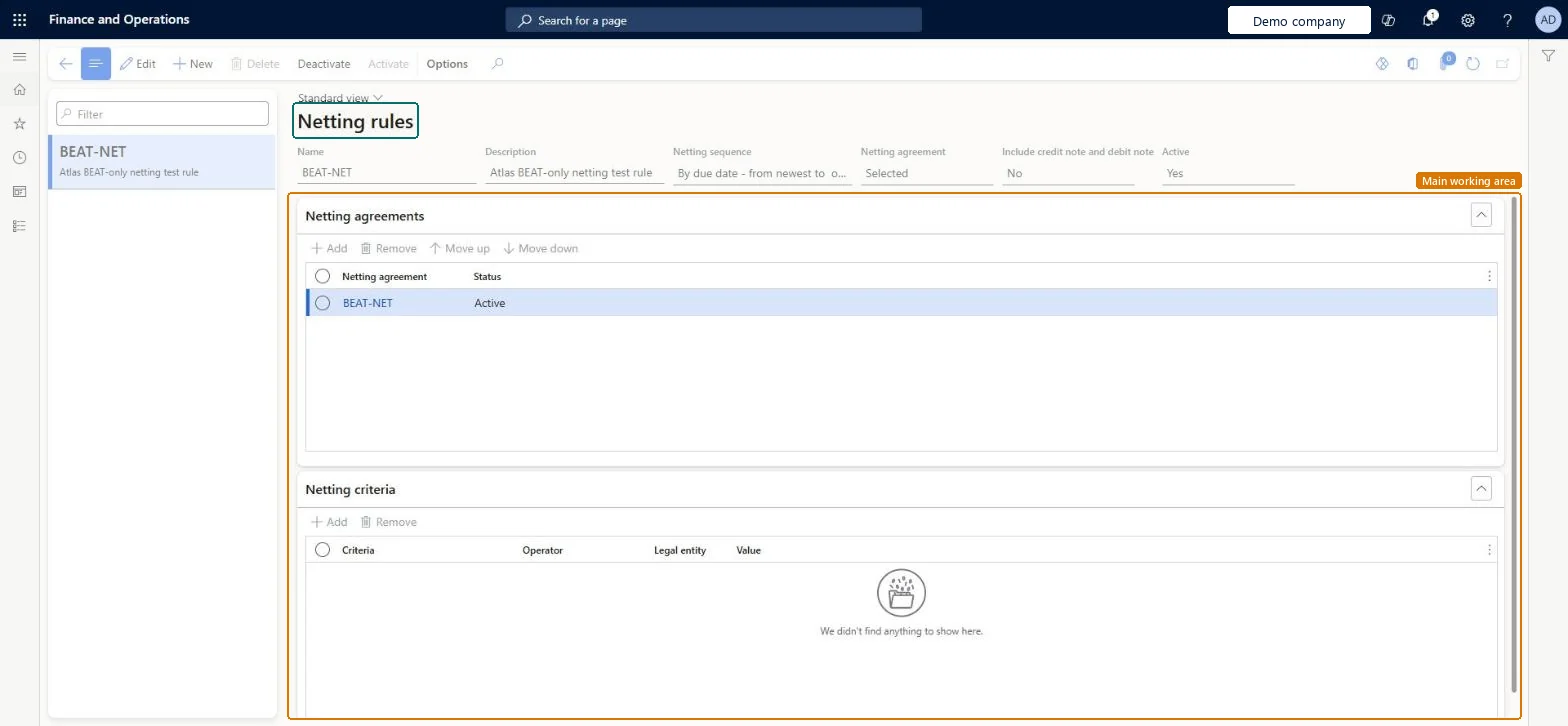
Netting rules define how customer and vendor balances are netted automatically.
What you do here
Use this page to set the netting sequence (by due date or invoice balance), the netting agreement scope, whether credit and debit notes are included, and optional netting criteria, then activate the rule.
Example
Automatically netting only specific vendor accounts, customer accounts or invoice currencies by defining criteria on the Netting criteria FastTab.
The page in Dynamics 365. page title tab to open what to set or check
About the examples: Examples and screenshots in this guide use BEAT, a demo company in a Dynamics 365 test environment. Use your own company's codes and values instead of copying them.
Steps from Microsoft
Go to Netting rules.
Create a record, and enter a name and description.
Select a netting sequence, by due date or by invoice balance.
Select the netting agreement scope: All, or Selected with a list of agreements.
In the Include credit note and debit note field, select Yes or No.
On the Netting criteria FastTab, limit the rule to specific vendor accounts, customer accounts or invoice currency if needed.
Reversible: A rule only decides what the next automatic netting run nets (sequence, agreement scope, credit and debit notes, criteria). Netting that a rule already posted is undone separately with Reverse netting on the Netting history page. Microsoft Learn
If you change it later
Transactions that are already in a payment journal aren't netted, so netting should run before payment journals are created. Microsoft Learn
Technical architect
6Technical
Menu item
CustVendNettingRuleChecked in Dynamics 365
Form
CustVendNettingRuleFormChecked in Dynamics 365
Table
CustVendNettingRuleShown as “Netting rules” in Record infoKey field: RecIdChecked in Dynamics 365
Who can open it
PrivilegesMaintain netting rule CustVendNettingRuleMaintainView netting rule CustVendNettingRuleViewDutiesInquire into invoice and cash policies CustInvoiceInvoiceAndCashPoliciesInquirEnable invoice and cash process CustInvoiceInvoiceAndCashProcessEnableInquire into customer payments status PaymCustomerPaymentsStatusInquireInquire into vendor payment status PaymVendorPaymentStatusInquireInquire into invoice and payment policies VendInvoiceInvoicePaymentPoliciesInquirEnable invoice and payment process VendInvoiceInvoicePaymentProcessEnable18 security rolesAuditor AuditPolicyManagerCollections agent CollectionLetterCollectionsAgentCollections manager CollectionLetterCollectionsManagerChief financial officer CompanyChiefFinancialOfficerAccounts receivable clerk CustInvoiceAccountsReceivableClerkAccounts receivable manager CustInvoiceAccountsReceivableManagerAccountant LedgerAccountantAccounting manager LedgerAccountingManagerAccounting supervisor LedgerAccountingSupervisorFinancial controller LedgerFinancialControllerAccounts payable centralized payments clerk PaymAccountsPayableCentralPaymClerkAccounts payable payments clerk PaymAccountsPayablePaymentsClerkAccounts receivable centralized payments clerk PaymAccountsReceivableCentralPaymClerkAccounts receivable payments clerk PaymAccountsReceivablePaymentsClerkRental coordinator agent RentalCoordinatorAgentRental manager RentalManagerAccounts payable clerk VendInvoiceAccountsPayableClerkAccounts payable manager VendInvoiceAccountsPayableManagerChecked in Dynamics 365
Roles to set it up and use it
To set it up or change itRental manager RentalManagerAccounts receivable manager CustInvoiceAccountsReceivableManagerRental coordinator agent RentalCoordinatorAgentCollections manager CollectionLetterCollectionsManagerAccounting supervisor LedgerAccountingSupervisorTo use itAccounts receivable clerk CustInvoiceAccountsReceivableClerkAccounts receivable payments clerk PaymAccountsReceivablePaymentsClerkAccounts receivable centralized payments clerk PaymAccountsReceivableCentralPaymClerkFinancial controller LedgerFinancialControllerAccountant LedgerAccountantGive people one of these roles. On this system, 18 roles can open this page.Checked in Dynamics 365
Actions on the page
Options: Personalize, Page options, ShareChecked in Dynamics 365