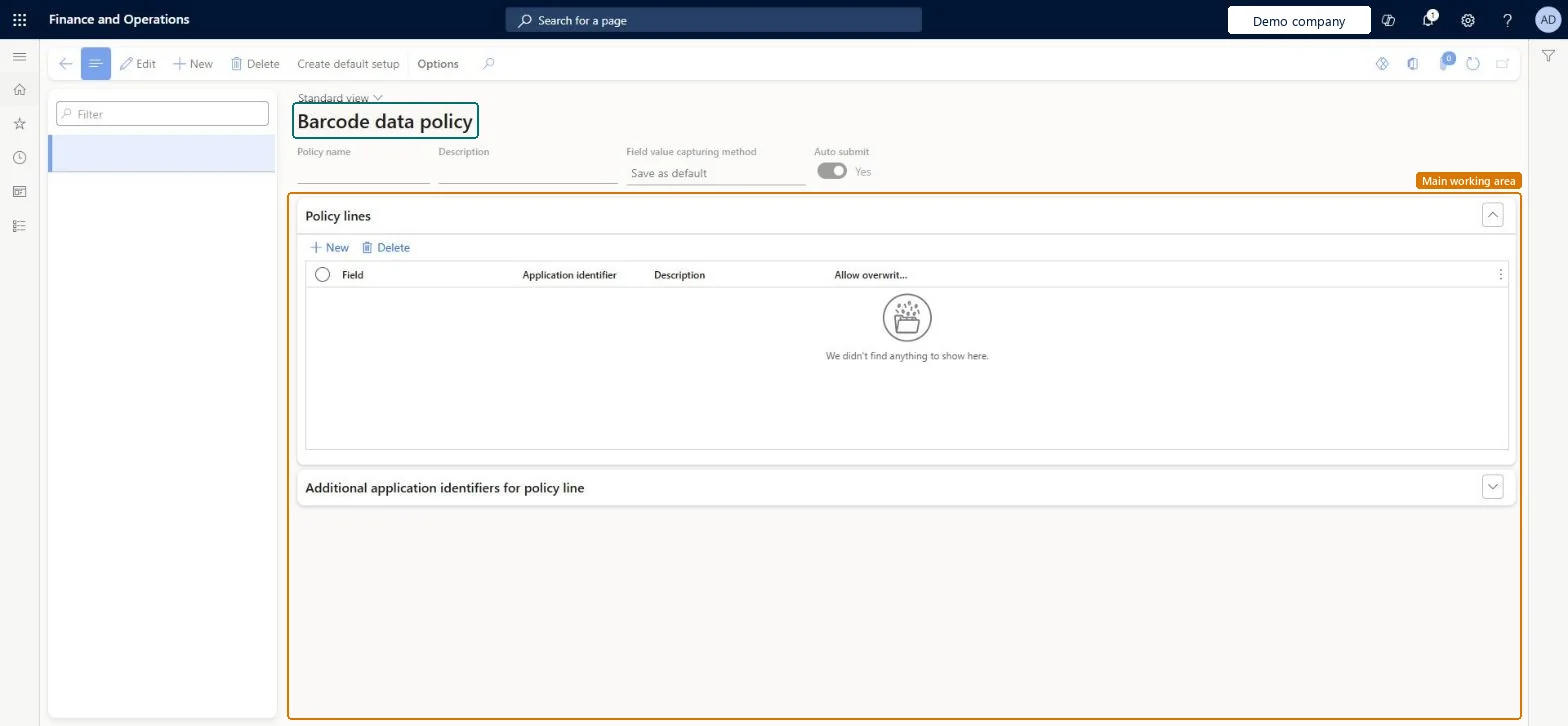
Setup step on the Barcode data policy page · Warehouse management
Set up Barcode data policy
Use this page to map application identifiers to mobile app fields so that one scan can fill several fields, and then assign the policy to mobile device menu items.
SETUP GUIDEHow to set it up8 sections. Choose a role to highlight what matters to you.
Everyone
1What it is and why
What it is
A setup page where you define bar code data policies that tell the system how to interpret bar codes that carry several values.
What you do here
Use this page to map application identifiers to mobile app fields so that one scan can fill several fields, and then assign the policy to mobile device menu items.
Example
For example, a single scan can capture both the batch and the expiration date.
The page in Dynamics 365. page title tab to open what to set or check
About the examples: Examples and screenshots in this guide use BEAT, a demo company in a Dynamics 365 test environment. Use your own company's codes and values instead of copying them.
Setup steps on this page
Set up Barcode data policy
Use this page to map application identifiers to mobile app fields so that one scan can fill several fields, and then assign the policy to mobile device menu items.
Steps from Microsoft
Go to Warehouse management > Setup > GS1 > Barcode data policy.
To load the standard policies, select Create default setup on the Action Pane.
To create a policy, select New. To change one, select it in the list pane.
Enter a Policy name and a Description, and choose the Field value capturing method.
On the Policy lines FastTab, map each Field to an Application identifier.
Field value capturing method: Save as default, with field names that match the mobile step input control namesLearn's troubleshooting tip for multi-value GS1 bar codes is to set Field value capturing method to Save as default and align field names with the step input control names; Process immediately can cause unexpected flow processing.
Using the wrong field key, for example ItemId where the item confirmation step expects ProductConfirmation. The scanned bar code then can't be processed in that step.
Solution architect
5Design impact
Can it be undone
One-way: Warning: Create default setup deletes all policies currently defined and replaces them with the standard set; custom policies can't be restored. Single policies can otherwise be edited at any time.
If you change it later
Create default setup deletes all policies that are currently defined and replaces them with the standard set. Microsoft Learn
Technical architect
6Technical
Menu item
WHSGS1PolicyTableChecked in Dynamics 365
Form
WHSGS1PolicyTableChecked in Dynamics 365
Table
WHSGS1PolicyTableShown as “BARCODE DATA POLICY” in Record infoChecked in Dynamics 365
Data entities
WHSGS1PolicyTableEntityBarcode data policy Checked in Dynamics 365
To set it up or change itWarehouse manager WMSWarehouseManagerTo use itWarehouse planner WHSWarehousePlannerWarehouse worker WMSWarehouseWorkerGive people one of these roles. On this system, 3 roles can open this page.Checked in Dynamics 365
Actions on the page
(Action Pane without tabs): Create default setupChecked in Dynamics 365
Developer
7Developer
Open it by URL
https://<your-environment>/?mi=WHSGS1PolicyTable
Integrate with
WHSGS1PolicyTableEntity data entity Checked in Dynamics 365