About the examples: Examples and screenshots in this guide use BEAT, a demo company in a Dynamics 365 test environment. Use your own company's codes and values instead of copying them.
Setup steps on this page
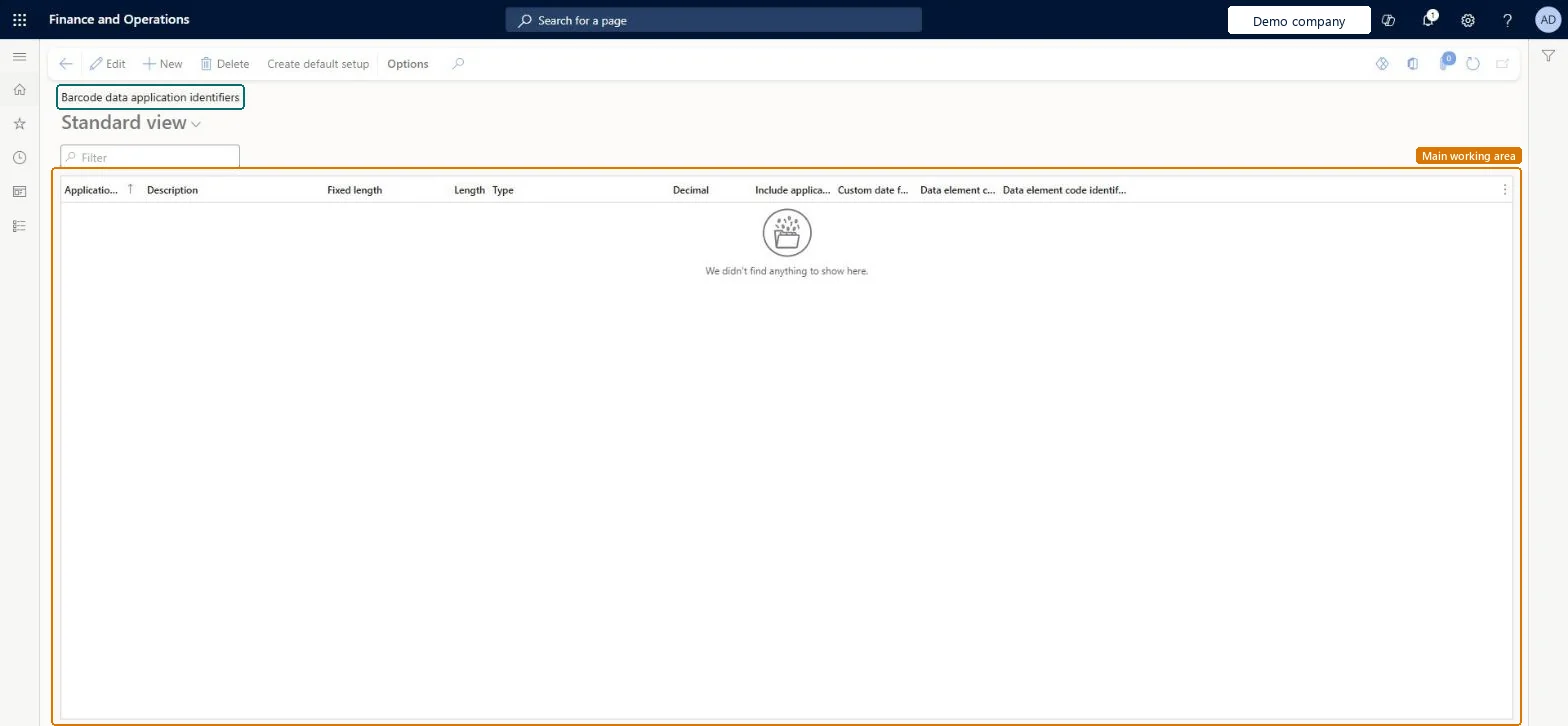
Set up Barcode data application identifiers
Use this page to load the standard international application identifiers or create your own, so that scanned bar codes are read correctly.
Steps from Microsoft
Go to Warehouse management > Setup > GS1 > Barcode data application identifiers.
To load the standard identifiers, select Create default setup on the Action Pane.
To create an identifier, select New. To change one, select it and then select Edit.
Enter the Application identifier code and a Description.
Set Fixed length, Length, Type and Decimal to describe how values scanned with this identifier are read.
Run Create default setup once at the start to load the standard international identifiers, then extend or edit the list; select Fixed length only for identifiers that have a predefined length in the GS1 General SpecificationsLearn suggests loading the common international identifiers to get started and customizing later, and warns to use Fixed length only for identifiers with a predefined length per GS1.
Running Create default setup after custom identifiers exist. It deletes all currently defined identifiers and replaces them with the standard list.
Solution architect
5Design impact
Can it be undone
One-way: Warning: Create default setup deletes every application identifier currently defined and replaces it with the standard list. There is no undo; custom identifiers must be re-entered by hand. Individual identifiers can otherwise be edited at any time.
If you change it later
Create default setup deletes all application identifiers that are currently defined and replaces them with the standard list. Microsoft Learn
Technical architect
6Technical
Menu item
WHSGS1ParsingSetupChecked in Dynamics 365
Form
WHSGS1ParsingSetupChecked in Dynamics 365
Table
WHSGS1ParsingSetupShown as “BARCODE DATA APPLICATION IDENTIFIERS” in Record infoKey field: IdentifierChecked in Dynamics 365
Data entities
WHSGS1ParsingSetupEntityBarcode data application identifiers Checked in Dynamics 365
To set it up or change itWarehouse manager WMSWarehouseManagerTo use itWarehouse planner WHSWarehousePlannerWarehouse worker WMSWarehouseWorkerGive people one of these roles. On this system, 3 roles can open this page.Checked in Dynamics 365
Actions on the page
(Action Pane without tabs): Create default setupChecked in Dynamics 365
Developer
7Developer
Open it by URL
https://<your-environment>/?mi=WHSGS1ParsingSetup
Integrate with
WHSGS1ParsingSetupEntity data entity Checked in Dynamics 365
Checked in a working Dynamics 365 system, version 10.0.49: the menu item, form, table and security, the page.
To cite this step: WM-SETUP-300, Set up Barcode data application identifiers. Beyond ERP Atlas Hub, 2026-11-11. https://www.beyonderp.cloud/atlas/step/WM-SETUP-300