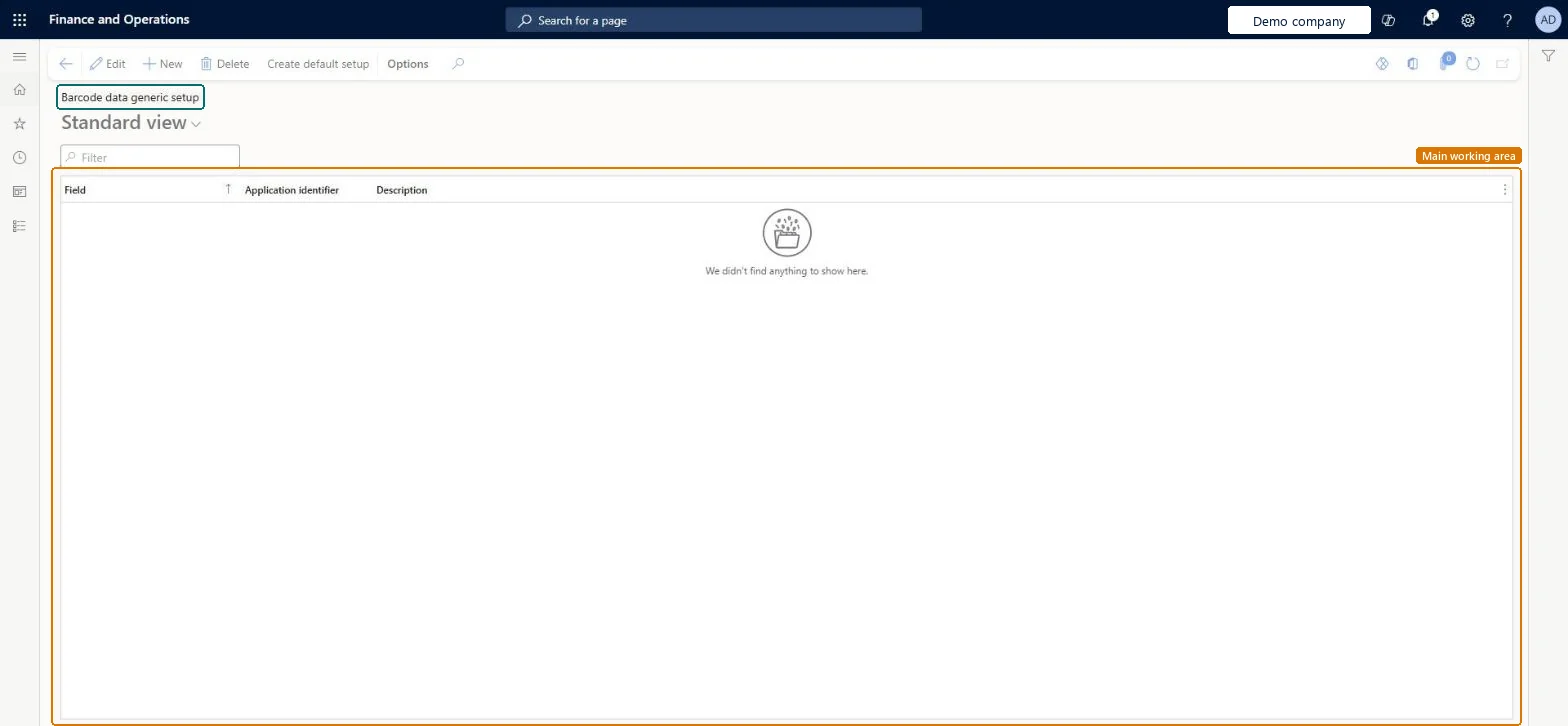
A list page where you map each mobile app input field to the application identifier that controls how values from scanned bar codes are stored in that field.
PAGE GUIDEWhat the page does and how to use it8 sections. Choose a role to highlight what matters to you.
Everyone
1What it is and why
What it is
A list page where you map each mobile app input field to the application identifier that controls how values from scanned bar codes are stored in that field.
What you do here
Use this page to set the standard bar code mappings that apply to all scans on all mobile device menu items, unless a bar code data policy overrides them.
The page in Dynamics 365. page title tab to open what to set or check
About the examples: Examples and screenshots in this guide use BEAT, a demo company in a Dynamics 365 test environment. Use your own company's codes and values instead of copying them.
Setup steps on this page
Set up Barcode data generic setup
Use this page to set the standard bar code mappings that apply to all scans on all mobile device menu items, unless a bar code data policy overrides them.
Steps from Microsoft
Go to Warehouse management > Setup > GS1 > Barcode data generic setup.
To load the standard mappings, select Create default setup on the Action Pane.
To add a mapping, select New. To change one, select it and then select Edit.
Select the Field, which is the mobile app input field that the scanned value is assigned to.
Select the Application identifier that controls how the value is interpreted.
The mobile app input field that the incoming value is assigned to. It is the key name of the field in the underlying code, not the display name.Microsoft Learn
MDIdentifier
Application identifier
The identifier that establishes how the bar code is interpreted and stored as a value for the named field.Microsoft Learn
Identifier
Description
Shows the description of the selected application identifier.Microsoft Learn
Test checklist
Map ItemId to application identifier 01.
On any mobile menu item without a bar code data policy, scan a GS1 bar code into the Item field.
Check only the item field is filled and the worker is still prompted for batch and quantity.
If a scan fails, check Unknown application identifier policy in Warehouse management parameters.
Load the standard mappings with Create default setup, then adjust single fields; use bar code data policies on menu items when one scan must fill several fieldsCreate default setup assigns a suitable application identifier to each field that menu items typically use. The generic setup supports scanning only one value at a time; multi-field scanning needs a bar code data policy.
Entering the display label instead of the field key name in Field. Learn says the value is the key name in the underlying code, not what workers see.
Solution architect
5Design impact
Can it be undone
One-way: Warning: Create default setup replaces the whole generic bar code data setup and can't be undone. Editing single mappings is reversible and applies to the next scan. Microsoft Learn
If you change it later
If a generic bar code data setup already exists, Create default setup deletes it and loads the standard setup. Microsoft Learn
Technical architect
6Technical
Menu item
WHSGS1GenericSetupChecked in Dynamics 365
Form
WHSGS1GenericSetupChecked in Dynamics 365
Table
WHSGS1GenericSetupShown as “BARCODE DATA GENERIC SETUP” in Record infoKey field: MDIdentifier, IdentifierChecked in Dynamics 365
Data entities
WHSGS1GenericSetupEntityBarcode data generic setup Checked in Dynamics 365
To set it up or change itWarehouse manager WMSWarehouseManagerTo use itWarehouse planner WHSWarehousePlannerWarehouse worker WMSWarehouseWorkerGive people one of these roles. On this system, 3 roles can open this page.Checked in Dynamics 365
Actions on the page
(Action Pane without tabs): Create default setupChecked in Dynamics 365
Developer
7Developer
Open it by URL
https://<your-environment>/?mi=WHSGS1GenericSetup
Integrate with
WHSGS1GenericSetupEntity data entity Checked in Dynamics 365