BeyondERP.Newsletter
Menu

Setup step on the License plate label build configuration page · Warehouse management

Set up License plate label build configuration

Use this page to choose the fields that are placed on the skip list of a license plate label build configuration.

Used by
Warehouse planner, Warehouse manager
Business process
Manage warehouse operations
Menu item
WHSLicensePlateLabelBuildConfig
Main table
WhsLicensePlateLabelBuil
Data entity
WHSLicensePlateLabelBuildConfigurationEntity
Setup steps
1 on this page
Show what matters for
SETUP GUIDEHow to set it up6 sections. Choose a role to highlight what matters to you.
Everyone

1What it is and why

What it isA setup page where you name a configuration and choose, from a list of available fields, the fields that go on its skip list.
What you do hereUse this page to choose the fields that are placed on the skip list of a license plate label build configuration.
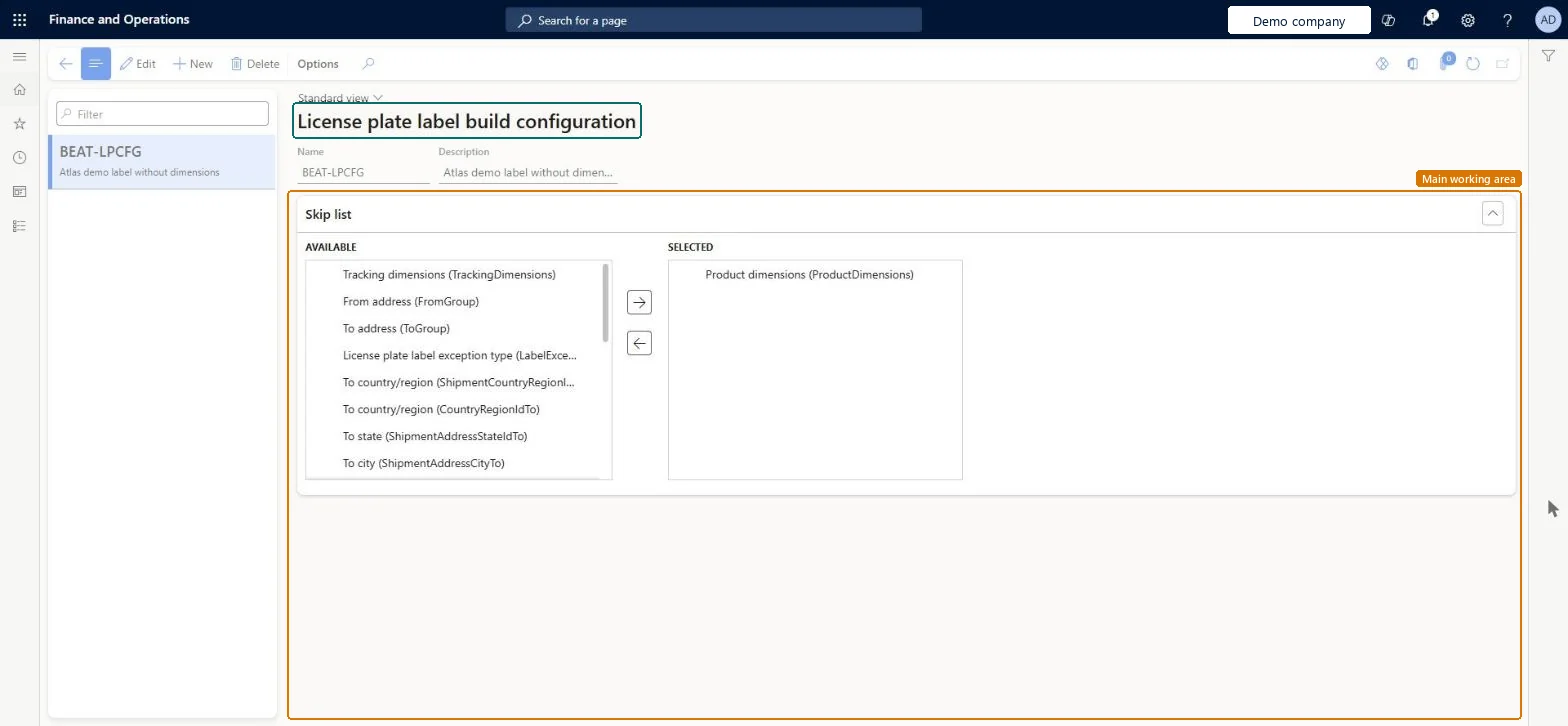
License plate label build configuration page in Dynamics 365
The page in Dynamics 365. page title tab to open what to set or check
Functional consultant · Solution architect

2Where it fits

Business processManage warehouse operations
Menu pathWarehouse management › Setup › Document routing › License plate label build configuration
In this process Set up Inventory statuses · Set up Load mix groups
End user · Functional consultant

3How to do it

About the examples: Examples and screenshots in this guide use BEAT, a demo company in a Dynamics 365 test environment. Use your own company's codes and values instead of copying them.

Setup steps on this page

Set up License plate label build configuration

Use this page to choose the fields that are placed on the skip list of a license plate label build configuration.

How to use it

  1. Go to Warehouse management > Setup > Document routing > License plate label build configuration.
  2. Select New to create a configuration.
  3. Enter a Name and a Description.
  4. In the Skip list section, select fields in the Available list and use the right arrow to move them to the Selected list.
  5. To take a field off the skip list, select it in the Selected list and use the left arrow.

Source: Checked in Dynamics 365

Technical architect

4Technical

Menu itemWHSLicensePlateLabelBuildConfig Checked in Dynamics 365
FormWHSLicensePlateLabelBuildConfig Checked in Dynamics 365
TableWhsLicensePlateLabelBuilShown as “LICENSE PLATE LABEL BUILD CONFIGURATION” in Record infoKey field: LicensePlateLabelBuildConfigIdChecked in Dynamics 365
Data entitiesWHSLicensePlateLabelBuildConfigurationEntityLicense plate label build configuration Checked in Dynamics 365
Who can open itPrivilegesMaintain license plate label build configuration WHSLicensePlateLabelBuildConfigMaintainView license plate label build configuration WHSLicensePlateLabelBuildConfigViewDutiesInquire into warehouse planning master data WHSWarehousePlanningMasterInquireRecord warehouse planning masters WHSWarehousePlanningMasterMaintain
2 security rolesWarehouse planner WHSWarehousePlannerWarehouse manager WMSWarehouseManager
Checked in Dynamics 365
Roles to set it up and use itTo set it up or change itWarehouse manager WMSWarehouseManagerWarehouse planner WHSWarehousePlannerGive people one of these roles. On this system, 2 roles can open this page.Checked in Dynamics 365
Developer

5Developer

Open it by URLhttps://<your-environment>/?mi=WHSLicensePlateLabelBuildConfig
Integrate withWHSLicensePlateLabelBuildConfigurationEntity data entity Checked in Dynamics 365
Everyone

6Sources

To cite this step: WM-LABEL-030, Set up License plate label build configuration. Beyond ERP Atlas Hub, 2026-11-11. https://www.beyonderp.cloud/atlas/step/WM-LABEL-030