About the examples: Examples and screenshots in this guide use BEAT, a demo company in a Dynamics 365 test environment. Use your own company's codes and values instead of copying them.
Setup steps on this page
Set up License plate label build configuration
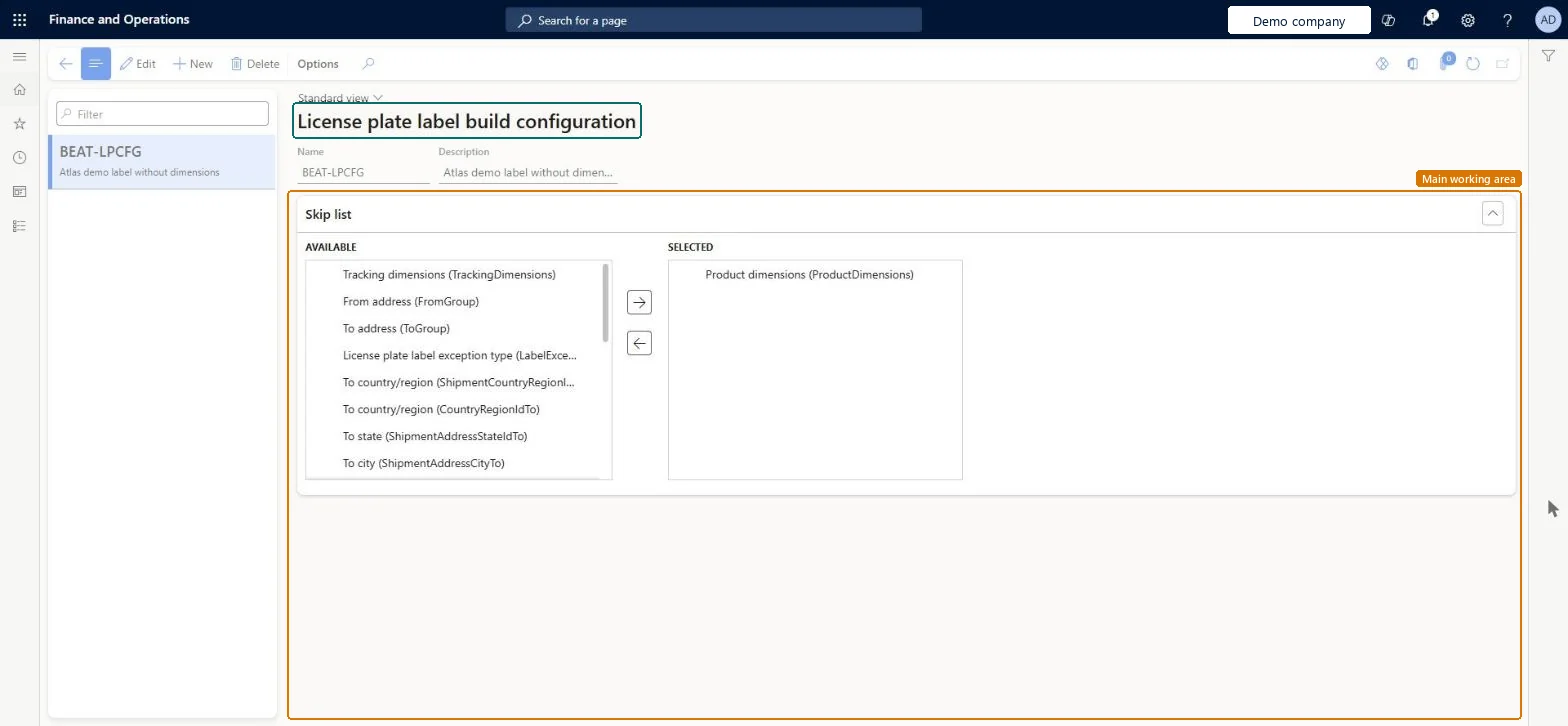
Use this page to choose the fields that are placed on the skip list of a license plate label build configuration.
How to use it
Go to Warehouse management > Setup > Document routing > License plate label build configuration.
Select New to create a configuration.
Enter a Name and a Description.
In the Skip list section, select fields in the Available list and use the right arrow to move them to the Selected list.
To take a field off the skip list, select it in the Selected list and use the left arrow.
Source: Checked in Dynamics 365
Technical architect
4Technical
Menu item
WHSLicensePlateLabelBuildConfigChecked in Dynamics 365
Form
WHSLicensePlateLabelBuildConfigChecked in Dynamics 365
Table
WhsLicensePlateLabelBuilShown as “LICENSE PLATE LABEL BUILD CONFIGURATION” in Record infoKey field: LicensePlateLabelBuildConfigIdChecked in Dynamics 365
Data entities
WHSLicensePlateLabelBuildConfigurationEntityLicense plate label build configuration Checked in Dynamics 365
To set it up or change itWarehouse manager WMSWarehouseManagerWarehouse planner WHSWarehousePlannerGive people one of these roles. On this system, 2 roles can open this page.Checked in Dynamics 365