BeyondERP.Newsletter
Menu

Setup step on the Accessorial masters page · Transportation management

Set up Accessorial masters

Use this page to create the accessorial masters that you select when you set up hub accessorial charges and carrier accessorial charges.

Used by
Logistics manager, Transportation coordinator
Business process
Manage freight and transportation
Menu item
TMSAccessorialMaster
Main table
TMSAccessorialMaster
Data entity
TMSAccessorialChargeMasterEntity
Setup steps
1 on this page
Show what matters for
SETUP GUIDEHow to set it up8 sections. Choose a role to highlight what matters to you.
Everyone

1What it is and why

What it isA list page where you define accessorial masters, each with a name and an accessorial type, that carrier and hub accessorial charges are based on.
What you do hereUse this page to create the accessorial masters that you select when you set up hub accessorial charges and carrier accessorial charges.
ExampleFor example, you can create an accessorial master with the accessorial type Hub and use it for a hub accessorial charge.
Accessorial masters page in Dynamics 365
The page in Dynamics 365. page title tab to open what to set or check
Functional consultant · Solution architect

2Where it fits

Business processManage freight and transportation
Menu pathTransportation management › Setup › Rating › Accessorial masters
Used next byHub accessorial charges Microsoft Learn Carrier accessorial charges Microsoft Learn
In this process Set up Audit master · Set up Hub masters
End user · Functional consultant

3How to do it

About the examples: Examples and screenshots in this guide use BEAT, a demo company in a Dynamics 365 test environment. Use your own company's codes and values instead of copying them.

Setup steps on this page

Set up Accessorial masters

Use this page to create the accessorial masters that you select when you set up hub accessorial charges and carrier accessorial charges.

Steps from Microsoft

  1. Go to Transportation management > Setup > Rating > Accessorial masters.
  2. Select New.
  3. In the Accessorial master field, enter a value.
  4. In the Name field, enter a value.
  5. In the Accessorial type field, select the type, such as Hub.
  6. Select Save.

Source: Microsoft Learn

Test checklist

  1. Create a master for a fuel surcharge and one with Accessorial type Hub.
  2. Use them on a carrier accessorial charge and a hub accessorial charge.
  3. Rate a load and check both charges show with the right master.

Source: Microsoft Learn

Functional consultant

4Setup decisions

Setup stepRecommended value and whyDecision, common mistake and test
Set up Accessorial mastersOne accessorial master per kind of extra charge (for example fuel surcharge or a hub fee), with Accessorial type Hub for hub chargesCarrier and hub accessorial charges are both built on an accessorial master, and hub charges need a master of type Hub.Creating a hub charge on a master that isn't of type Hub, so it can't be used for the hub.
Solution architect

5Design impact

Shared or per companyPer company: each legal entity has its own records. Microsoft data model
Can it be undoneHard to reverse: Carrier and hub accessorial charges reference the master, so changes mean updating those charges.
Technical architect

6Technical

Menu itemTMSAccessorialMaster Checked in Dynamics 365
FormTMSAccessorialMaster Checked in Dynamics 365
TableTMSAccessorialMasterShown as “ACCESSORIAL MASTER” in Record infoKey field: AccessorialMasterCodeChecked in Dynamics 365
Data entitiesTMSAccessorialChargeMasterEntityAccessorial charge masters Microsoft data model
Who can open itPrivilegesMaintain accessorial master TMSAccessorialMasterMaintainView accessorial master TMSAccessorialMasterViewDutiesInquire into carrier master and network planning information TMSCarrierMasterInquireMaintain carrier and network planning master TMSCarrierMasterMaintain
2 security rolesLogistics manager TMSLogisticsManagerTransportation coordinator TMSTransportationCoordinator
Checked in Dynamics 365
Roles to set it up and use itTo set it up or change itLogistics manager TMSLogisticsManagerTo use itTransportation coordinator TMSTransportationCoordinatorGive people one of these roles. On this system, 2 roles can open this page.Checked in Dynamics 365
Developer

7Developer

Open it by URLhttps://<your-environment>/?mi=TMSAccessorialMaster
Integrate withTMSAccessorialChargeMasterEntity data entity Microsoft data model
Data migrationTMSAccessorialChargeMasterEntity (Accessorial charge masters): loaded for each company, in Microsoft's default template 405 - Transportation management.Load order: Microsoft's default template 405 - Transportation management loads Accessorial charge masters at execution unit 1, level 30, sequence 10. Lower levels load first, and entities at the same level load in sequence order.Load first: the default templates at lower levels (System setup to General ledger)Microsoft Learn
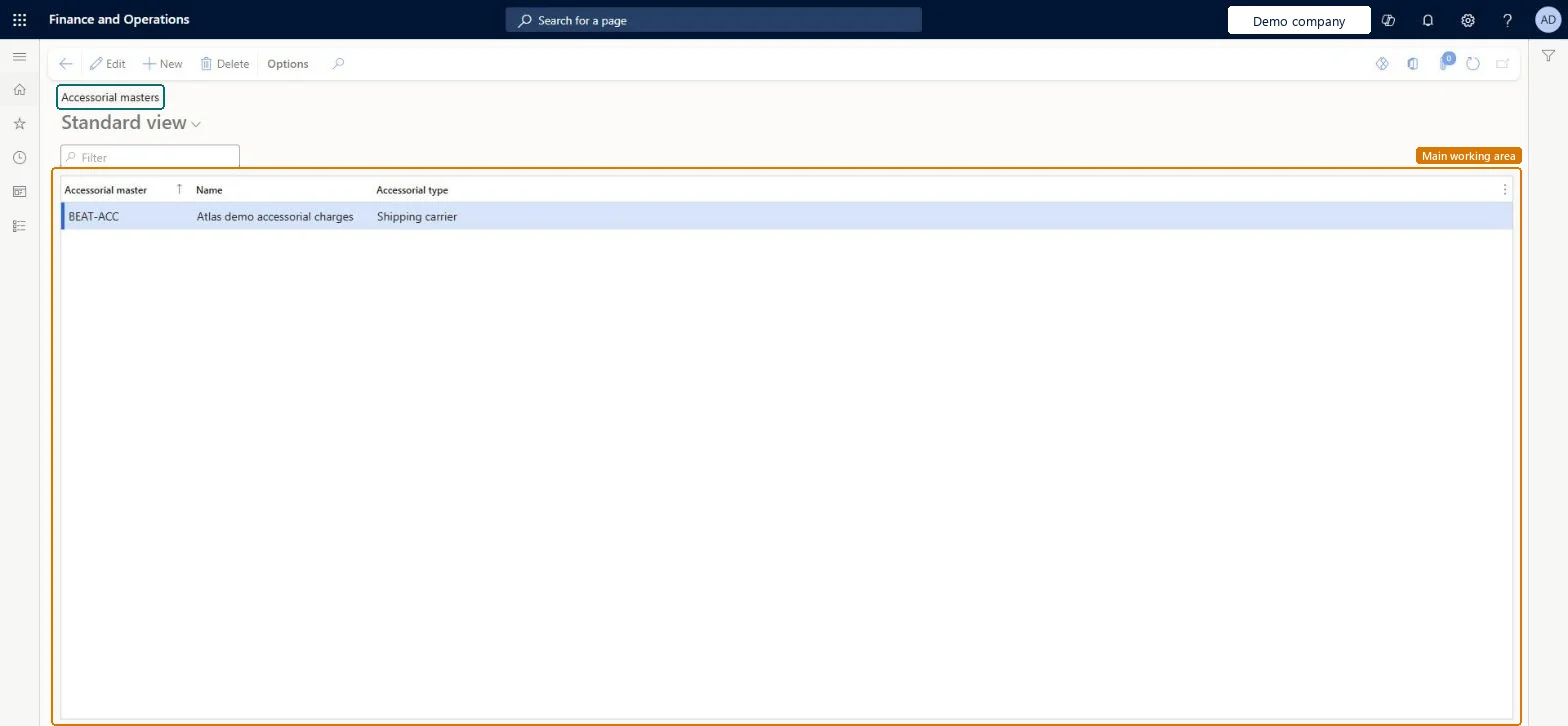
Table definitionTMSAccessorialMaster columns and relations Microsoft data model
Everyone

8Sources

To cite this step: TM-RATE-040, Set up Accessorial masters. Beyond ERP Atlas Hub, 2026-11-11. https://www.beyonderp.cloud/atlas/step/TM-RATE-040