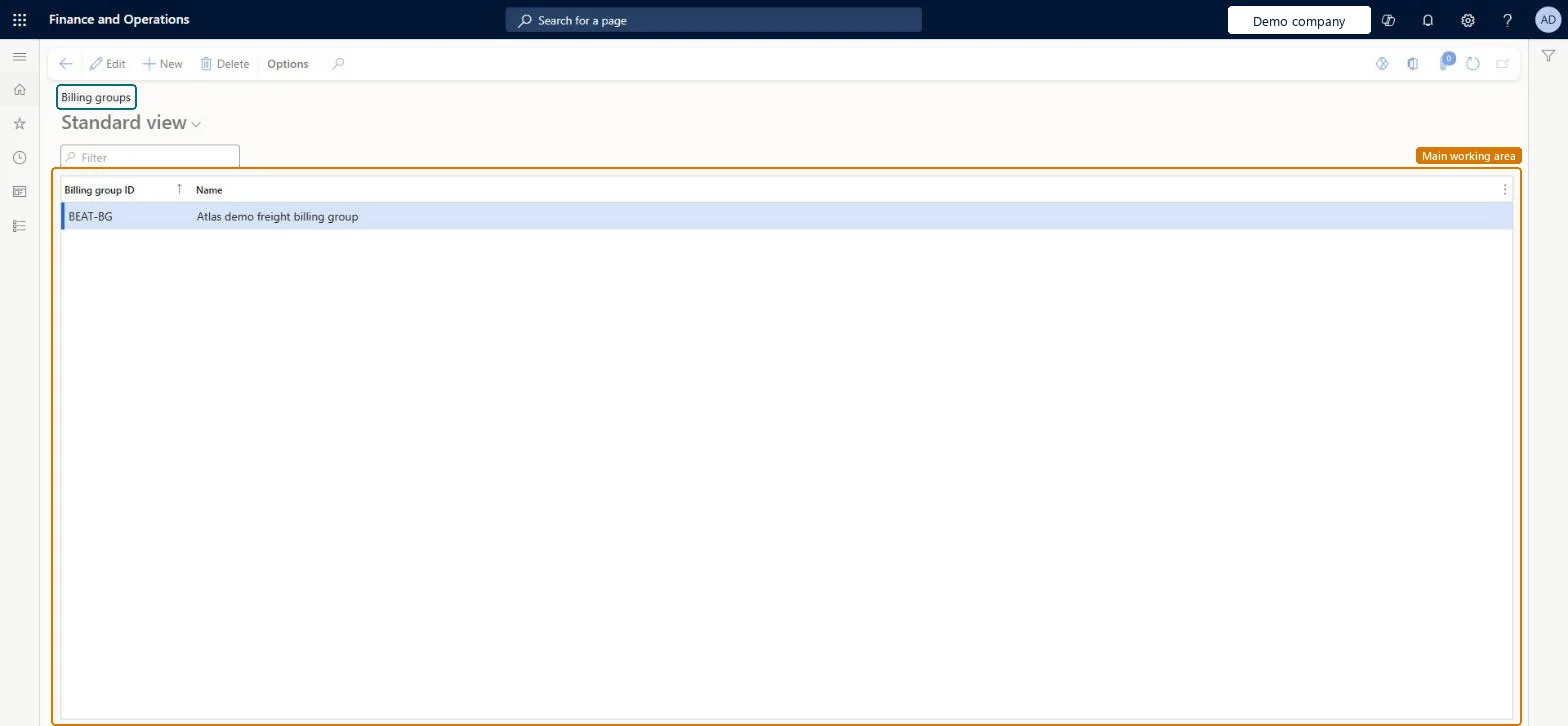
About the examples: Examples and screenshots in this guide use BEAT, a demo company in a Dynamics 365 test environment. Use your own company's codes and values instead of copying them.
Setup steps on this page
Set up Billing group
Use this page to set up categories that reflect the categories of charges that are present on the invoices that you receive from carriers.
Steps from Microsoft
Go to Transportation management > Setup > Freight reconciliation > Billing group.
One billing group per category of charge that appears on your carriers' invoicesLearn defines billing groups as user-defined categories that should reflect the charge categories on carrier invoices.
Creating groups that don't match how carriers itemise their invoices, which makes matching invoice lines to freight bill lines harder.
Reversible: Billing group ID and Name are free-text values that can be added or renamed; they don't post anything themselves.
Technical architect
6Technical
Menu item
TMSBillingGroupChecked in Dynamics 365
Form
TMSBillingGroupChecked in Dynamics 365
Table
TMSBillingGroupShown as “BILLING GROUP” in Record infoKey field: BillingGroupIdChecked in Dynamics 365
Data entities
TMSTransportationBillingGroupEntityTransportation billing groups Microsoft data model
Who can open it
PrivilegesMaintain billing groups TMSBillingGroupMaintainView billing groups TMSBillingGroupViewDutiesInquire into carrier master and network planning information TMSCarrierMasterInquireMaintain carrier and network planning master TMSCarrierMasterMaintain2 security rolesLogistics manager TMSLogisticsManagerTransportation coordinator TMSTransportationCoordinatorChecked in Dynamics 365
Roles to set it up and use it
To set it up or change itLogistics manager TMSLogisticsManagerTo use itTransportation coordinator TMSTransportationCoordinatorGive people one of these roles. On this system, 2 roles can open this page.Checked in Dynamics 365