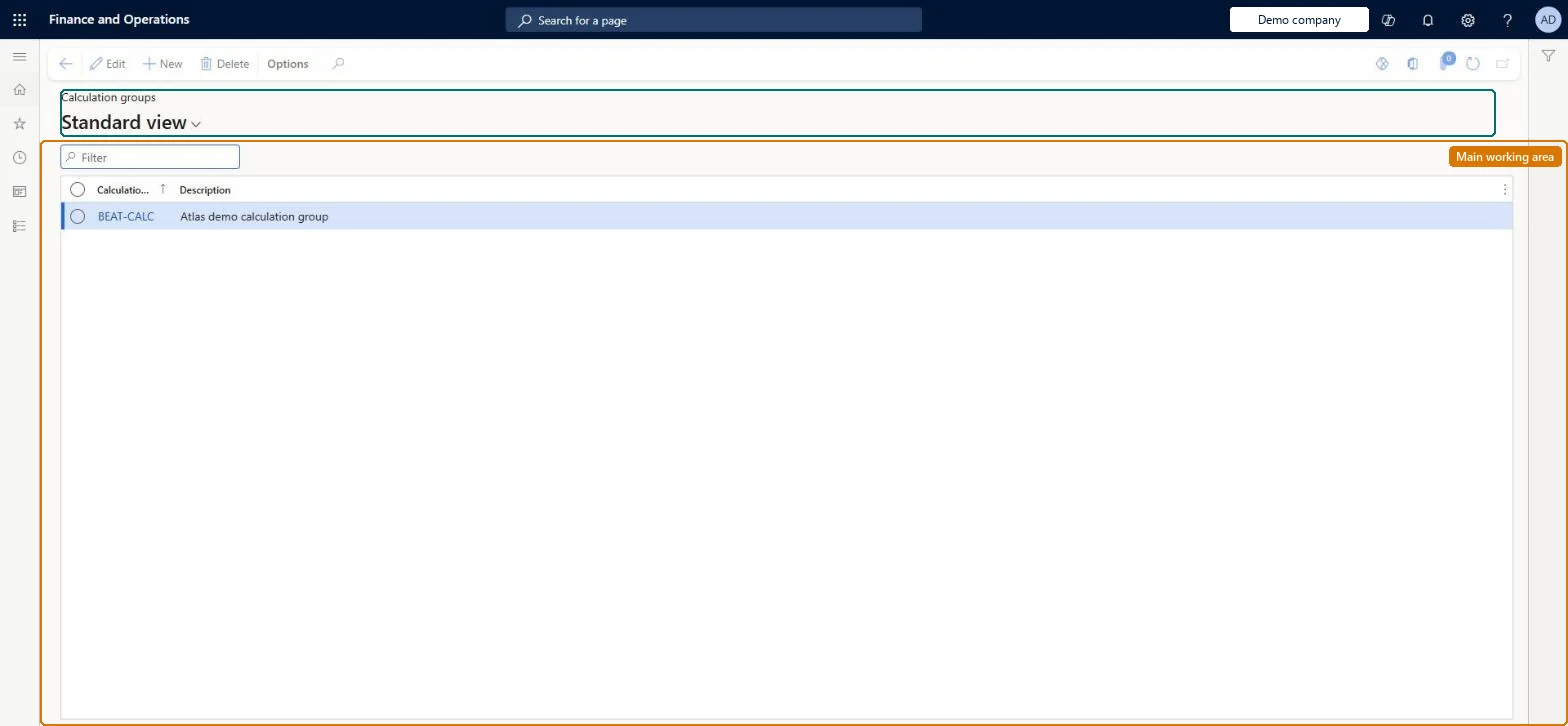
Setup step on the Calculation groups page · Time and attendance
Set up Calculation groups
Use this page to divide workers into groups, for example teams with the same supervisor, which supervisors then use when they calculate workers' registrations.
Human resource manager, Payroll administrator, Production manager
Business process
Manage time and attendance
Menu item
JmgGroupCalc
Main table
JmgGroupCalc
Data entity
JmgTimeAndAttendanceCalculationGroupEntity
Setup steps
1 on this page
Show what matters for
SETUP GUIDEHow to set it up8 sections. Choose a role to highlight what matters to you.
Everyone
1What it is and why
What it is
A setup page where you create groups of workers, typically a team, shift or work group, whose registrations are calculated together.
What you do here
Use this page to divide workers into groups, for example teams with the same supervisor, which supervisors then use when they calculate workers' registrations.
Example
For example, you create one calculation group per shift so that each shift supervisor can see and calculate only the registrations of their own team.
The page in Dynamics 365. page title tab to open what to set or check
About the examples: Examples and screenshots in this guide use BEAT, a demo company in a Dynamics 365 test environment. Use your own company's codes and values instead of copying them.
Setup steps on this page
Set up Calculation groups
Use this page to divide workers into groups, for example teams with the same supervisor, which supervisors then use when they calculate workers' registrations.
Steps from Microsoft
Go to Time and attendance > Setup > Groups > Calculation groups.
Select New.
Enter a name in the Calculation group field.
Fill in the Description field.
Optionally, enter a password for the group on the General tab.
A password that must be entered before the Calculate page opens for the group.Microsoft Learn
Common errors and fixes
Message
What to do
A worker can't be calculated or approved
Every worker who registers time must belong to a calculation group and an approval group. Set both on the worker in Time registration workers. Microsoft Learn
The Calculate page asks for a password
The group has a password on the General tab; the system asks for it before opening Calculate. Microsoft Learn
Test checklist
Create a calculation group with a password and assign two workers to it.
Open Calculate for the group and check the password is asked for.
Check only the two workers appear for the date.
Use Clock-in and out > Clock out workers and check only that group's workers are clocked out.
One calculation group per team, shift or work group with the same supervisor, with a Password on the General tabEvery registering worker must belong to a calculation group, and Learn advises a password for security so the person calculating sees only their own team.
How are calculation groups cut?Leaving a worker without a calculation group. Every worker who registers in Time and attendance, or in Manufacturing execution with Time and attendance, must be connected to a calculation group and an approval group.Test: Supervisor sees only their group
Feature management and licence
Licence or add-in
Time and attendance roles come from the security read in the Technical section. On this system the page is opened with roles such as Human resource manager, Payroll administrator, Production manager. The Microsoft Learn article for this page names no Feature management feature to turn on.
Per company: each legal entity has its own calculation groups. Checked in Dynamics 365
Can it be undone
Reversible: Groups only decide who calculates which workers; a worker can be moved to another group.
If you change it later
If you add a password to a calculation group, users must enter it before they can open the Calculate page for that group. Microsoft Learn
Technical architect
6Technical
Menu item
JmgGroupCalcChecked in Dynamics 365
Form
JmgGroupCalcChecked in Dynamics 365
Table
JmgGroupCalcShown as “GROUPS” in Record infoChecked in Dynamics 365
Data entities
JmgTimeAndAttendanceCalculationGroupEntityTime and attendance calculation groups Microsoft data model
Who can open it
PrivilegesMaintain calculation groups JmgGroupCalcMaintainView calculation groups JmgGroupCalcViewDutiesEnable manufacturing execution process JmgManufacturingExecutionProcessEnableInquire into time and attendance policies JmgTimeAttendancePoliciesInquireEnable time and attendance process JmgTimeAttendanceProcessEnableInquire into time and attendance reference data JmgTimeAttendanceReferenceDataInquire3 security rolesHuman resource manager HcmHumanResourceManagerPayroll administrator HcmPayrollAdministratorProduction manager ProdProductionManagerChecked in Dynamics 365
Roles to set it up and use it
To set it up or change itPayroll administrator HcmPayrollAdministratorProduction manager ProdProductionManagerTo use itHuman resource manager HcmHumanResourceManagerGive people one of these roles. On this system, 3 roles can open this page.Checked in Dynamics 365
JmgTimeAndAttendanceCalculationGroupEntity (Time and attendance calculation groups): loaded for each company, in Microsoft's default template 410 - Production control.Load order: Microsoft's default template 410 - Production control loads Time and attendance calculation groups at execution unit 1, level 30, sequence 10. Lower levels load first, and entities at the same level load in sequence order.Load first: the default templates at lower levels (System setup to General ledger)Microsoft Learn