BeyondERP.Newsletter
Menu

Setup step on the Worker ID card page · Time and attendance

Print worker badges

Print the report with the choices that answer one question.

Business process
Record employee time
Menu item
JmgEmplCard
Setup steps
1 on this page
Show what matters for
SETUP GUIDEHow to set it up8 sections. Choose a role to highlight what matters to you.
Everyone

1What it is and why

What it isA print job that prints worker ID cards (badges) with a bar code that workers can use to identify themselves when they register time.
What you do hereUse this job to print badges for workers; the bar code type is set in the Time and attendance parameters, and the badge ID can be used as the worker's identification.
ExampleFor example, a new hire gets badge ID 123; the supervisor prints the card and the worker signs in with it at the production floor execution interface.
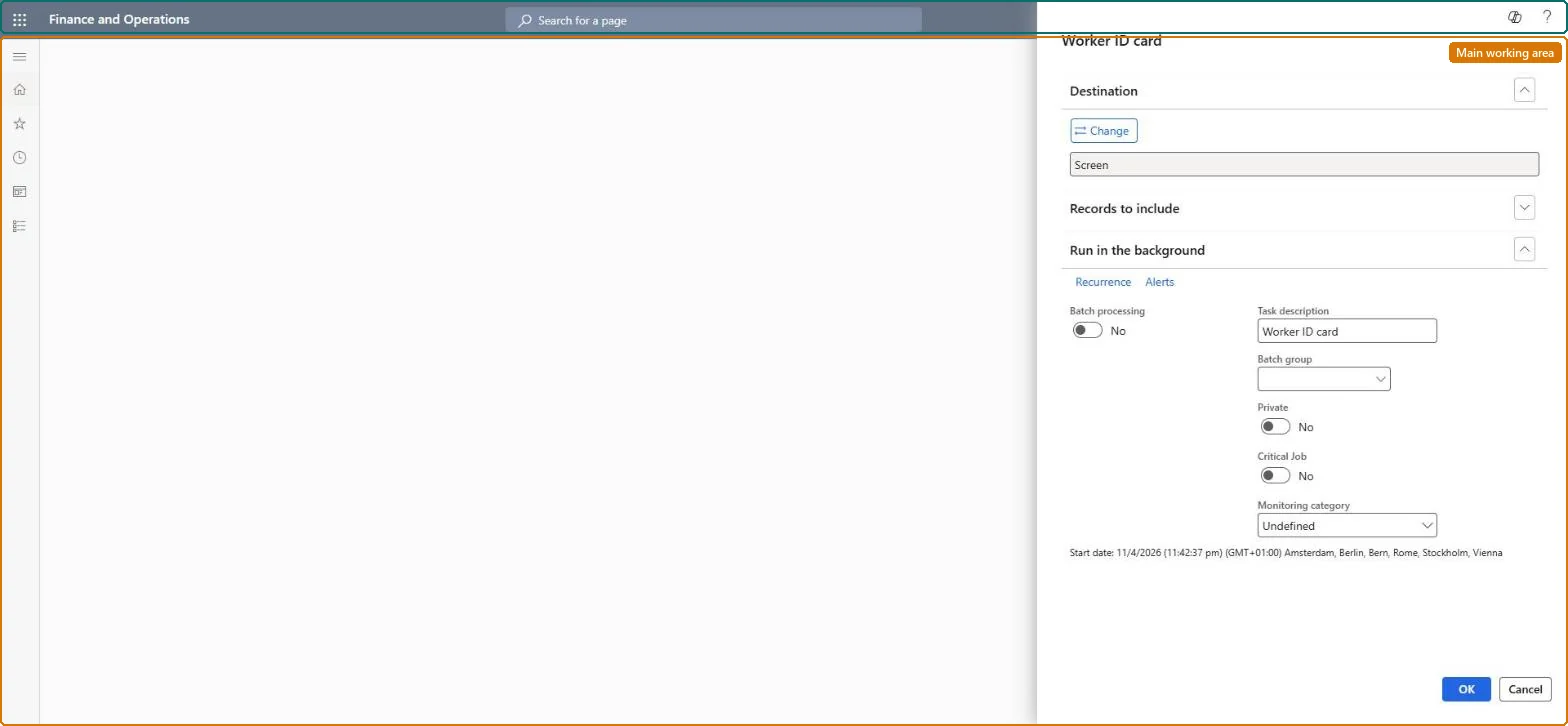
Worker ID card page in Dynamics 365
The page in Dynamics 365. page title tab to open what to set or check
Functional consultant · Solution architect

2Where it fits

Business processManage time and attendance › Record employee time
Menu pathTime and attendance › Periodic tasks › Print bar codes › Worker ID card
Set up firstTime and attendance parameters Microsoft Learn
Used next byAttendance Microsoft Learn
Related pagesTime registration workers Microsoft Learn
In this process Print indirect activity bar codes · Print project bar codes
End user · Functional consultant

3How to do it

About the examples: Examples and screenshots in this guide use BEAT, a demo company in a Dynamics 365 test environment. Use your own company's codes and values instead of copying them.

When to run it

When to run itWhen new time registration workers are activated, or when a badge is lost or replaced.
How oftenOn demand, when workers need a new ID card.
What the output showsWorker ID cards with a bar code of the badge ID that the worker uses to identify themselves when they register time. A card that doesn't sign in usually means the badge ID was changed after printing.

Source: Microsoft Learn

Setup steps on this page

Print worker badges

Print the report with the choices that answer one question.

Steps from Microsoft

  1. Go to Time and attendance > Periodic tasks > Print bar codes > Worker ID card.
  2. Before you print, make sure each worker has a Badge ID, and that Use badge ID is set in Time and attendance parameters if workers sign in with it.
  3. Choose the workers who need a new card, for example new hires or workers who lost their badge.
  4. Print the cards and test one by signing in with it at a registration terminal or the production floor execution interface.

Source: Microsoft Learn

Common errors and fixes

MessageWhat to do
A card doesn't sign the worker inThe badge ID changed after printing, or Use badge ID isn't set in the parameters. Reprint or set the parameter. Microsoft Learn
Functional consultant

4Setup decisions

Setup stepRecommended value and whyDecision, common mistake and test
Print worker badgesPrint a card when a worker gets a badge ID, and again when it changes.Workers identify themselves with the bar code of the badge ID.Badge or password?Changing the badge ID after printing, so the card no longer signs in.Test: Print worker badges

Feature management and licence

Licence or add-inTime and attendance roles come from the security read in the Technical section. On this system access comes from duties such as Production supervisor, Manager, Shop supervisor. The Microsoft Learn article for this page names no Feature management feature to turn on.

Microsoft Learn

Solution architect

5Design impact

Shared or per companyPer company: Time and attendance data is kept per legal entity (every Time and attendance entity in Data management is per company), so the job or report works on the registrations of the company it is run in. Microsoft Learn
Can it be undoneReversible: The report or inquiry only reads data; nothing is changed.
If you change it laterPrinting changes no data. Microsoft Learn
Technical architect

6Technical

Menu itemJmgEmplCard Checked in Dynamics 365
FormSysOperationTemplateForm Checked in Dynamics 365
Roles to set it up and use itTo use itProduction supervisor ProdProductionSupervisorManager HcmManagerShop supervisor JmgShopSupervisorGive people one of these roles. On this system, 3 roles can run this page.Checked in Dynamics 365
Developer

7Developer

Open it by URLhttps://<your-environment>/?mi=JmgEmplCard
Data migrationLoad order: The Worker ID card report has no data entity in Data management, so it can't be loaded from a file or a configuration template. It only prints data; set up its batch printing again if it is scheduled.Checked in Dynamics 365
Everyone

8Sources

To cite this step: TA-RPT-180, Print worker badges. Beyond ERP Atlas Hub, 2026-11-11. https://www.beyonderp.cloud/atlas/step/TA-RPT-180