Rebuild a payroll statistic after its setup changes
Time and attendanceMaintain payroll
JmgPayStatCalculate
Business process
Pay employees
Menu item
JmgPayStatCalculate
Setup steps
1 on this page
Show what matters for
SETUP GUIDEHow to set it up8 sections. Choose a role to highlight what matters to you.
Everyone
1What it is and why
What it is
A periodic job that recalculates statistical payroll balances for a group of workers.
What you do here
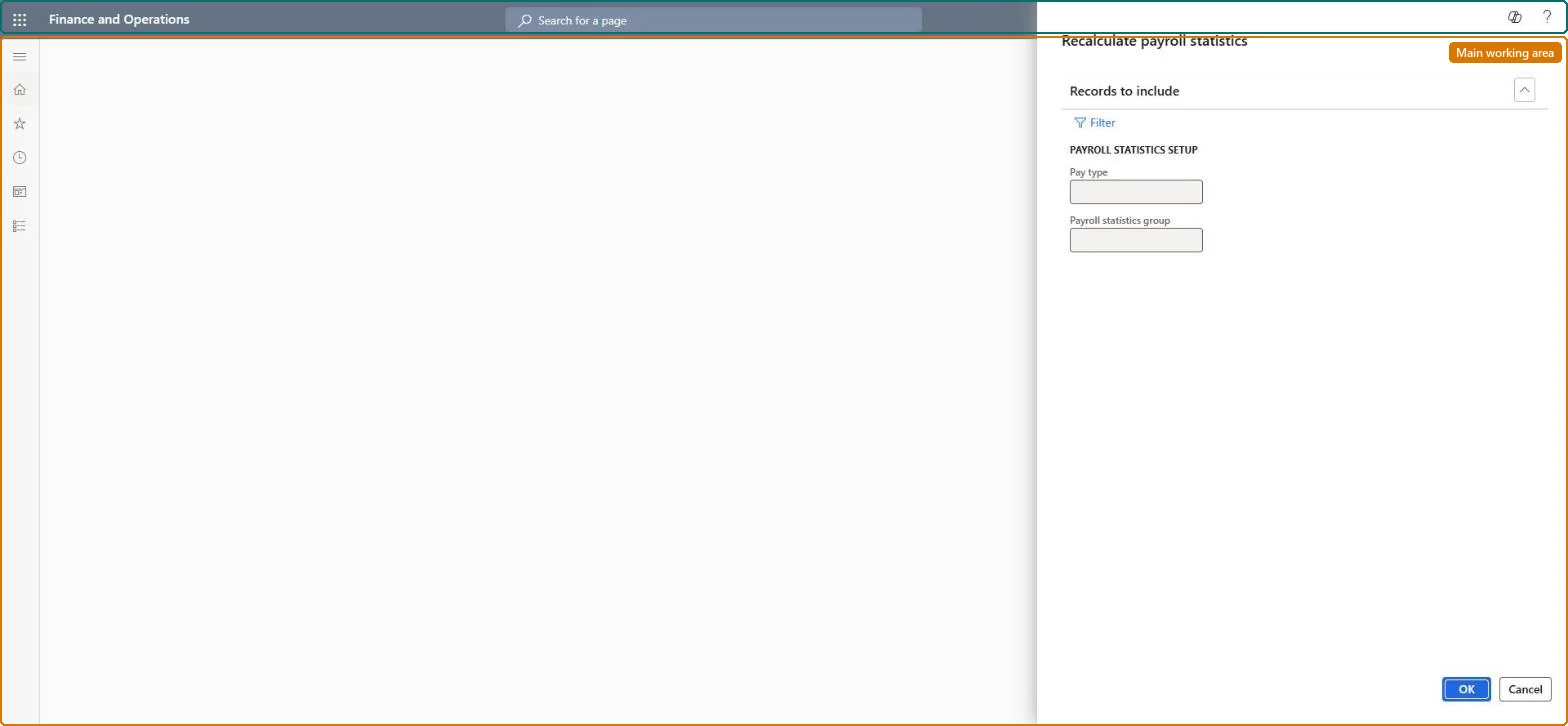
Use this page to recalculate workers' payroll statistics balances for a payroll statistics group, pay type, and optionally a pay period.
Example
For example, after pay type 5151-1, Counter for worker vacation days, is added to payroll statistics group VAC, the payroll administrator recalculates VAC for that pay type so each worker's vacation balance includes the days already registered.
The page in Dynamics 365. page title tab to open what to set or check
About the examples: Examples and screenshots in this guide use BEAT, a demo company in a Dynamics 365 test environment. Use your own company's codes and values instead of copying them.
When to run it
When to run it
After the setup of a payroll statistic changes, so that balances that were built under the old setup are recalculated.
How often
On demand, when payroll statistics setup changes.
What the output shows
Recalculated statistical payroll balances for the pay type and workers in the group, for example vacation hours. A balance that doesn't change usually means the wrong pay type or Period code was chosen.
The payroll statistics balance doesn't change after an adjustment
A payroll record must exist for the date of the adjustment. Pick a date with a payroll record for the workers and run the adjustment again. Microsoft Learn
A worker is missing from the report or job
The worker isn't set up as a time registration worker, isn't active, or falls outside the query. Check the worker on Time registration workers and the query of the dialog. Microsoft Learn
Test checklist
Payroll statistics for a sample worker show the recalculated balance for the pay type.
Run it per payroll statistics group and pay type right after the statistic's setup changes, leaving Period code empty to rebuild the whole balance.Balances built under the old setup stay wrong until they are recalculated.
Time and attendance roles come from the security read in the Technical section. On this system access comes from duties such as Payroll administrator. The Microsoft Learn article for this page names no Feature management feature to turn on.
Per company: Time and attendance data is kept per legal entity (every Time and attendance entity in Data management is per company), so the job or report works on the registrations of the company it is run in. Microsoft Learn
Can it be undone
Reversible: Rebuilt from existing records; run again after fixing the setup.
If you change it later
Rebuilds the statistical payroll balance of one pay type for all workers in the payroll statistics group. Microsoft Learn
Technical architect
6Technical
Menu item
JmgPayStatCalculateChecked in Dynamics 365
Form
DialogChecked in Dynamics 365
Roles to set it up and use it
To use itPayroll administrator HcmPayrollAdministratorGive people one of these roles. On this system, 1 role can run this page.Checked in Dynamics 365
Load order: Recalculate payroll statistics has no data entity in Data management, so it can't be loaded from a file or a configuration template. It rebuilds balances from loaded payroll records; load opening balances with Adjust payroll statistics first.Microsoft Learn
Checked in a working Dynamics 365 system, version 10.0.49: the menu item, form, table and security, the page.
To cite this step: TA-PAY-030, Rebuild a payroll statistic after its setup changes. Beyond ERP Atlas Hub, 2026-11-11. https://www.beyonderp.cloud/atlas/step/TA-PAY-030