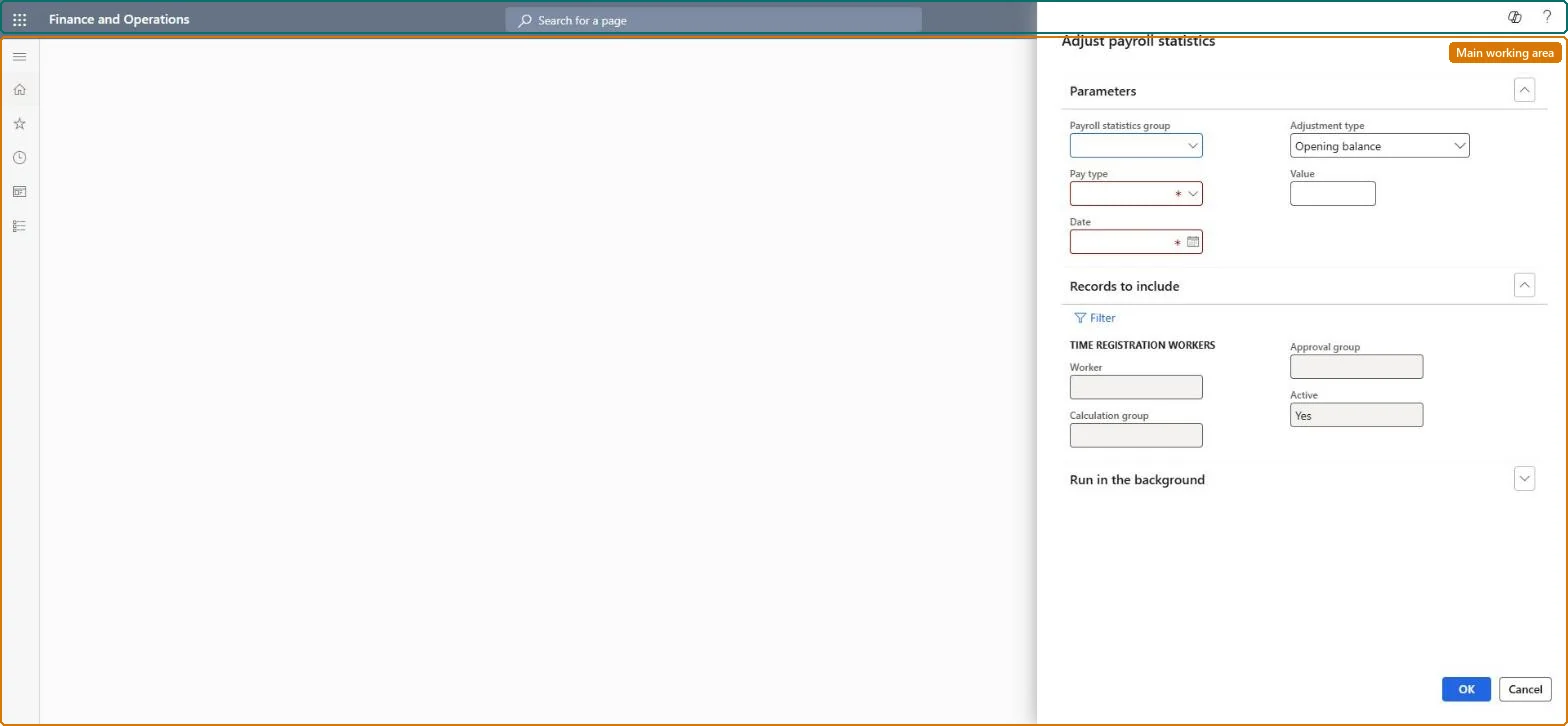
About the examples: Examples and screenshots in this guide use BEAT, a demo company in a Dynamics 365 test environment. Use your own company's codes and values instead of copying them.
When to run it
When to run it
When you take over balances from a previous system, or when a group of workers needs the same correction, such as extra vacation hours.
How often
On demand, when a group-wide balance correction or opening balance is needed.
What the output shows
Updated statistical payroll balances for every worker in the group for the pay type and date. If a worker's balance didn't change, no payroll record usually exists for that worker on the date.
Set opening balances or apply one correction to all workers of a payroll statistics group.
Steps from Microsoft
Go to Time and attendance > Maintain payroll > Adjust payroll statistics.
In Payroll statistics group, select the group of workers to adjust, and in Pay type the balance to change.
In Date, enter the adjustment date. A payroll record must exist for that date.
In Adjustment type, choose Opening balance to set the opening balance to the value, Balance to set the current balance to the value, or Adjustment to add the value to the payroll record on the date.
In Value, enter the number of hours, for example 2 to add two hours with Adjustment, and run the job. Print the Payroll statistics report to see the result for each worker.
The date of the adjustment. A payroll record must exist for that date.Microsoft Learn
Adjustment type
Opening balance sets the opening balance to the value, Balance sets the current balance to the value, and Adjustment adds the value to the payroll record on the date.Microsoft Learn
Adjustment
Value
The number of hours applied according to the adjustment type.Microsoft Learn
2
Common errors and fixes
Message
What to do
The payroll statistics balance doesn't change after an adjustment
A payroll record must exist for the date of the adjustment. Pick a date with a payroll record for the workers and run the adjustment again. Microsoft Learn
A balance is twice what it should be
Adjustment always adds to the balance. To set a figure, use Balance or Opening balance instead of running Adjustment again. Microsoft Learn
Test checklist
Payroll statistics for two workers in the group show the new value on the date.
With Adjustment, each balance changed by exactly the entered number of hours.
Opening balance on the go-live date for balances taken over from the old system; Adjustment only for a one-off correction that applies to everyone in the group.Opening balance and Balance set the figure; Adjustment adds to it, and a payroll record must exist on the date.
Time and attendance roles come from the security read in the Technical section. On this system access comes from duties such as Payroll administrator. The Microsoft Learn article for this page names no Feature management feature to turn on.
Per company: Time and attendance data is kept per legal entity (every Time and attendance entity in Data management is per company), so the job or report works on the registrations of the company it is run in. Microsoft Learn
Can it be undone
Partly: There is no reversal. Run the job again with a corrected value: Balance or Opening balance sets the figure directly, while Adjustment always adds to it. Microsoft Learn
If you change it later
Changes the statistical payroll balance of one pay type for all workers in the payroll statistics group. An adjustment can only be made for a date on which a payroll record exists. Microsoft Learn
Technical architect
6Technical
Menu item
JmgPayStatAdjustBalanceChecked in Dynamics 365
Form
DialogChecked in Dynamics 365
Roles to set it up and use it
To use itPayroll administrator HcmPayrollAdministratorGive people one of these roles. On this system, 1 role can run this page.Checked in Dynamics 365
Load order: Adjust payroll statistics has no data entity in Data management, so it can't be loaded from a file or a configuration template. Use the job itself to load opening balances, such as vacation hours, with Opening balance on the go-live date.Microsoft Learn