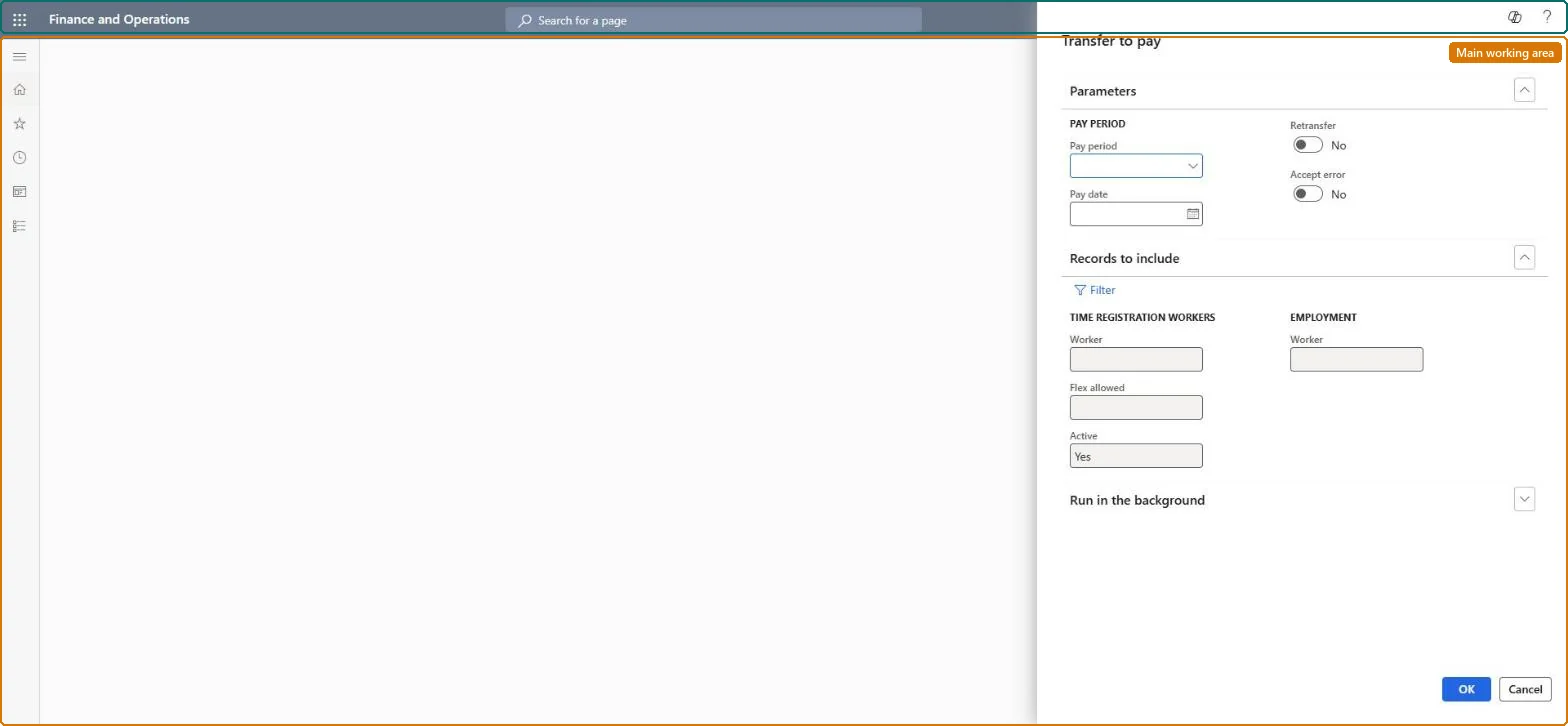
About the examples: Examples and screenshots in this guide use BEAT, a demo company in a Dynamics 365 test environment. Use your own company's codes and values instead of copying them.
When to run it
When to run it
At the end of each pay period, after all registrations in the period have been calculated, approved and transferred from the Approve page.
How often
Once per pay period.
Batch settings
Run it as a batch job per pay period after the last approval of the period, so the file is ready for the payroll system.
What the output shows
A pay file with the pay items generated from approved registrations, for example standard time and overtime per pay type, ready for import into the payroll system. Flex regulations are also applied, so workers over their flex maximum or under their minimum get extra pay items. A missing worker is usually not connected to the pay period.
Export the pay items of a pay period to the payroll system and apply the flex limits.
Steps from Microsoft
Go to Time and attendance > Maintain payroll > Transfer to pay.
In Pay period, select the pay period to export. Only workers connected to that pay period are included.
In Pay date, enter the date in the pay period that the payroll system uses as the pay date.
Select Retransfer only when transactions that were already exported must be included again, and Accept error only when you want to export even though not all journal lines in the pay period are processed.
Use the worker filter (Worker, Flex allowed, Active) to limit the export, then run the job and import the pay file into the payroll system. Compare pay items and flex adjustments with the Pay specification report.
Includes transactions that were already exported.Microsoft Learn
Accept error
Exports even if not all journal lines in the pay period are processed.Microsoft Learn
Common errors and fixes
Message
What to do
A worker is missing from the pay file
Only workers connected to the selected pay period are included. Check the Period code on the worker in Time registration workers. Microsoft Learn
Workers stay over the flex maximum after daily approval
Flex limits aren't applied on the Approve page. They are applied only by Transfer to pay and Adjust flex balance. Microsoft Learn
Calculated or Approved can't be cleared for a day
The payroll period's pay transfer has already exported the payroll data, so the day is locked. Correct it with a manual premium or a flex correction in the next period. Microsoft Learn
Test checklist
The pay file contains every worker connected to the pay period.
Workers over or under their flex limits have the expected flex pay items.
Transferred registrations for the period can no longer be reversed on the Approve page.
Once per pay period after the last day is approved and transferred, without Retransfer and Accept error; print Flex limit exceeded and Pay specification first.The job applies the flex regulations and locks the period: after it runs, transferred registrations can't be reversed.
Time and attendance roles come from the security read in the Technical section. On this system access comes from duties such as Payroll manager, Retail store manager, Retail service. The Microsoft Learn article for this page names no Feature management feature to turn on.
Per company: Time and attendance data is kept per legal entity (every Time and attendance entity in Data management is per company), so the job or report works on the registrations of the company it is run in. Microsoft Learn
Can it be undone
Irreversible: After the pay transfer, the period's transferred registrations can't be reversed.
If you change it later
Exports pay items for the period and applies flex regulations to flex balances. After it runs, transferred registrations for the period can no longer be reversed. Microsoft Learn
Technical architect
6Technical
Menu item
JmgPayEventsExportChecked in Dynamics 365
Form
DialogChecked in Dynamics 365
Roles to set it up and use it
To use itPayroll manager HcmPayrollManagerRetail store manager RetailStoreManagerRetail service RetailServiceGive people one of these roles. On this system, 3 roles can run this page.Checked in Dynamics 365
Developer
7Developer
Open it by URL
https://<your-environment>/?mi=JmgPayEventsExport
Data migration
Load order: Transfer to pay has no data entity in Data management, so it can't be loaded from a file or a configuration template. It is an export job; set the Pay file in the parameters and run it per pay period in the new environment.Checked in Dynamics 365