Time and attendanceInquiries and reportsAttendance
JmgEmplSignedIn
Business process
Record employee time
Menu item
JmgEmplSignedIn
Setup steps
1 on this page
Show what matters for
SETUP GUIDEHow to set it up8 sections. Choose a role to highlight what matters to you.
Everyone
1What it is and why
What it is
An inquiry page that shows the attendance status of workers on the current day, including clock-in and clock-out times and the jobs they are working on.
What you do here
Use this page to see who is present or absent today, optionally for one calculation group, and to create planned absences or clock workers out from there.
Example
For example, at 07:15 a supervisor whose team works a 07:00-15:00 profile opens Attendance for the calculation group and sees one worker absent with no absence specification; that worker will be asked for an absence code when the day is calculated.
The page in Dynamics 365. page title tab to open what to set or check
About the examples: Examples and screenshots in this guide use BEAT, a demo company in a Dynamics 365 test environment. Use your own company's codes and values instead of copying them.
Setup steps on this page
See who is at work now
Read the page to answer one question about registrations or pay.
Steps from Microsoft
Go to Time and attendance > Inquiries and reports > Attendance > Attendance.
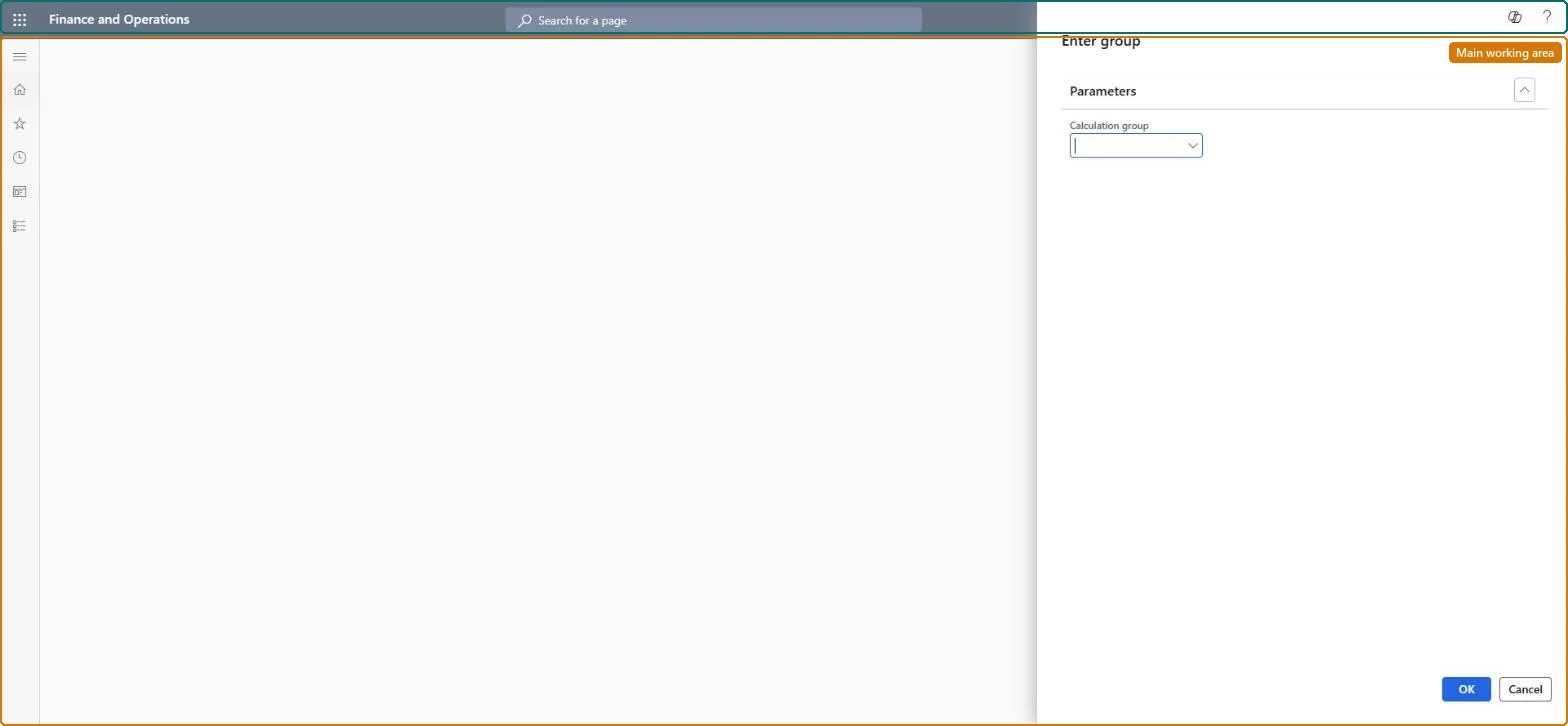
In the Calculation group field, select a group, or leave it blank to see all time registration workers.
Select OK.
Use the filter to show present, absent, or all workers.
A registration with a future timestamp is in the raw registrations, often from Missing clock-out entered with the wrong date. Run Archive future registrations and ask the worker to register again. Microsoft Learn
Test checklist
Clock one worker in at a terminal.
Open Attendance for the group.
Check the worker shows the clock-in time and the others show as absent.
Enter your calculation group in the dialog and filter on absent workers at the start of the shift.Absent workers without a planned absence will need an absence code at calculation.
Time and attendance roles come from the security read in the Technical section. On this system access comes from duties such as Production supervisor, Production manager, Manager. The Microsoft Learn article for this page names no Feature management feature to turn on.
Per company: it shows the time registration workers of the company you are signed in to. Checked in Dynamics 365
Can it be undone
Reversible: The report or inquiry only reads data; nothing is changed.
If you change it later
The inquiry changes no data; creating planned absence or clocking workers out from here changes registrations. Microsoft Learn
Technical architect
6Technical
Menu item
JmgEmplSignedInChecked in Dynamics 365
Form
DialogChecked in Dynamics 365
Roles to set it up and use it
To use itProduction supervisor ProdProductionSupervisorProduction manager ProdProductionManagerManager HcmManagerShop supervisor JmgShopSupervisorProduction planner ReqProductionPlannerGive people one of these roles. On this system, 5 roles can open this page.Checked in Dynamics 365
Developer
7Developer
Open it by URL
https://<your-environment>/?mi=JmgEmplSignedIn
Data migration
Load order: Attendance has no data entity in Data management, so it can't be loaded from a file or a configuration template. It shows the day's registrations; nothing is moved.Checked in Dynamics 365