PAGE GUIDEWhat the page does and how to use it8 sections. Choose a role to highlight what matters to you.
Everyone
1What it is and why
What it is
A periodic page that creates planned absence registrations for a group of workers, selected by a query, for a set period.
What you do here
Use this page to register known absences, such as holidays or training courses, in advance so they do not have to be entered each day during calculation.
Example
For example, if a team has planned summer vacation from July 1 to July 15, the supervisor creates the absence registrations for all team members in advance.
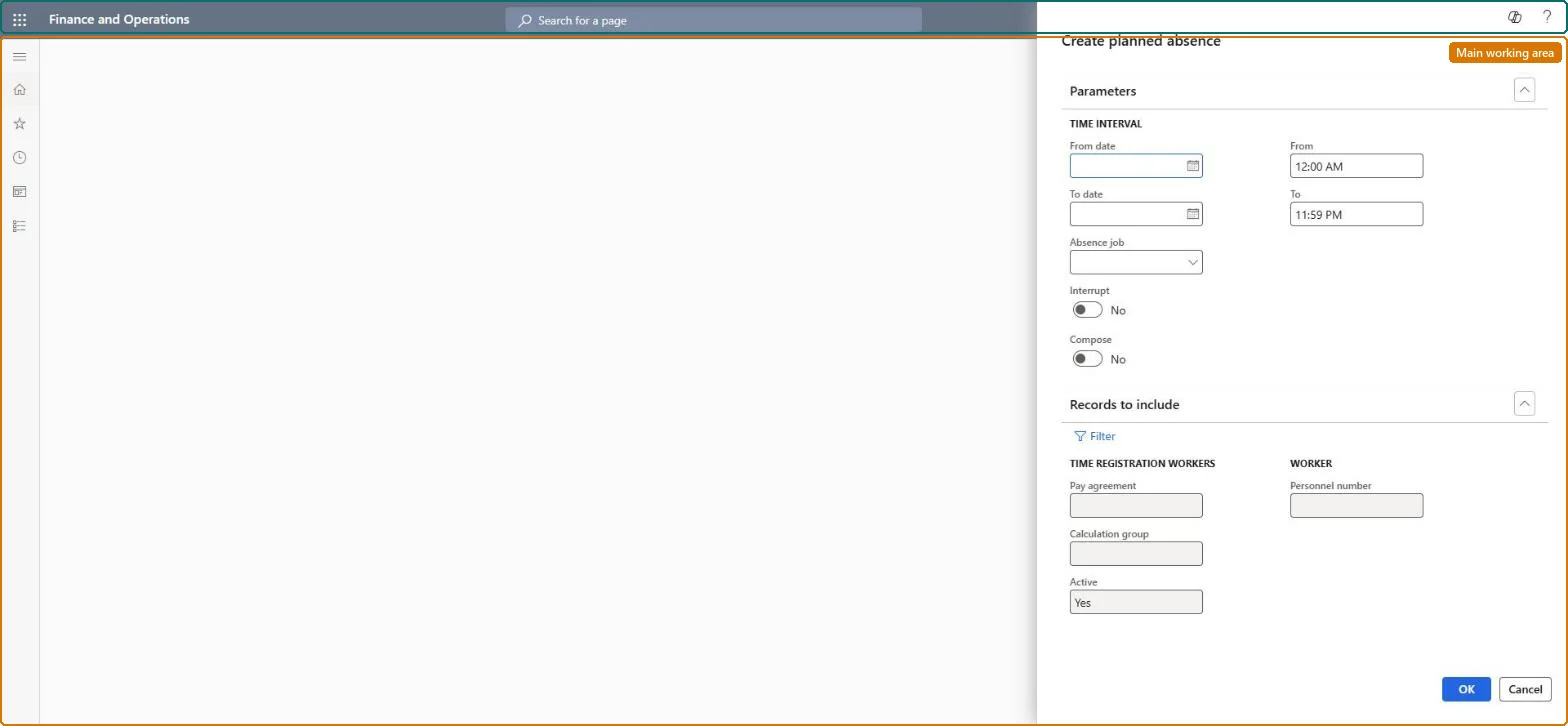
The page in Dynamics 365. page title tab to open what to set or check
About the examples: Examples and screenshots in this guide use BEAT, a demo company in a Dynamics 365 test environment. Use your own company's codes and values instead of copying them.
When to run it
When to run it
As soon as you know about an absence that affects a group of workers, such as holidays, training courses or parental leave, and before the period starts.
How often
On demand, whenever a known absence has to be planned for several workers.
What the output shows
Planned absence registrations for each worker in the query, either one per day or one for the whole period. A worker who is still asked for an absence code during calculation was usually left out of the query or got a different period.
Create absence in advance for workers who will be away, such as a holiday or a course.
Steps from Microsoft
Go to Time and attendance > Review and approve > Create planned absence.
In From date, From, To date and To, enter the start and end of the absence, for example a public holiday or an external training course.
In Absence job, choose the type of absence to register.
Select Interrupt if the absence should stop when a worker clocks in before the planned end time. The registration is then marked as interrupted at clock-in.
Select Compose to create one absence registration for each day in the period; leave it cleared for one registration that covers the whole period.
Select Select, build the query for the workers who are absent, such as one calculation group, and run it. Then print Planned absences to see the registrations that were created.
Stops the absence registration if a worker clocks in before the planned end time.Microsoft Learn
Compose
Creates one registration per day; when cleared, one registration covers the whole period.Microsoft Learn
Common errors and fixes
Message
What to do
A planned absence isn't marked Interrupted when the worker comes in
Interrupt reacts only to a clock-in at the shop floor terminal or device, not to lines added on the Calculate or Approve pages or the electronic timecard. Microsoft Learn
A worker is missing from the report or job
The worker isn't set up as a time registration worker, isn't active, or falls outside the query. Check the worker on Time registration workers and the query of the dialog. Microsoft Learn
Test checklist
The Planned absences report shows the absence for every worker in the query.
With Compose selected, there is one registration per day in the period.
During calculation of a day in the period, no absence code is requested for the workers.
Create planned absence before the period starts, with Compose selected for absences of several days and Interrupt only when workers may come in early.During a planned period, calculation doesn't ask for an absence code, so supervisors don't enter the same absence each day.
Time and attendance roles come from the security read in the Technical section. On this system access comes from duties such as Production supervisor, Shop supervisor. The Microsoft Learn article for this page names no Feature management feature to turn on.
Per company: Time and attendance data is kept per legal entity (every Time and attendance entity in Data management is per company), so the job or report works on the registrations of the company it is run in. Microsoft Learn
Can it be undone
Yes: Delete the planned absence on the worker's Absence registrations page (Time registration workers > Set up time registration worker > Absence registrations) before the period is calculated. Microsoft Learn
If you change it later
During the planned period, calculation no longer asks for an absence code for those workers; with Interrupt, a clock-in during the period marks the absence as interrupted. Microsoft Learn
Technical architect
6Technical
Menu item
JmgAbcensPreRegistreChecked in Dynamics 365
Form
DialogChecked in Dynamics 365
Data entities
JmgPlannedTimeAndAttendanceAbsenceRegistrationEntityPlanned time and attendance absence registrations (the planned absence registrations this job creates; the job itself has no entity) Checked in Dynamics 365
Roles to set it up and use it
To use itProduction supervisor ProdProductionSupervisorShop supervisor JmgShopSupervisorGive people one of these roles. On this system, 2 roles can run this page.Checked in Dynamics 365
JmgPlannedTimeAndAttendanceAbsenceRegistrationEntity (Planned time and attendance absence registrations): per company. Load future planned absences, such as booked holidays, instead of running the job again.Load order: Load the time registration workers and absence codes first, then the planned absence registrations.Load first: JmgTimeAndAttendanceTimeRegistrationWorkerEntity, HcmAbsenceCodeEntityChecked in Dynamics 365