SETUP GUIDEHow to set it up8 sections. Choose a role to highlight what matters to you.
Everyone
1What it is and why
What it is
A periodic job that applies flex regulations, bringing workers' flex balances back within the limits set on their flex groups.
What you do here
Use this page to adjust flex balances that exceed the flex minimum or maximum, and to deduct or convert the excess hours to pay as the flex group defines.
Example
For example, a worker with a flex account of -4 hours and a flex minimum of -0.5 hours has the flex account adjusted by 3.5 hours, and a pay item can deduct those hours from pay.
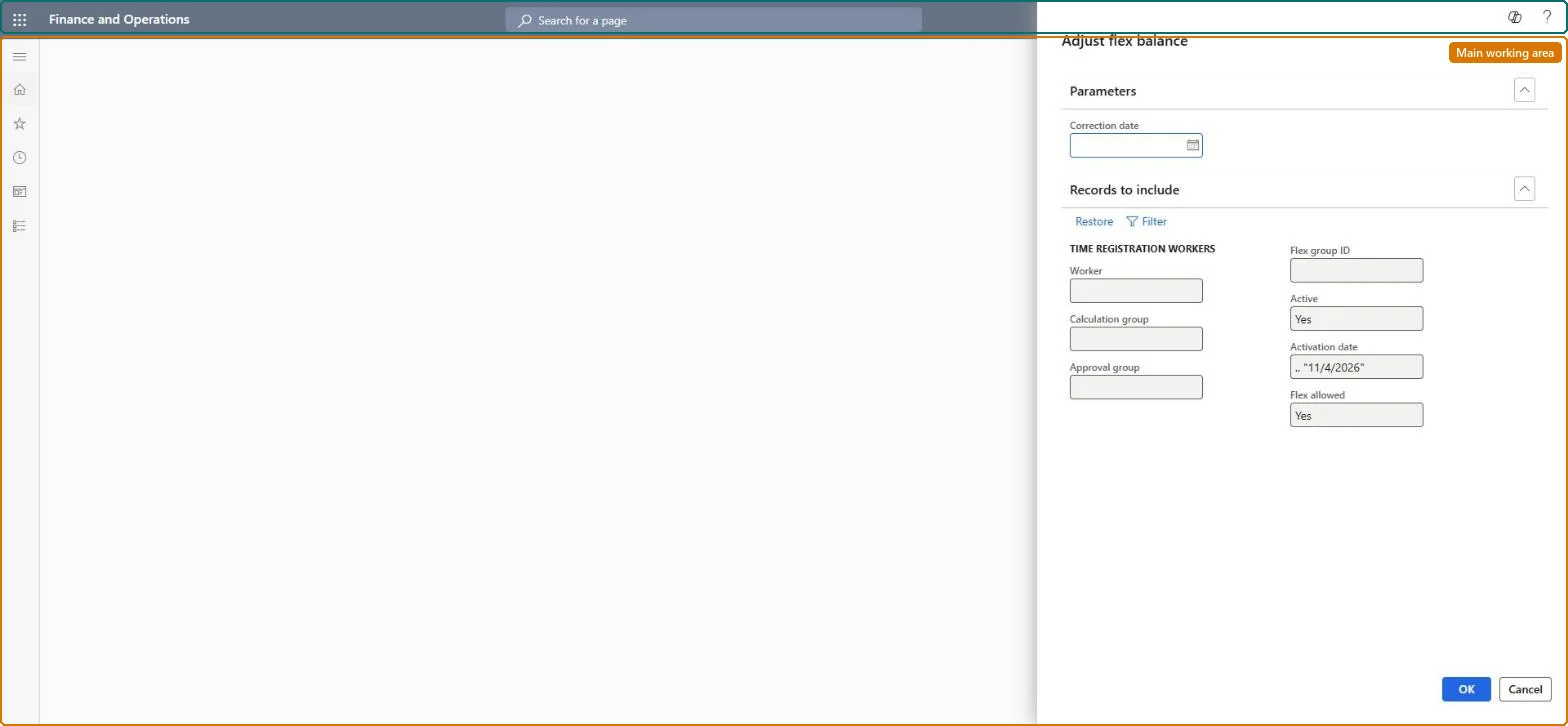
The page in Dynamics 365. page title tab to open what to set or check
About the examples: Examples and screenshots in this guide use BEAT, a demo company in a Dynamics 365 test environment. Use your own company's codes and values instead of copying them.
When to run it
When to run it
When flex balances must be brought back within the limits outside the normal pay transfer, for example before a period closes, because flex regulations aren't applied during daily approval and transfer.
How often
On demand, or at the end of a flex period; Transfer to pay applies the same regulation when the pay file is exported.
Batch settings
Run it in batch for one flex group at a time so you can review the regulation per group.
What the output shows
Adjusted flex balances and, depending on the flex group, pay items that deduct pay for hours below the minimum or pay hours above the maximum. Those pay items are included in the next pay file. An unexpected deduction usually points to the Flex minimum or pay type factor on the flex group.
Bring flex balances back within the flex group limits before the pay period closes.
Steps from Microsoft
Go to Time and attendance > Manage flex time > Adjust flex balance.
In Correction date, enter the date on which the flex regulation is made.
Use the worker filter to limit the run, for example by Flex group ID, Calculation group or Approval group, and keep Flex allowed and Active so only active flex workers are included.
Run the job. For each worker over the flex maximum or under the flex minimum, the balance is moved back to the limit, and pay items are created when the flex group defines a pay type for it.
Print Flex limit exceeded again afterwards; workers who were over their limits should no longer appear.
Flex group ID / Calculation group / Approval group
Filters that limit the workers whose flex balance is regulated.Microsoft Learn
Common errors and fixes
Message
What to do
Workers stay over the flex maximum after daily approval
Flex limits aren't applied on the Approve page. They are applied only by Transfer to pay and Adjust flex balance. Microsoft Learn
No pay item is created for the excess hours
The flex group has no pay type for the limit. Set the pay type and factor on the flex group, or accept that the balance is adjusted without pay. Microsoft Learn
Test checklist
A worker over the flex maximum now has a balance equal to the maximum.
The expected pay item with the flex group's pay type exists.
Flex limit exceeded no longer lists the adjusted workers.
Run it at the end of a flex period for one flex group at a time, after printing Flex limit exceeded; otherwise let Transfer to pay apply the same regulation.Flex limits aren't applied during daily approval; only this job and Transfer to pay apply them.
Time and attendance roles come from the security read in the Technical section. On this system access comes from duties such as Production supervisor. The Microsoft Learn article for this page names no Feature management feature to turn on.
Per company: Time and attendance data is kept per legal entity (every Time and attendance entity in Data management is per company), so the job or report works on the registrations of the company it is run in. Microsoft Learn
Can it be undone
Irreversible: No reversal; correct one worker with a flex correction on their Flex balance.
If you change it later
Running the job changes flex balances and can deduct pay for hours below the minimum or convert hours above the maximum to pay; these regulations are not applied during daily approval and transfer. Microsoft Learn
Technical architect
6Technical
Menu item
JmgAdjustFlexBalanceChecked in Dynamics 365
Form
DialogChecked in Dynamics 365
Roles to set it up and use it
To use itProduction supervisor ProdProductionSupervisorGive people one of these roles. On this system, 1 role can run this page.Checked in Dynamics 365
Load order: Adjust flex balance has no data entity in Data management, so it can't be loaded from a file or a configuration template. It is a job, not data; set up the flex groups first.Microsoft Learn