Register and post sales price agreements in a trade agreement journal
Sales and marketingPrices and discounts
PriceDiscAdmTable_Sales
Business process
Develop sales pricing strategy
Menu item
PriceDiscAdmTable_Sales
Main table
PriceDiscAdmTable
Data entity
TradeAgreementJournalHeaderEntity
Setup steps
1 on this page
Show what matters for
SETUP GUIDEHow to set it up8 sections. Choose a role to highlight what matters to you.
Everyone
1What it is and why
What it is
A journal page where you create, validate and post trade agreements for sales prices and discounts.
What you do here
Use this journal to register new or changed prices and discounts and post them so that they take effect.
Example
For example, BEAT agrees a price of 18.50 per unit for item BEAT-ITEM-0420 with customer BEAT-000123 from 1 January 2027. The pricing clerk enters one line with Party code type Table in December, posts the journal after approval, and order lines from 1 January get 18.50 instead of the base price of 21.00.
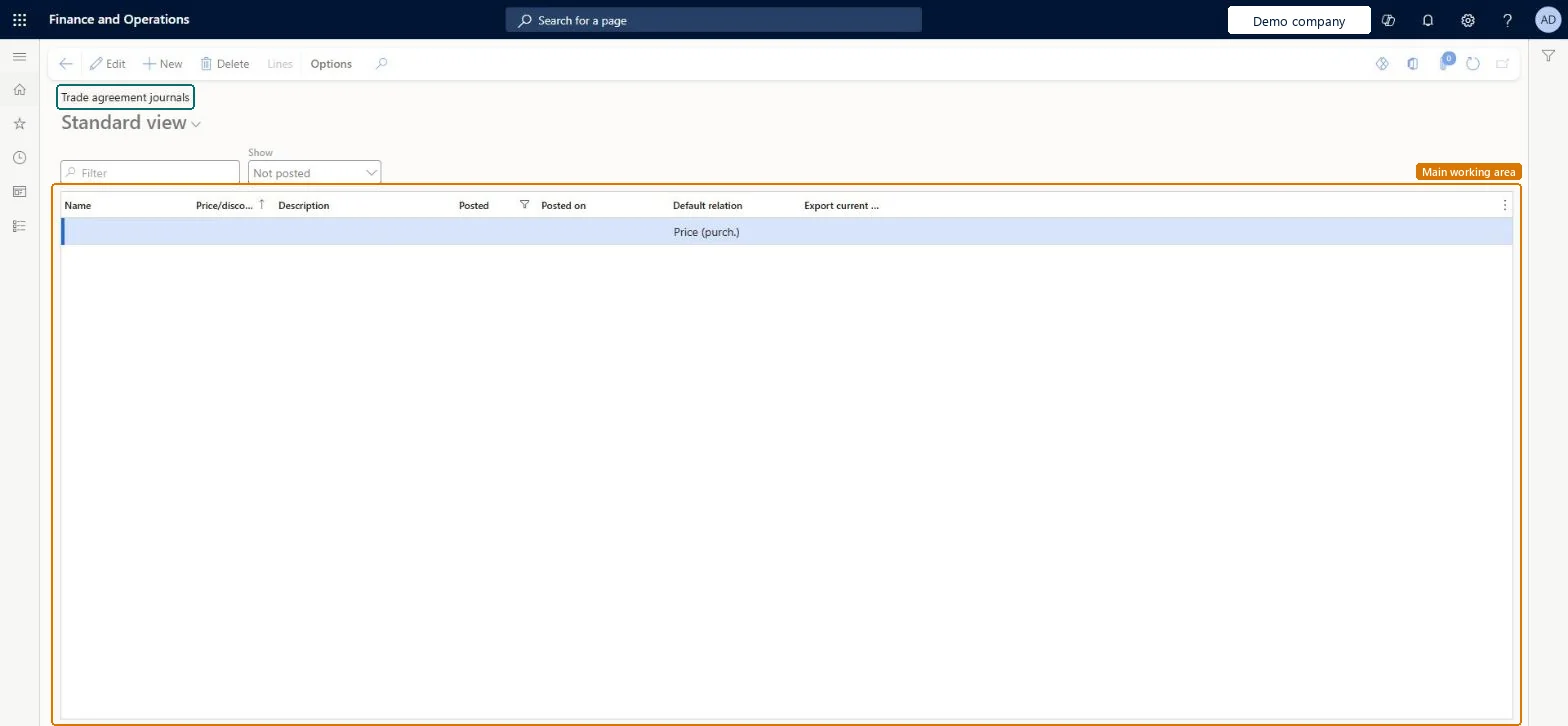
The page in Dynamics 365. page title tab to open what to set or check
About the examples: Examples and screenshots in this guide use BEAT, a demo company in a Dynamics 365 test environment. Use your own company's codes and values instead of copying them.
Setup steps on this page
Register and post sales price agreements in a trade agreement journal
Use this journal to register new or changed prices and discounts and post them so that they take effect.
Steps from Microsoft
Go to Sales and marketing > Prices and discounts > Trade agreement journals.
Select New, and in the Name field select a journal name.
On the Action Pane, select Lines.
In the Party code type field, select Table, Group or All, and then select the account in the Account selection field.
In the Product code type field, select Table, and then select the item in the Item relation field.
In the From and To fields, enter the quantity range.
In the Amount in currency field, enter the price.
In the From date field, enter the date the agreement starts.
Select Save, then Validate > Validate selected lines.
Sets who the line applies to: one customer (Table), a customer price group (Group) or all customers (All). Group needs customer price groups.Microsoft Learn
Table
Product code type
Sets which products the line applies to. A Price (sales) line must use Table, because a price is an absolute value for one product.Microsoft Learn
Table
To
The maximum quantity above which the agreement's price no longer applies. Each quantity break is a From and To pair.Microsoft Learn
A posted price isn't used on new sales order lines for the customer.
Check that the combination (for example Customer and Item for Price) is activated on Activate price/discount, that the line's From date has been reached and that the order quantity is inside the From and To range. Microsoft Learn
Test checklist
Create a trade agreement journal with a journal name whose Default relation is Price (sales).
Add a line: Party code type Table, the customer, Product code type Table, the item, From quantity, Amount in currency and From date.
Validate the selected lines, then post the journal.
On Released products, select Sell > View trade agreements and check the new price; create a sales order line for that customer and item and check the unit price.
Use a journal name whose Default relation is Price (sales) for price changes, enter the lines in a journal ahead of time, validate the selected lines, and post only when the prices are approved.A trade agreement can be prepared in a journal and posted at a later time, for example when journals must be approved first. Once posted, its price is used instead of the product's base sales price.
New records on this page take their Price/discount journal number from the PriceDiscJournalNum reference; BEAT uses number sequence Sale_51. Checked in Dynamics 365
Feature management and licence
Licence or add-in
On the live system, Sales manager, Accounts receivable manager and the rental managers (maintain), and Sales clerk, Accountant, Accounting manager and the rental roles (use) use this page.
Hard to reverse: Lines can be changed until the journal is posted. After posting, a change needs a new journal; old agreements can be kept as history.
If you change it later
Once a trade agreement is posted, its price is used instead of the product's base sales price. Microsoft Learn
Technical architect
6Technical
Menu item
PriceDiscAdmTable_SalesChecked in Dynamics 365
Form
PriceDiscAdmTableChecked in Dynamics 365
Table
PriceDiscAdmTableShown as “Trade agreement journal table” in Record infoKey field: JournalNumChecked in Dynamics 365
Data entities
TradeAgreementJournalHeaderEntityTrade agreement journal headers Microsoft data model TradeOpenTradeAgreementJournalHeaderV2EntityTrade agreement journal table V2 Microsoft data model
Roles to set it up and use it
To set it up or change itSales manager TradeSalesManagerRental manager RentalManagerRental coordinator agent RentalCoordinatorAgentRental sales manager RentalSalesManagerAccounts receivable manager CustInvoiceAccountsReceivableManagerTo use itSales clerk TradeSalesClerkRental representative RentalRepresentativeRental purchasing manager RentalPurchasingManagerAccounting manager LedgerAccountingManagerAccountant LedgerAccountantGive people one of these roles. On this system, 14 roles can open this page.Checked in Dynamics 365
Actions on the page
Options: Personalize, Page options, ShareChecked in Dynamics 365
TradeAgreementJournalHeaderEntity (Trade agreement journal headers): loaded for each company.TradeOpenTradeAgreementJournalHeaderV2Entity (Trade agreement journal table V2): loaded for each company.Load order: No default configuration template places these entities. Load the journal headers after the trade agreement journal names they use, then post the journals in the system so the prices take effect.Load first: Trade agreement journal names, Customers and customer price/discount groups, Released productsMicrosoft Learn
Checked in a working Dynamics 365 system, version 10.0.49: the menu item, form, table and security, the page.
To cite this step: SM-TRD-020, Register and post sales price agreements in a trade agreement journal. Beyond ERP Atlas Hub, 2026-11-11. https://www.beyonderp.cloud/atlas/step/SM-TRD-020