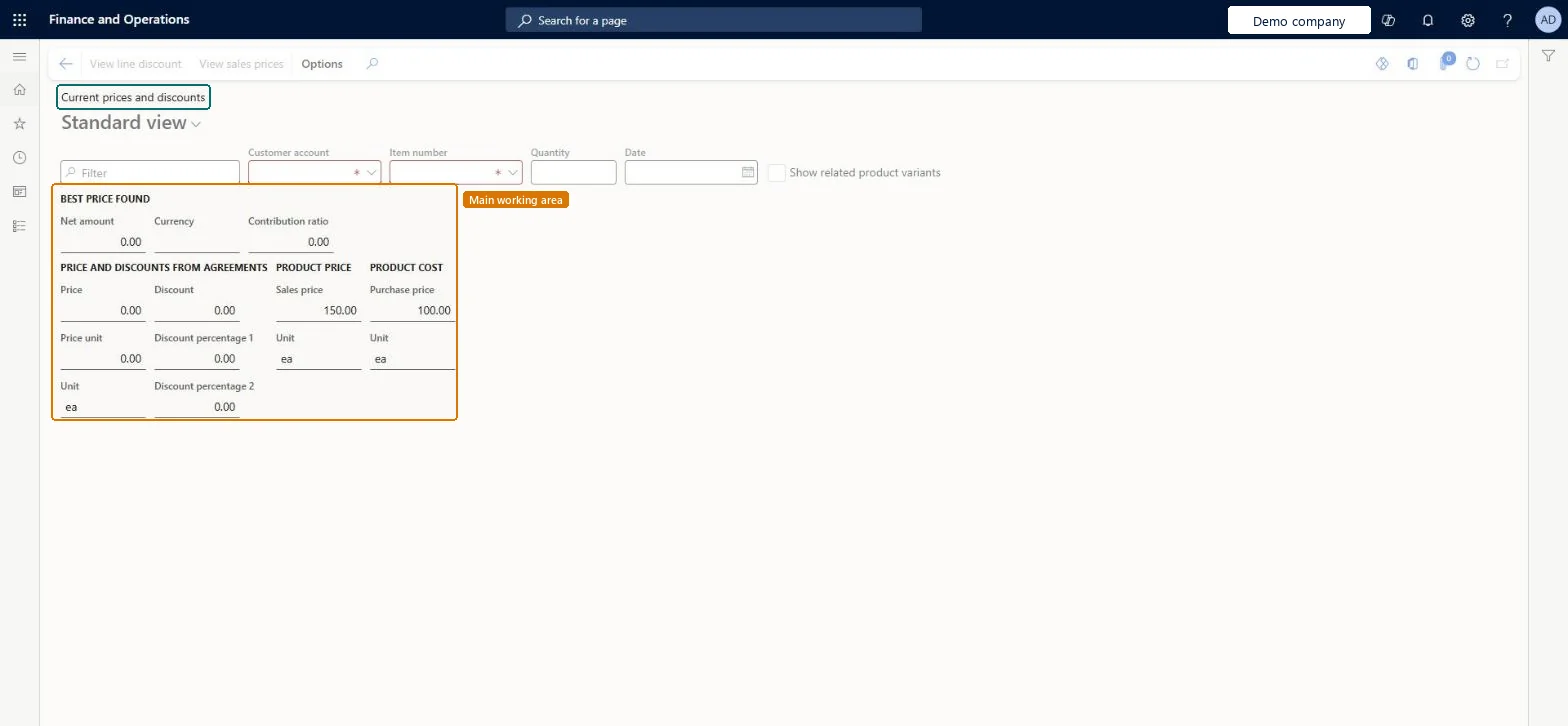
Check the price a customer will get on Find prices
Sales and marketingPrices and discounts
PriceDiscActual
Business process
Develop sales pricing strategy
Menu item
PriceDiscActual
Main table
InventTable
Data entity
EcoResReleasedProductV2Entity
Setup steps
1 on this page
Show what matters for
SETUP GUIDEHow to set it up8 sections. Choose a role to highlight what matters to you.
Everyone
1What it is and why
What it is
An inquiry page that shows the price and discount that are currently valid for a product and customer, without creating a sales order.
What you do here
Use this page to check the price, discounts and profitability a customer would get for a given quantity and date.
Example
For example, before BEAT quotes customer BEAT-000123 for 25 units of item BEAT-TV-0042 next Monday, a sales clerk enters those values and sees a unit price of 349.00 and a 7.00 percent line discount from the item's discount group, where one unit would get 5.00 percent.
The page in Dynamics 365. page title tab to open what to set or check
About the examples: Examples and screenshots in this guide use BEAT, a demo company in a Dynamics 365 test environment. Use your own company's codes and values instead of copying them.
Setup steps on this page
Check the price a customer will get on Find prices
Use this page to see the price and discount that a customer would get for an item, quantity and date before an order is created.
Steps from Microsoft
Go to Sales and marketing > Prices and discounts > Find prices.
In the Customer account field, select the customer.
In the Item number field, enter the item.
In the Quantity field, enter the quantity the customer is likely to order, not the default of 1.
In the Date field, enter the date the customer expects to order.
If the item has variants, select Show related product variants and mark the variant to see its own price.
Select View sales prices or View line discount to see the trade agreements behind the result, then quote the price on the sales order or quotation.
The expected order quantity. Enter the real quantity, because prices and discounts can have quantity breaks.Microsoft Learn
25
Date
The date the customer expects to order. It can be today or a future date, and only agreements valid on that date are used.Microsoft Learn
2026-11-16
Show related product variants
Shows that there are separate trade agreements for the product's variants; select a variant to see its own price.Microsoft Learn
Yes
Net amount
The amount after the unit price, discount and quantity are applied.Microsoft Learn
8113.25
Common errors and fixes
Message
What to do
The unit price shown is the item's base sales price, not the agreed price.
Check that the trade agreement journal with the price is posted, that its From date is on or before the Date you entered, and that the customer and item combination is activated on Activate price/discount. Microsoft Learn
Test checklist
Select a customer that has a posted price trade agreement and enter the item, Quantity 1 and today's date.
Check the unit price matches the trade agreement, not the item's base price.
Raise Quantity above the first discount break and check the discount percentage and Net amount change.
Select View line discount and check the line discount agreements that apply, including any set up for the item's discount group.
Enter the customer, the item, the Quantity the customer will actually order and the Date of the order before reading the price; keep the defaults only for a one-unit order today.The page returns the price that is valid for that customer on that date for that quantity. Trade agreements can have quantity breaks, so a different quantity or date gives a different price or discount.
Reading the result for Quantity 1 and quoting it for a larger order. In Microsoft's example, raising the quantity from 1 to 20 changes the line discount from 5 to 7 percent.Test: Find prices returns the quantity-break discount
Feature management and licence
Licence or add-in
On the live system, Sales manager, Sales representative, Rental manager, Rental sales manager and Rental coordinator agent (maintain), and Accounts receivable clerk, Accounts receivable manager, Marketing manager and the accounts receivable payments clerks (use) use this page.
Reversible: Inquiry only: nothing is created or posted.
If you change it later
Nothing downstream changes: the page only reads the trade agreements that are posted. The answer changes when a new trade agreement journal is posted, because a posted agreement is used instead of the item's base price, or when the customer's price or discount groups change. Microsoft Learn
Technical architect
6Technical
Menu item
PriceDiscActualChecked in Dynamics 365
Form
PriceDiscActualChecked in Dynamics 365
Table
InventTableShown as “Items” in Record infoKey field: ItemId, Product, Product_DisplayProductNumberChecked in Dynamics 365
To set it up or change itSales manager TradeSalesManagerRental manager RentalManagerRental coordinator agent RentalCoordinatorAgentRental sales manager RentalSalesManagerSales representative TradeSalesRepresentativeTo use itAccounts receivable clerk CustInvoiceAccountsReceivableClerkAccounts receivable manager CustInvoiceAccountsReceivableManagerMarketing manager CRMMarketingManagerAccounts receivable centralized payments clerk PaymAccountsReceivableCentralPaymClerkAccounts receivable payments clerk PaymAccountsReceivablePaymentsClerkGive people one of these roles. On this system, 30 roles can open this page.Checked in Dynamics 365
Actions on the page
Options: Personalize, Page options, ShareChecked in Dynamics 365
EcoResReleasedProductV2Entity (Released products V2): loaded for each company, in Microsoft's default template 310 - Product information management.Load order: Microsoft's default template 310 - Product information management loads Released products V2 at execution unit 1, level 310, sequence 70. Lower levels load first, and entities at the same level load in sequence order.Load first: Country/regions, States, Units, Buyer groups, Calculation groups, the default templates at lower levels (System setup to Inventory management)Microsoft Learn
Checked in a working Dynamics 365 system, version 10.0.49: the menu item, form, table and security, the page.
To cite this step: SM-TRD-010, Check the price a customer will get on Find prices. Beyond ERP Atlas Hub, 2026-11-11. https://www.beyonderp.cloud/atlas/step/SM-TRD-010