SETUP GUIDEHow to set it up8 sections. Choose a role to highlight what matters to you.
Everyone
1What it is and why
What it is
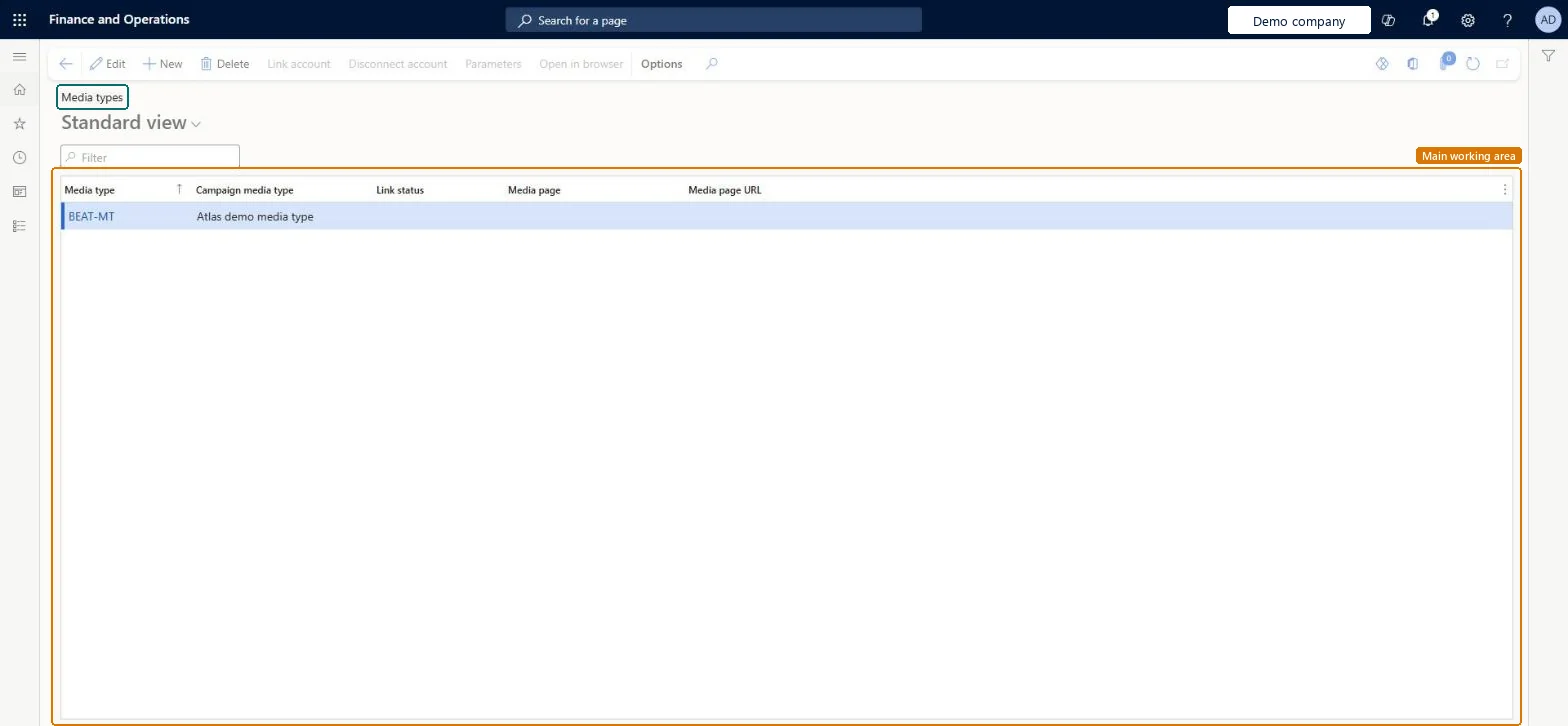
A setup page that lists the media types used for campaigns, with the campaign media type, link status, media page and media page URL.
What you do here
Use this page to set up media types for campaigns and to link or disconnect an account for a media type. These campaign pages belong to the built-in marketing features. Where Dynamics 365 Sales is used, quotations and orders are shared with Supply Chain Management through prospect-to-cash dual-write.
Example
For example, BEAT sets up the media types EMAIL and SOCIAL, links an account to SOCIAL so the Link status changes, and records that 2 of its 5 spring campaigns run on SOCIAL.
The page in Dynamics 365. page title tab to open what to set or check
About the examples: Examples and screenshots in this guide use BEAT, a demo company in a Dynamics 365 test environment. Use your own company's codes and values instead of copying them.
Step by step, with screenshots
Set up Media types1 screen
Screen 1
Create a campaign media type
Go to Sales and marketing > Setup > Campaigns > Media types
Select New
Enter the media type and its description in Campaign media type
Select Save
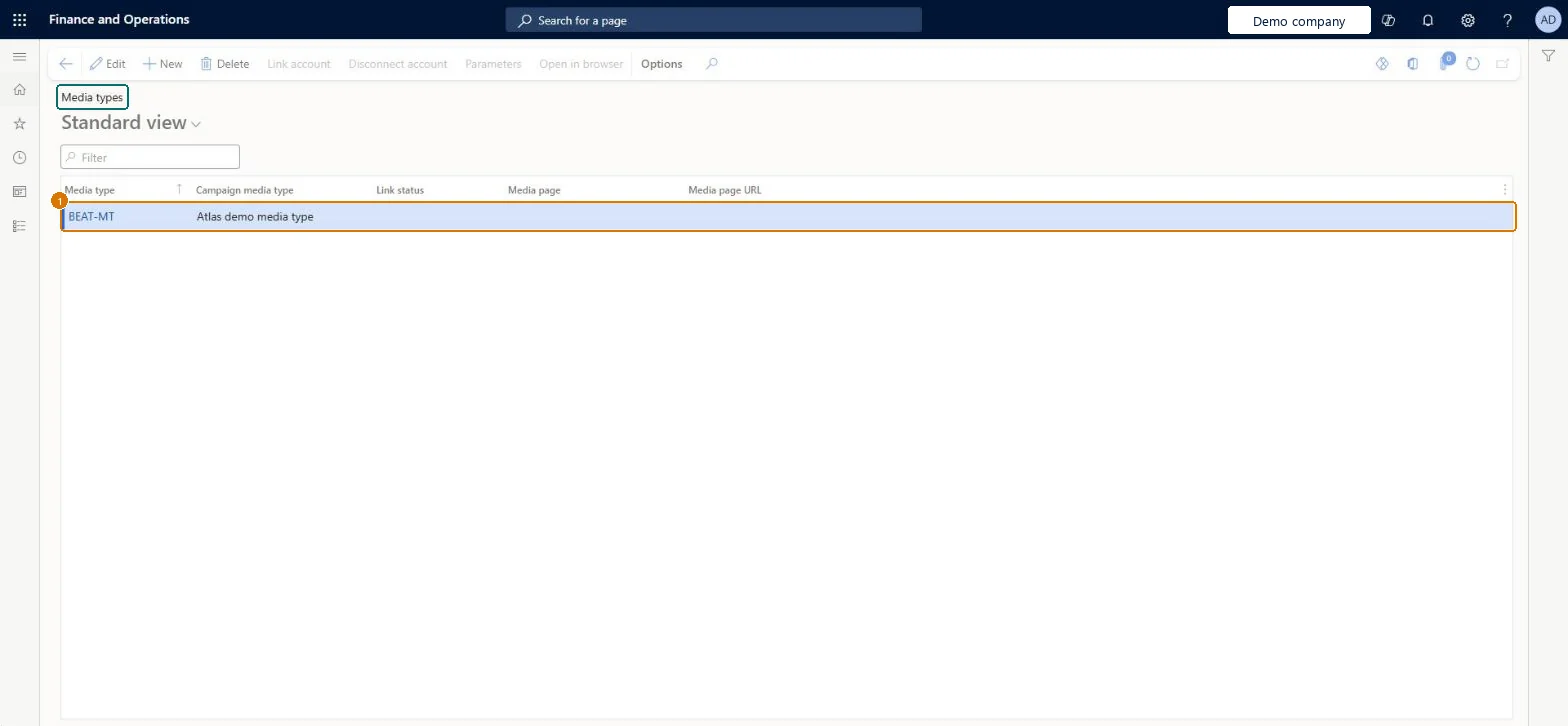
1Media type
BEAT-MT
Campaign media type
Media type
Show the full screen page title tab to open what to set or check
Steps from Microsoft
Go to Sales and marketing > Setup > Campaigns > Media types.
Select New and enter the Media type and the Campaign media type description.
Review the Link status, Media page and Media page URL columns.
Select a media type, then select Link account or Disconnect account.
Then select the media type on the campaign on All campaigns.
Media types for the channels that campaigns really use, with an account linked only where the page offers it.The media type is chosen on a campaign, and the page shows the link status and media page of each type.
Reversible: Codes can be changed at any time; campaigns keep the media type they were given.
If you change it later
Campaigns keep the media type they were given; changing the description here changes what is shown on every campaign that uses the code. Microsoft data model
Technical architect
6Technical
Menu item
smmCampaignMediaTypeGroupChecked in Dynamics 365
Form
smmCampaignMediaTypeGroupChecked in Dynamics 365
Table
smmCampaignMediaTypeGroupShown as “Media type” in Record infoChecked in Dynamics 365
PrivilegesMaintain campaign media types smmCampaignMediaTypeGroupMaintainView campaign media types smmCampaignMediaTypeGroupViewDutiesEnable marketing process smmMarketingProcessEnableInquire into marketing reference data smmMarketingReferenceData2 security rolesMarketing manager CRMMarketingManagerSales manager TradeSalesManagerChecked in Dynamics 365
Roles to set it up and use it
To set it up or change itSales manager TradeSalesManagerMarketing manager CRMMarketingManagerGive people one of these roles. On this system, 2 roles can open this page.Checked in Dynamics 365
Actions on the page
Options: Personalize, Page options, ShareChecked in Dynamics 365
SalesCampaignMediaTypeEntity (Campaign media types): loaded for each company, in Microsoft's default template 330 - Sales and marketing.Load order: Microsoft's default template 330 - Sales and marketing loads Campaign media types at execution unit 1, level 30, sequence 10. Lower levels load first, and entities at the same level load in sequence order.Load first: the default templates at lower levels (System setup to General ledger)Microsoft Learn
Checked in a working Dynamics 365 system, version 10.0.49: the menu item, form, table and security, the page, the demo records and the values in the screenshots.
To cite this step: SM-SETUP-120, Set up Media types. Beyond ERP Atlas Hub, 2026-11-11. https://www.beyonderp.cloud/atlas/step/SM-SETUP-120