SETUP GUIDEHow to set it up8 sections. Choose a role to highlight what matters to you.
Everyone
1What it is and why
What it is
A setup list of source types: the codes that say where a lead or an opportunity came from, each with optional fixed options or free-form text.
What you do here
Use it to make the origin of leads and opportunities reportable, so sales can see which channels bring business.
Example
BEAT sets up source type TRADESHOW with the options SPRING-2026 and AUTUMN-2026, and WEB with free-form text allowed. Lead LD-000231 for an expected 18,000.00 deal gets source type TRADESHOW, option AUTUMN-2026, so the sales manager can count what the autumn show produced.
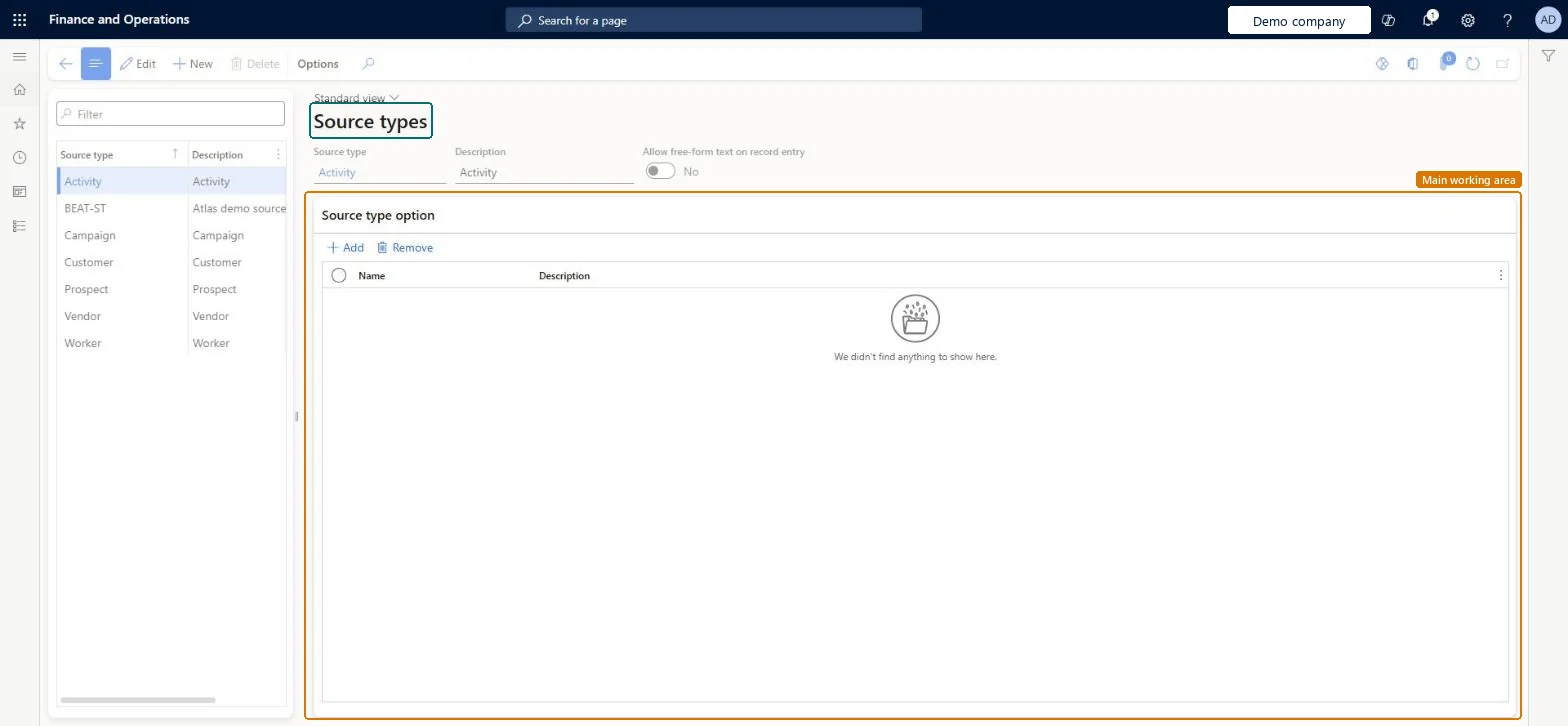
The page in Dynamics 365. page title tab to open what to set or check
About the examples: Examples and screenshots in this guide use BEAT, a demo company in a Dynamics 365 test environment. Use your own company's codes and values instead of copying them.
Step by step, with screenshots
Set up Source types1 screen
Use this page to record where a lead or opportunity came from.
Screen 1
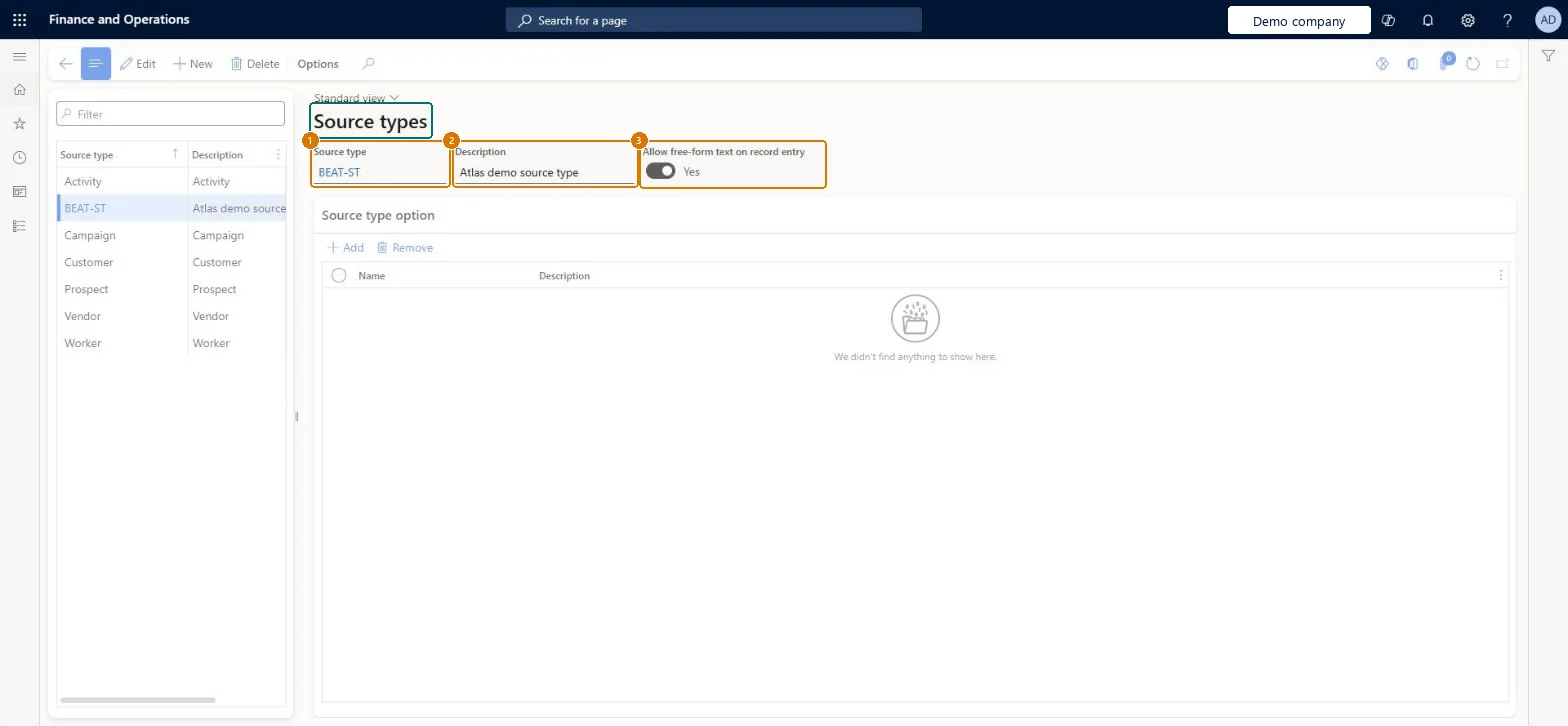
Create a source type
Go to Sales and marketing > Setup > Sales management > Source types
Select New
Enter the source type and description
Turn on Allow free-form text on record entry if users may type the source freely
Select Save
Add source type options if users should pick from a list
1Source type
BEAT-ST
2Description
Source type
3Allow free-form text on record entry
Yes
Show the full screen page title tab to open what to set or check
How to use it
Go to Sales and marketing > Setup > Sales management > Source types.
Select New and enter the Source type code, for example TRADESHOW, and a Description.
In the Source type option section, select Add for each option, such as SPRING-2026, with a Name and Description.
Set Allow free-form text on record entry to Yes only for types where users should type the source themselves, such as WEB.
Open a lead in All leads and check that the new source type and its options can be selected.
Source: Checked in Dynamics 365
Fields on the page
Field
What it means
Example
Table column
Source type
The code of the source type, such as WEB or TRADESHOW, selected on leads and opportunities.Checked in Dynamics 365
TRADESHOW
TypeId
Description
A short description of the source type.Checked in Dynamics 365
Trade shows
Description
Allow free-form text on record entry
Yes lets users type the source as free text on the lead or opportunity instead of choosing one of the source type options.Checked in Dynamics 365
Yes
AllowFreeformText
Common errors and fixes
Message
What to do
Users type different spellings of the same source, so reports split one channel into several
Set Allow free-form text on record entry to No for that source type and give it fixed options instead. Checked in Dynamics 365
Test checklist
Create source type TRADESHOW with options SPRING-2026 and AUTUMN-2026.
Create lead LD-000231 and select source type TRADESHOW, option AUTUMN-2026.
Filter All leads on source type TRADESHOW and check that the list shows LD-000231 and no lead from another source.
A short, fixed list of source types that match the channels marketing reports on (for example WEB, TRADESHOW, REFERRAL), with options for named events and free-form text only where a list can't be kept.The source type is what lets you count leads and opportunities by channel; free-form text makes the same channel appear under many spellings.
On the live system, Information technology manager and Sales manager use this page.
Checked in Dynamics 365
Solution architect
5Design impact
Shared or per company
Per company: each legal entity has its own source types, so load them in every company that uses leads and opportunities. Microsoft data model
Can it be undone
Reversible: Source types can be added or renamed at any time; leads keep their recorded source.
If you change it later
Source types only classify leads and opportunities; changing or adding a type doesn't post or recalculate anything. Leads and opportunities already created keep the source they were given. Where the business runs leads and opportunities in Dynamics 365 Sales with prospect-to-cash through dual-write instead, these codes may not be used at all. Microsoft Learn
Technical architect
6Technical
Menu item
smmSourceTypeChecked in Dynamics 365
Form
SmmSourceTypeTableChecked in Dynamics 365
Table
smmSourceTypeTableShown as “Source type” in Record infoChecked in Dynamics 365
PrivilegesMaintain source types smmSourceTypeMaintainView source types smmSourceTypeViewDutiesEnable the Sales and marketing process smmCRMProcessEnableInquire into Sales and marketing reference data smmCRMReferenceDataInquire2 security rolesInformation technology manager SysServerITManagerSales manager TradeSalesManagerChecked in Dynamics 365
Roles to set it up and use it
To set it up or change itSales manager TradeSalesManagerInformation technology manager SysServerITManagerGive people one of these roles. On this system, 2 roles can open this page.Checked in Dynamics 365
Actions on the page
Options: Personalize, Page options, ShareChecked in Dynamics 365
SalesOpportunitySourceTypeEntity (Opportunity source types): loaded for each company, in Microsoft's default template 330 - Sales and marketing.Load order: Microsoft's default template 330 - Sales and marketing loads Opportunity source types at execution unit 1, level 30, sequence 10. Lower levels load first, and entities at the same level load in sequence order.Load first: the default templates at lower levels (System setup to General ledger)Microsoft Learn
Checked in a working Dynamics 365 system, version 10.0.49: the menu item, form, table and security, the page, the demo records and the values in the screenshots.
To cite this step: SM-SETUP-020, Set up Source types. Beyond ERP Atlas Hub, 2026-11-11. https://www.beyonderp.cloud/atlas/step/SM-SETUP-020