Validate attribute-based pricing formulas for potency items
Sales and marketingSetupPrices and discounts
PDSCalculationTable
Used by
Purchasing agent, Project manager, Purchasing manager and 1 more role
Business process
Procure goods and services
Menu item
PDSCalculationTable
Main table
PDSCalculationTable
Setup steps
2 on this page
Show what matters for
SETUP GUIDEHow to set it up8 sections. Choose a role to highlight what matters to you.
Everyone
1What it is and why
What it is
A setup page where you create batch attribute-based pricing formulas that calculate the purchase price of a potency item. It is the same page as in Procurement and sourcing, reached from the Sales and marketing price setup.
What you do here
Use this page to change the purchase price paid for a potency item with an equation based on its batch attributes, such as the actual and target potency of a received batch.
Example
BEAT buys an extract with target potency 80 percent. Formula BEAT-00001 multiplies the purchase price by actual potency divided by target potency, so a batch received at 84 percent and 10.00 USD per kg is paid at 10.50 USD per kg.
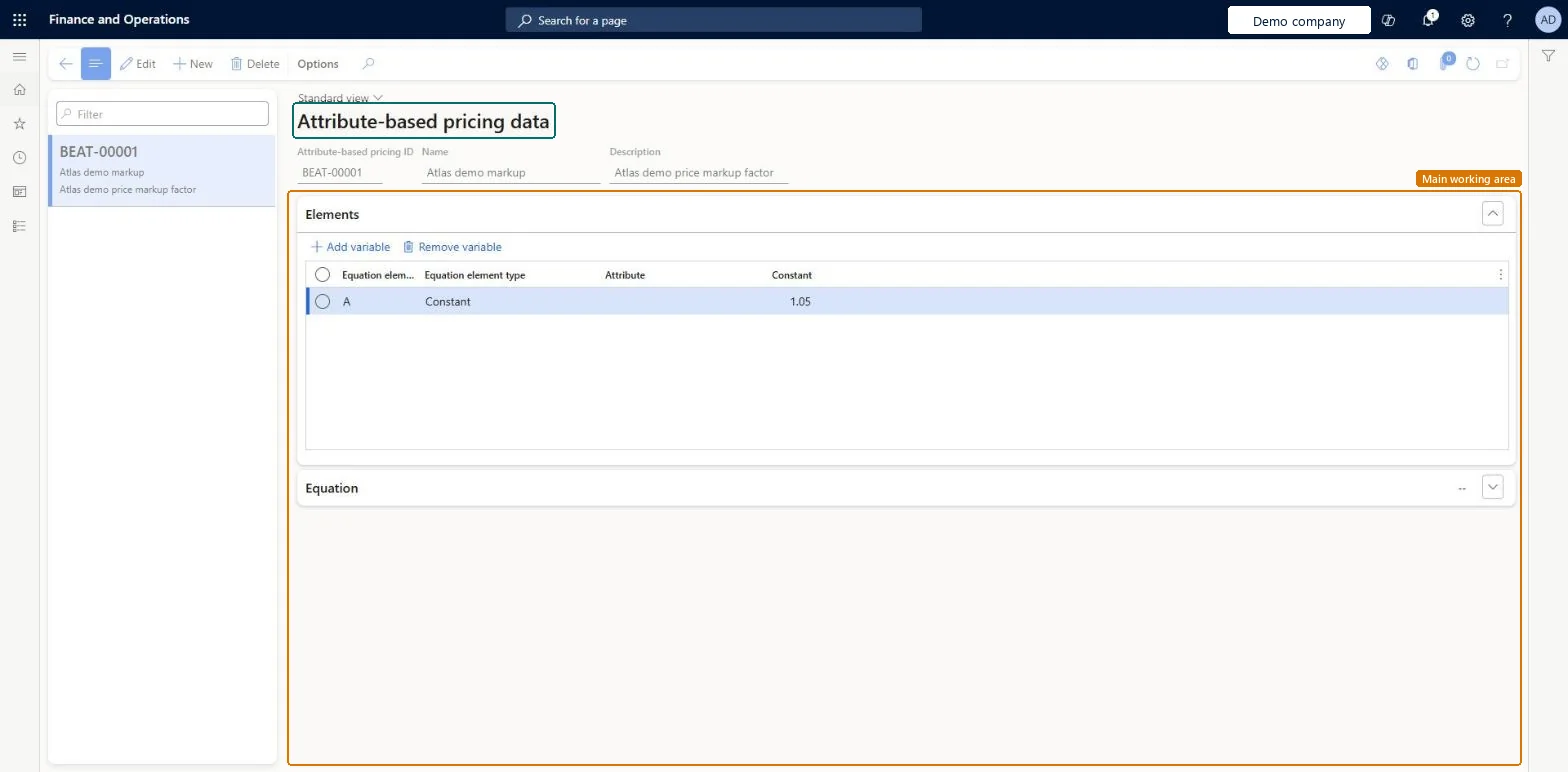
The page in Dynamics 365. page title tab to open what to set or check
About the examples: Examples and screenshots in this guide use BEAT, a demo company in a Dynamics 365 test environment. Use your own company's codes and values instead of copying them.
Step by step, with screenshots
Validate attribute-based pricing formulas for potency items
Set up and validate the formula that adjusts the purchase price of a potency item from its batch attributes.
Set up Attribute-based pricing details1 screen
Use this page to change the purchase price paid for a potency item by using calculation equations based on its batch attributes.
Screen 1
Create the attribute-based pricing record
Go to Procurement and sourcing > Setup > Prices and discounts > Attribute-based pricing details
Select New and enter the name and description
Under Elements, select Add variable
Choose the equation element type and enter its value
Select Save
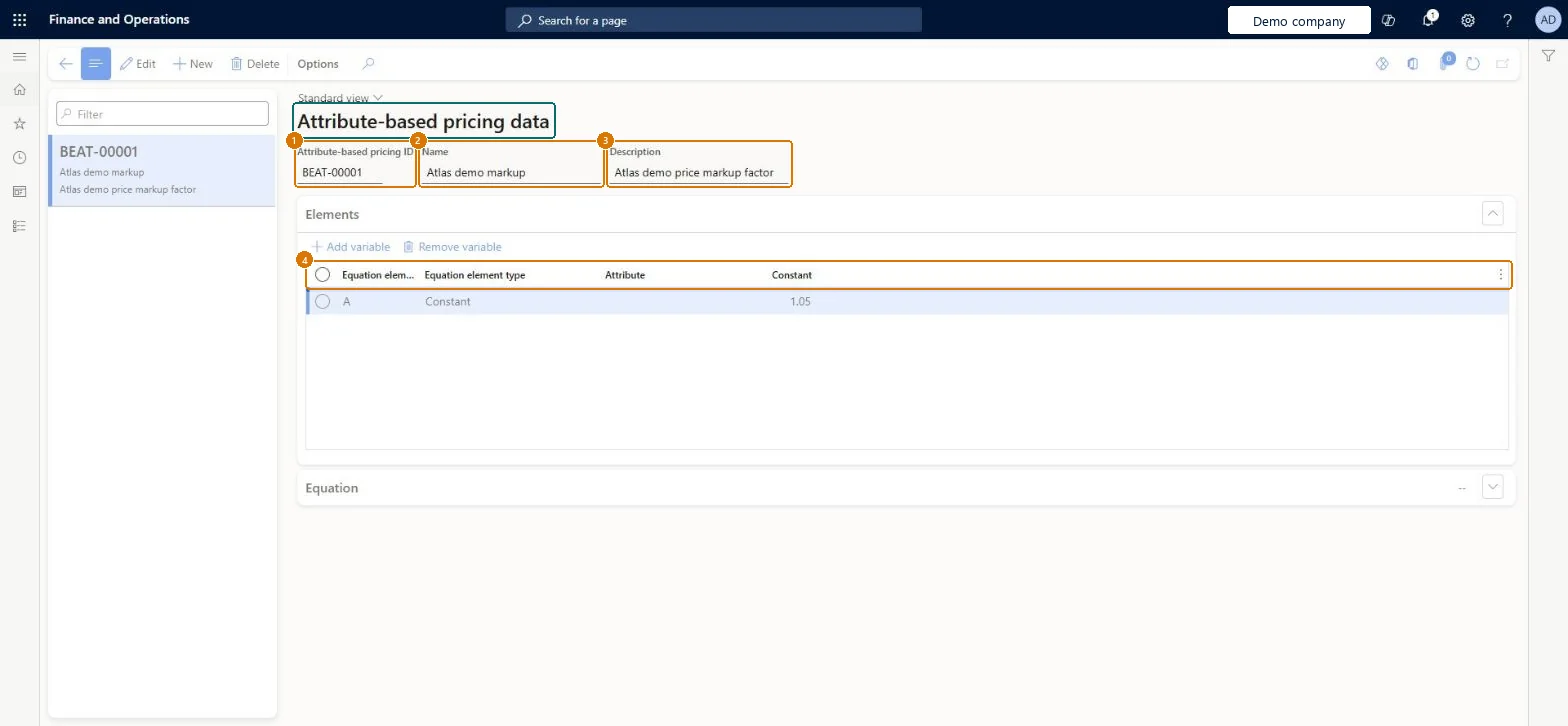
1Attribute-based pricing ID
BEAT-00001
2Name
Markup
3Description
Price markup factor
Element A
Constant 1.05
Show the full screen page title tab to open what to set or check
Steps from Microsoft
Go to Sales and marketing > Setup > Prices and discounts > Attribute-based pricing details.
Select New to create a pricing formula line and enter a code in the Attribute-based pricing ID field.
On the Equation FastTab, enter the equation that calculates the purchase price, and select Validate equation.
On the Elements FastTab, select Add variable and enter the Equation element, Equation element type, Attribute and Constant values.
Check that the batch attributes used in the equation are assigned to the potency item before batches are received.
A code that identifies the attribute-based pricing formula.Microsoft Learn
BEAT-00001
CalculationId
Equation
The formula that calculates the purchase price of the potency item.Microsoft Learn
CalculationText
Equation element
A name for a set of values used in the equation, written with letters only.Microsoft Learn
Element
Equation element type
What the element stands for, such as purchase receipt quantity, purchase price, an actual or target batch attribute, or a constant.Microsoft Learn
ElementType
Attribute
The batch attribute used in the calculation, for actual or target batch attribute elements.Microsoft Learn
PdsBatchAttribId
Constant
A fixed value or quantity used in the calculation.Microsoft Learn
Constant
Name
The name of the pricing formula.Checked in Dynamics 365
Markup
Name
Description
A description of the pricing formula.Checked in Dynamics 365
Price markup factor
Description
Element A
An equation element row: the element A, of type Constant, with the value 1.05.Checked in Dynamics 365
Constant 1.05
Common errors and fixes
Message
What to do
The Attribute field can't be filled for an element.
Attribute is available only for the element types Batch attribute - Actual and Batch attribute - Target; for a fixed value use Constant. Microsoft Learn
Test checklist
Create formula BEAT-00001 with elements for purchase price, actual and target batch attribute.
Select Validate equation.
Check that validation reports no error.
Check that the Elements FastTab lists every element used in the equation.
One formula per potency pricing rule, using Batch attribute - Actual and Batch attribute - Target elements, validated with Validate equation before the first receipt.The equation calculates the purchase price of the potency item, and Validate equation checks it before it is used on receipts.
Reversible: Formulas can be edited and revalidated.
If you change it later
The formula changes the purchase price paid for potency items through their batch attributes, so changes affect receipts priced after the change. Batch attributes must be assigned to the product, with the batch dimension active. Microsoft Learn
Technical architect
6Technical
Menu item
PDSCalculationTableChecked in Dynamics 365
Form
PDSCalculationTableChecked in Dynamics 365
Table
PDSCalculationTableShown as “Calculation” in Record infoChecked in Dynamics 365
Who can open it
PrivilegesMaintain attribute-based pricing PDSCalculationTableMaintainAttribute-based pricing view PDSCalculationTableViewDutiesInquire into sales agreement master AgreementSalesAgreementMasterInquireMaintain sales agreement master AgreementSalesAgreementMasterMaintainMaintain product prices and discount master PriceDiscProductPriceDiscMasterMaintainInquire into purchase order to invoice reference data PurchOrderToInvoiceReferenceDataInquire4 security rolesProject manager ProjProjectManagerPurchasing manager TradePurchasingManagerSales manager TradeSalesManagerPurchasing agent VendPurchasingAgentChecked in Dynamics 365
Roles to set it up and use it
To set it up or change itSales manager TradeSalesManagerPurchasing agent VendPurchasingAgentTo use itProject manager ProjProjectManagerPurchasing manager TradePurchasingManagerGive people one of these roles. On this system, 4 roles can open this page.Checked in Dynamics 365
Actions on the page
Options: Personalize, Page options, ShareChecked in Dynamics 365
Checked in a working Dynamics 365 system, version 10.0.49: the menu item, form, table and security, the page, the demo records and the values in the screenshots.
To cite this step: SM-SETB-030, Validate attribute-based pricing formulas for potency items. Beyond ERP Atlas Hub, 2026-11-11. https://www.beyonderp.cloud/atlas/step/SM-SETB-030