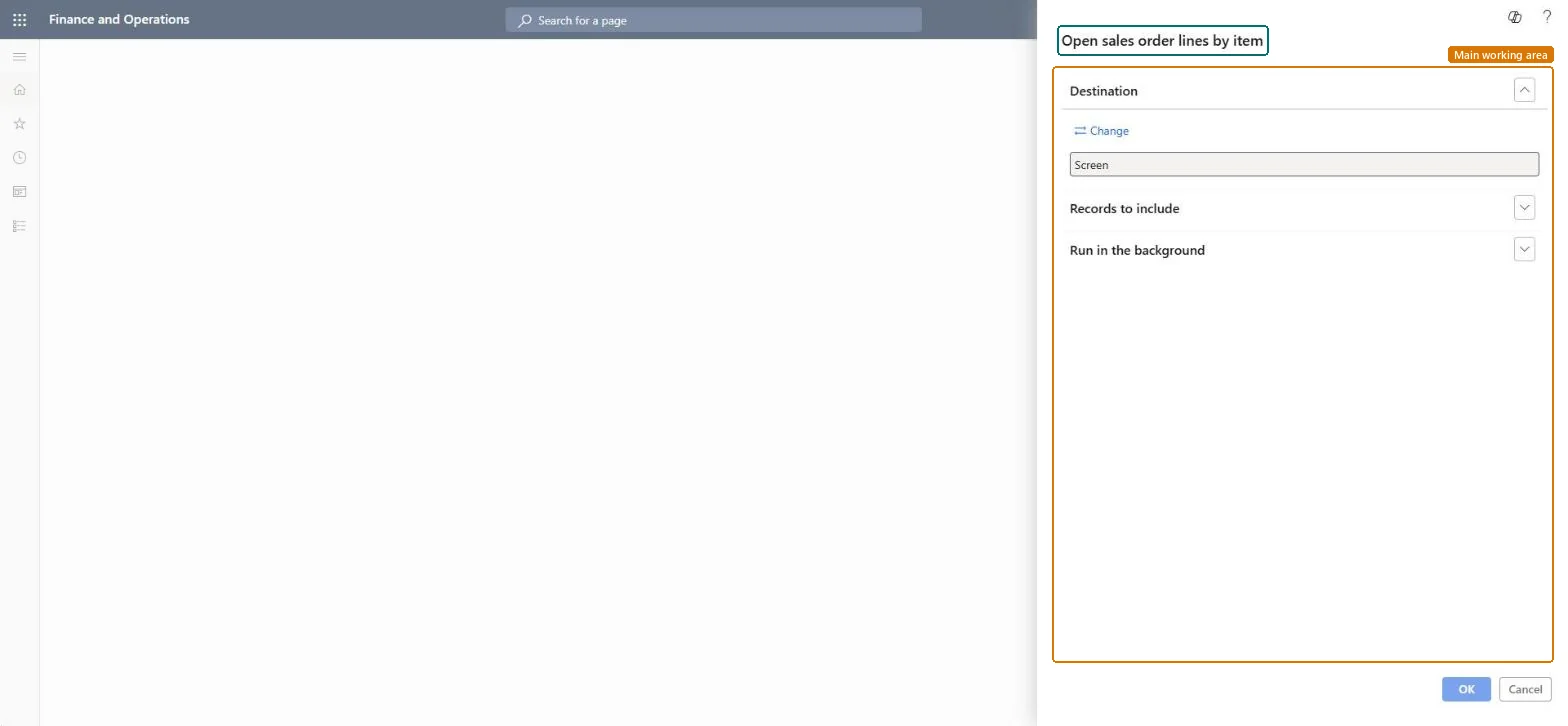
Sales and marketingInquiries and reportsSales order reports
output:CustSalesOpenLinesbyItem_NA
Business process
Manage sales orders
Menu item
output:CustSalesOpenLinesbyItem_NA
Setup steps
1 on this page
Show what matters for
SETUP GUIDEHow to set it up8 sections. Choose a role to highlight what matters to you.
Everyone
1What it is and why
What it is
A United States and Canada report that prints open sales order lines grouped by item.
What you do here
Use it to follow up backorders per item: the lines customers ordered that haven't shipped yet.
Example
For example, item DESK-02 is short at BEAT on 09.11.2026. The report shows 6 open lines for DESK-02 with 58.00 pieces in total, while 30.00 are on hand, so purchasing orders more and sales decides which orders ship first.
The page in Dynamics 365. page title tab to open what to set or check
About the examples: Examples and screenshots in this guide use BEAT, a demo company in a Dynamics 365 test environment. Use your own company's codes and values instead of copying them.
The report isn't available or can't be run in your legal entity.
Its menu item ends in _NA, like the other United States and Canada reports in this menu. Microsoft documents the _NA reports as available only to legal entities whose primary address is in Canada or the United States. Use Open sales order lines or Backorder lines in other legal entities. Microsoft Learn
Test checklist
In a US or Canadian legal entity, create a sales order with two lines and ship one.
On the live system, Accounts receivable clerk, Accounts receivable manager, Accounts receivable centralized payments clerk, Accounts receivable payments clerk and Collections manager use this page; 13 roles can run it in total. No Feature management feature is needed to open it.
Checked in Dynamics 365
Solution architect
5Design impact
Shared or per company
Per company: the report reads the data of the legal entity you run it in. To compare legal entities, run it in each one. Checked in Dynamics 365
Can it be undone
Reversible: Running the inquiry or report changes no data.
Feature or country
US, CA
If you change it later
Lines leave the report when they are shipped; run it again after packing slips are posted. Microsoft documents the _NA reports as available only to legal entities whose primary address is in Canada or the United States. Microsoft Learn
Technical architect
6Technical
Menu item
output:CustSalesOpenLinesbyItem_NAChecked in Dynamics 365
Form
SysOperationTemplateFormChecked in Dynamics 365
Roles to set it up and use it
To use itAccounts receivable clerk CustInvoiceAccountsReceivableClerkAccounts receivable manager CustInvoiceAccountsReceivableManagerAccounts receivable centralized payments clerk PaymAccountsReceivableCentralPaymClerkAccounts receivable payments clerk PaymAccountsReceivablePaymentsClerkCollections manager CollectionLetterCollectionsManagerGive people one of these roles. On this system, 13 roles can run this page.Checked in Dynamics 365
Load order: Open sales order lines by item has no data entity in Data management. It is a report: it reads open sales order lines and stores nothing of its own.Checked in Dynamics 365