Sales and marketingInquiries and reportsSales and marketing reports
output:smmProspectsTurnover
Business process
Analyze sales
Menu item
output:smmProspectsTurnover
Setup steps
1 on this page
Show what matters for
SETUP GUIDEHow to set it up8 sections. Choose a role to highlight what matters to you.
Everyone
1What it is and why
What it is
A report that compares each customer's total sales with the sales expected from that customer.
What you do here
Use it in account planning to find customers who buy less or more than expected, by customer, customer group, sales group or postal code.
Example
For example, BEAT reviews sales group RETAIL for 2026: customer BEAT-000123 bought 82,500.00 against 120,000.00 expected, the largest gap in the group, so the account manager plans a visit.
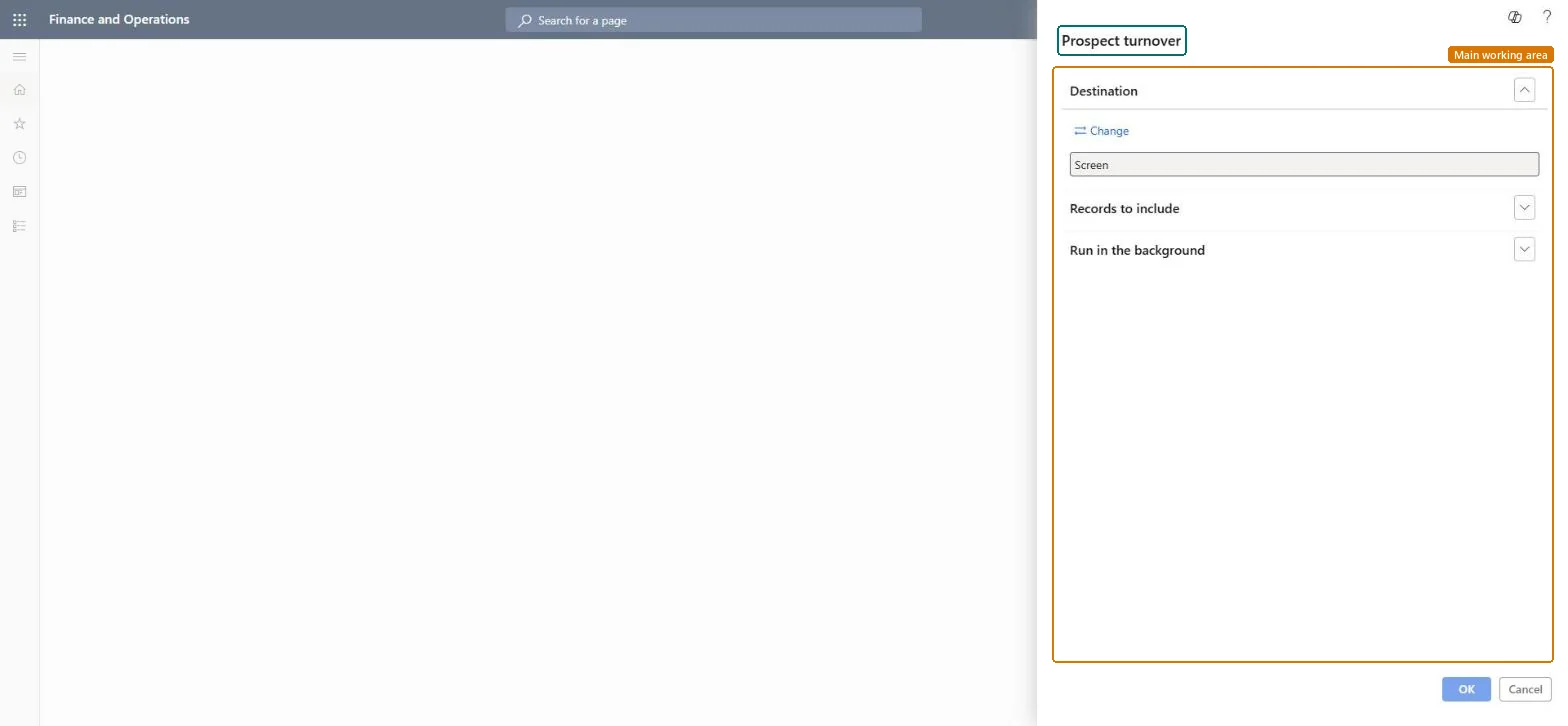
The page in Dynamics 365. page title tab to open what to set or check
About the examples: Examples and screenshots in this guide use BEAT, a demo company in a Dynamics 365 test environment. Use your own company's codes and values instead of copying them.
When to run it
When to run it
In account planning, when you compare actual sales with what customers were expected to buy.
The filters on Customer group, Sales group and ZIP/postal code work together; check that the customer has the group and postal code you filtered on. Microsoft Learn
Test checklist
Pick one customer with posted sales.
Run the report filtered on its Customer account.
Check that the total sales match the customer's invoiced sales for the period you expect.
Filter on one Sales group or Customer group first.Expected sales are set per customer; a segment keeps the comparison to customers handled the same way.
On the live system, Sales manager, Collections manager, Customer service manager and Chief executive officer use this page; 4 roles can run it in total. No Feature management feature is needed to open it.
Checked in Dynamics 365
Solution architect
5Design impact
Shared or per company
Per company: the report reads the data of the legal entity you run it in. To compare legal entities, run it in each one. Checked in Dynamics 365
Can it be undone
Reversible: Running the inquiry or report changes no data.
If you change it later
The report reads customers and sales at run time. Customer and prospect data can come from Dynamics 365 Sales when prospect to cash is used. Microsoft Learn
Technical architect
6Technical
Menu item
output:smmProspectsTurnoverChecked in Dynamics 365
Form
SysOperationTemplateFormChecked in Dynamics 365
Roles to set it up and use it
To use itSales manager TradeSalesManagerCollections manager CollectionLetterCollectionsManagerCustomer service manager TradeCustomerServiceManagerChief executive officer CompanyChiefExecutiveOfficerGive people one of these roles. On this system, 4 roles can run this page.Checked in Dynamics 365
Load order: Prospect turnover has no data entity in Data management. It is a report: it reads customers and their sales and stores nothing of its own.Checked in Dynamics 365