Accounts payable clerk, Accounts payable manager, Collections manager and 13 more roles
Business process
Calculate and pay sales commissions in Dynamics 365 Finance
Menu item
CommissionPosting
Main table
InventPosting
Setup steps
1 on this page
Show what matters for
SETUP GUIDEHow to set it up8 sections. Choose a role to highlight what matters to you.
Everyone
1What it is and why
What it is
A setup page where you choose the ledger accounts that commission amounts are posted to (Commission) and offset to (Commission offset), per item, item group or all items and per customer, customer group or all customers.
What you do here
Use this page to post commission amounts to an expense account and offset them to a payable account.
Example
For example, BEAT posts all commission to expense account 618100 and offsets it to payable account 231200, so a 2.00 percent commission of 120.00 on invoice INV-004512 debits 618100 and credits 231200.
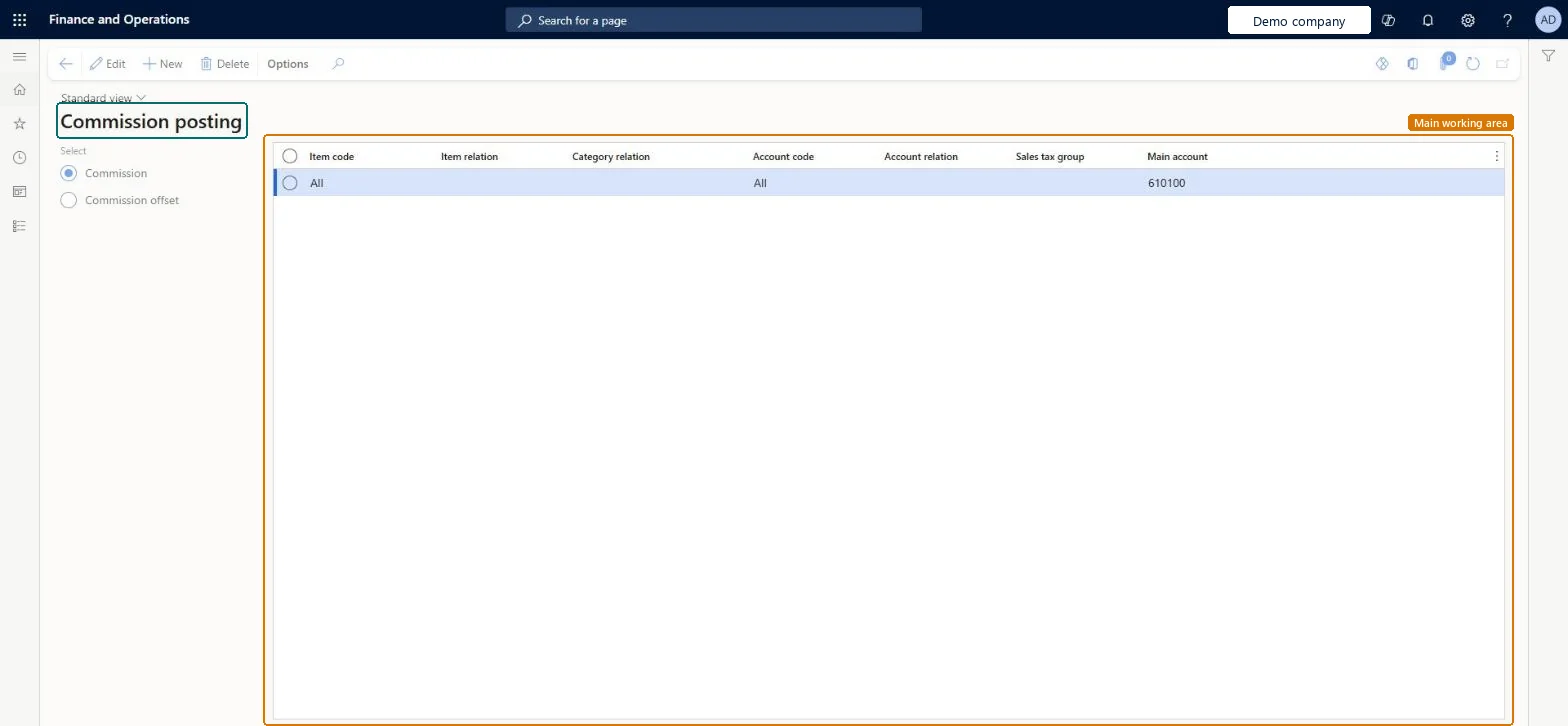
The page in Dynamics 365. page title tab to open what to set or check
About the examples: Examples and screenshots in this guide use BEAT, a demo company in a Dynamics 365 test environment. Use your own company's codes and values instead of copying them.
Step by step, with screenshots
Set up Commission posting1 screen
Use this page to post commission amounts to an expense account and offset them to a payable account.
Screen 1
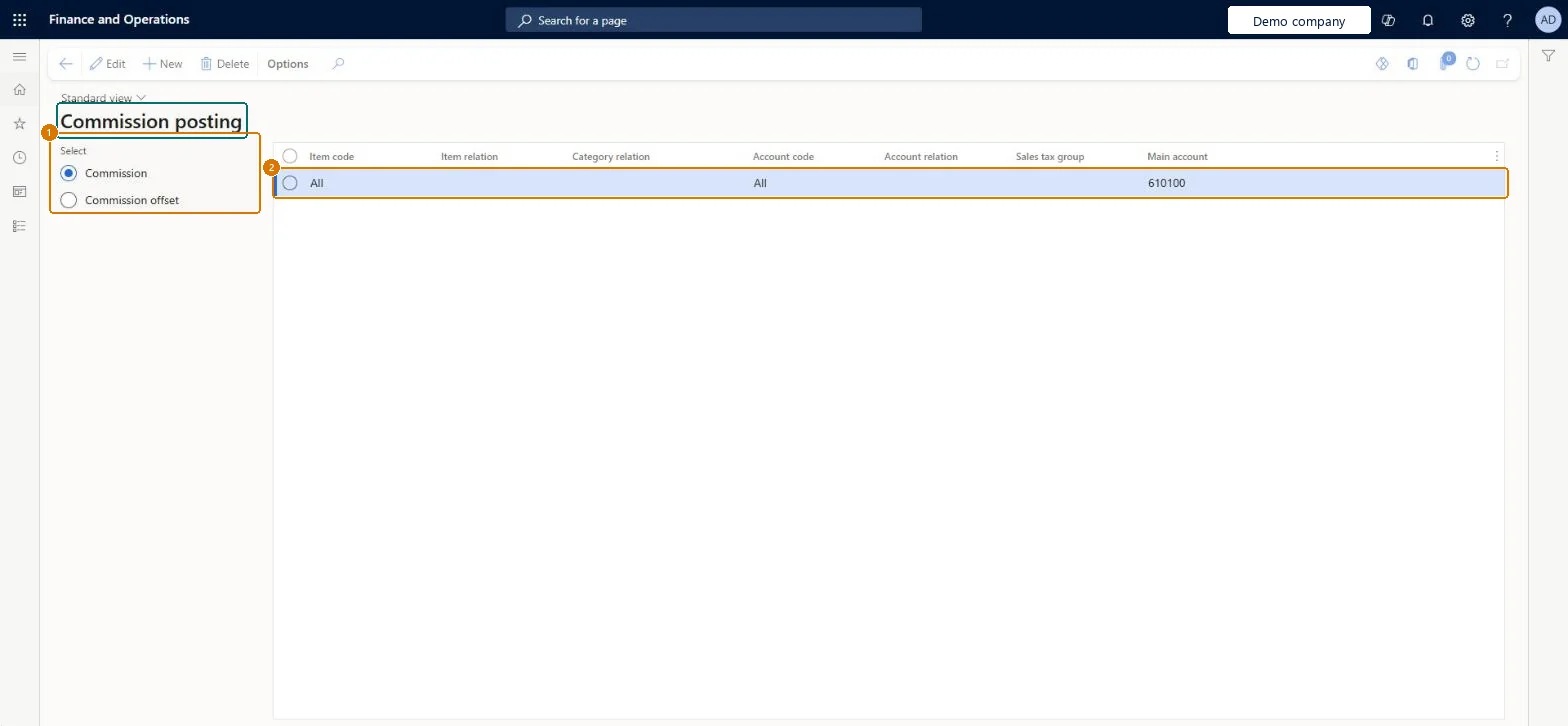
Set the account for commission expense
Go to Sales and marketing > Commissions > Commission posting
Under Select, choose Commission
Select New
Leave Item code and Account code as All, or narrow them to a group or a single item or customer
Select the main account for the commission expense
Select Save
Choose Commission offset and add the offset (payable) account the same way
1Select
Commission
2Main account
610100
Item code
All
Account code
All
Show the full screen page title tab to open what to set or check
Steps from Microsoft
Go to Sales and marketing > Commissions > Commission posting.
Under Select, choose Commission.
Select New and set Item code and Account code (for example All and All), then the expense Main account.
Under Select, choose Commission offset and add the same combination with the payable Main account.
Invoice a sales order with commission and check the voucher.
Chooses which posting the rows are for: Commission (the account the commission amount is posted to, typically an expense account) or Commission offset (the offsetting account, typically a payable account).Microsoft Learn
Commission
Item code
Whether the row applies to one item (Table), a group of items (Group) or all items (All).Checked in Dynamics 365
All
ItemCode
Account code
Whether the row applies to one customer (Table), a group of customers (Group) or all customers (All).Checked in Dynamics 365
All
CustVendCode
Main account
The ledger account that the commission, or its offset, posts to.Microsoft Learn
618100
LedgerDimension
Common errors and fixes
Message
What to do
Invoicing fails for a sales order that has commissions to pay.
Set up commission posting rows for both Commission and Commission offset that cover the order's item and customer. Microsoft Learn
Test checklist
Set up commission posting rows for the expense and the payable (offset) accounts.
Invoice a sales order that matches a Commission calculation row.
Open the invoice voucher and check the commission is debited to the expense account and credited to the payable account.
In a test company without commission posting rules, check that invoicing the same kind of order fails.
Post commission amounts to a dedicated expense account, offset to a dedicated payable account.Learn says commission amounts are typically posted to a dedicated expense account and offset to a dedicated payable account, so commission cost and the amount owed to sales staff stay visible in the ledger.
On the live system, Accounting manager, Accounting supervisor and the rental managers (maintain), and Sales manager and the accounts receivable roles (use) use this page.
Reversible: Posting rules are read when an invoice with commission is posted. A change affects later invoices; posted vouchers stay on the old accounts.
If you change it later
Without commission posting rules, invoicing fails for any sales order that has commissions to pay. Microsoft Learn
Technical architect
6Technical
Menu item
CommissionPostingChecked in Dynamics 365
Form
InventPostingChecked in Dynamics 365
Table
InventPostingShown as “Item, ledger posting” in Record infoKey field: InventAccountTypeChecked in Dynamics 365
Who can open it
PrivilegesMaintain setup of commission postings CommissionPostingMaintainView setup of commission postings CommissionPostingViewDutiesInquire into sales commissions master CustInvoiceSalesCommissionsInquireEnable general ledger process LedgerGeneralLedgerProcessEnableEnable general ledger process RentalLedgerGeneralLedgerProcessEnable16 security rolesCollections manager CollectionLetterCollectionsManagerAccounts receivable clerk CustInvoiceAccountsReceivableClerkAccounts receivable manager CustInvoiceAccountsReceivableManagerAccountant LedgerAccountantAccounting manager LedgerAccountingManagerAccounting supervisor LedgerAccountingSupervisorAccounts payable centralized payments clerk PaymAccountsPayableCentralPaymClerkAccounts payable payments clerk PaymAccountsPayablePaymentsClerkAccounts receivable centralized payments clerk PaymAccountsReceivableCentralPaymClerkAccounts receivable payments clerk PaymAccountsReceivablePaymentsClerkRental manager RentalManagerRental purchasing manager RentalPurchasingManagerRental sales manager RentalSalesManagerSales manager TradeSalesManagerAccounts payable clerk VendInvoiceAccountsPayableClerkAccounts payable manager VendInvoiceAccountsPayableManagerChecked in Dynamics 365
Roles to set it up and use it
To set it up or change itRental manager RentalManagerRental sales manager RentalSalesManagerRental purchasing manager RentalPurchasingManagerAccounting supervisor LedgerAccountingSupervisorAccounting manager LedgerAccountingManagerTo use itSales manager TradeSalesManagerAccounts receivable clerk CustInvoiceAccountsReceivableClerkAccounts receivable manager CustInvoiceAccountsReceivableManagerAccounts receivable centralized payments clerk PaymAccountsReceivableCentralPaymClerkAccounts receivable payments clerk PaymAccountsReceivablePaymentsClerkGive people one of these roles. On this system, 16 roles can open this page.Checked in Dynamics 365
Actions on the page
Options: Personalize, Page options, ShareChecked in Dynamics 365
Developer
7Developer
Open it by URL
https://<your-environment>/?mi=CommissionPosting
Data migration
Load order: Commission posting has no data entity in Data management that is named for this page: no entity is listed for it in the live Data management list, and the ledger posting definition entities built on its table (InventPosting) are named for inventory, procurement, production, sales and standard cost variance posting. Enter the Commission and Commission offset rows on the page in each legal entity.Checked in Dynamics 365
Checked in a working Dynamics 365 system, version 10.0.49: the menu item, form, table and security, the page, the demo records and the values in the screenshots.
To cite this step: SM-COMM-050, Set up Commission posting. Beyond ERP Atlas Hub, 2026-11-11. https://www.beyonderp.cloud/atlas/step/SM-COMM-050