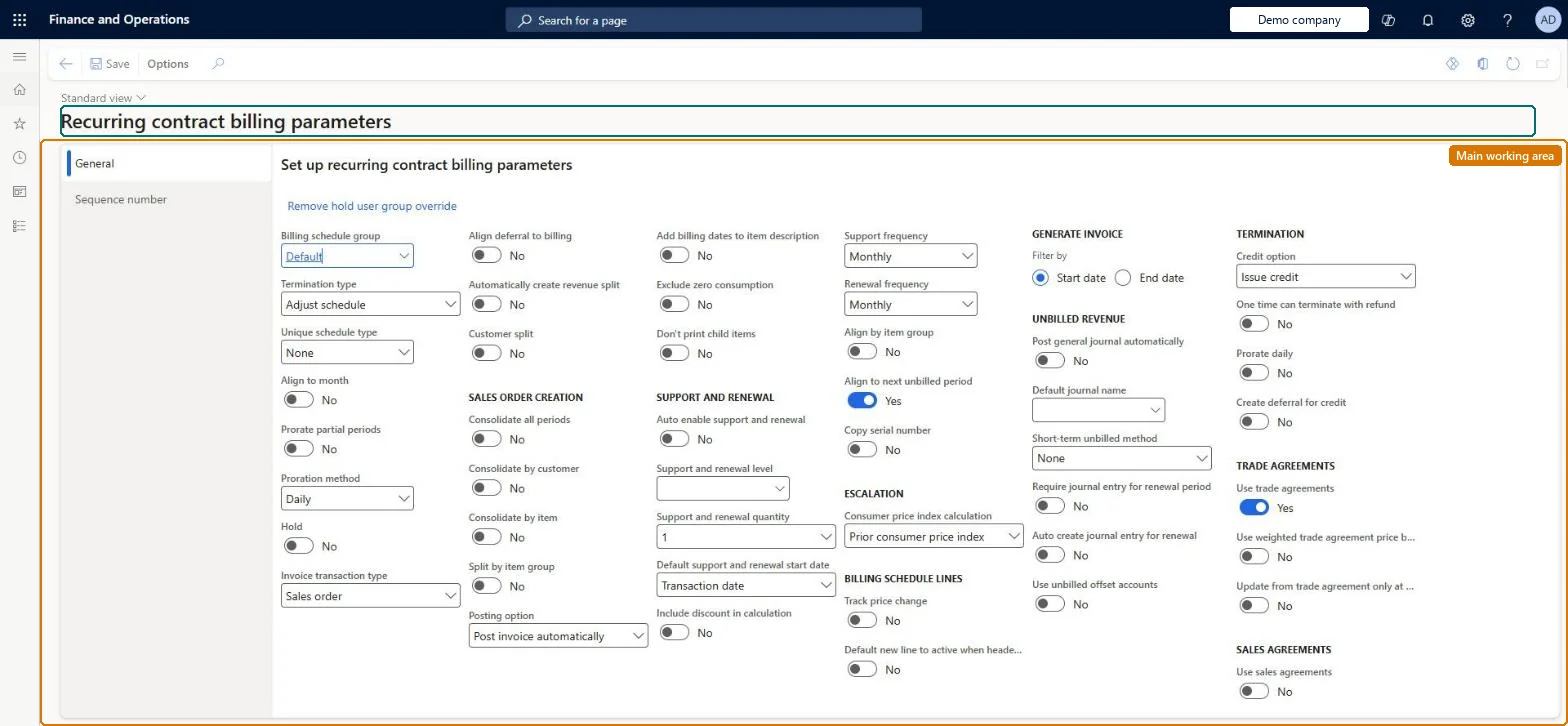
Setup step on the Recurring contract billing parameters page · Subscription billing
Set up Recurring contract billing parameters
Use this page to set the defaults that new billing schedules start with, such as billing schedule group, termination type, proration, hold, invoicing, support and renewal, unbilled revenue, termination credit and trade agreement options.
Subscription billing manager, Subscription billing user, Subscription billing allocation, deferral, and billing manager and 1 more role
Business process
Bill subscriptions
Menu item
SubBillParameters
Main table
SubBillParameters
Data entity
SubBillParametersEntity
Setup steps
1 on this page
Show what matters for
SETUP GUIDEHow to set it up8 sections. Choose a role to highlight what matters to you.
Everyone
1What it is and why
What it is
A setup page that holds the default values for billing schedules created in Recurring contract billing.
What you do here
Use this page to set the defaults that new billing schedules start with, such as billing schedule group, termination type, proration, hold, invoicing, support and renewal, unbilled revenue, termination credit and trade agreement options.
Example
For example, BEAT sets the default group to Monthly, Termination type Adjust schedule, Prorate partial periods Yes with Daily proration, and Issue credit as the termination credit, so a contract started on 15 March bills 17 of 31 days for March.
The page in Dynamics 365. page title tab to open what to set or check
About the examples: Examples and screenshots in this guide use BEAT, a demo company in a Dynamics 365 test environment. Use your own company's codes and values instead of copying them.
Setup steps on this page
Set up Recurring contract billing parameters
Use this page to set the defaults that new billing schedules start with, such as billing schedule group, termination type, proration, hold, invoicing, support and renewal, unbilled revenue, termination credit and trade agreement options.
Steps from Microsoft
Go to Subscription billing > Recurring contract billing > Setup > Recurring contract billing parameters.
On the General tab, in the Billing schedule group field, select a billing schedule group.
In the Termination type field, select how the final invoice is calculated on termination.
Set Align to month, Prorate partial periods and Proration method as required.
Set the invoicing, support and renewal, unbilled revenue and termination options.
On the Sequence number tab, set the default number sequence for billing schedule numbers.
The default billing schedule group for new billing schedules.Microsoft Learn
SubBillScheduleGroup
Termination type
How the final invoice is calculated when a billing schedule is terminated.Microsoft Learn
SubBillTerminationType
Unique schedule type
Limits customers to a single schedule, or to a unique schedule per customer or per end user.Microsoft Learn
SubBillUniqueScheduleType
Align to month
Yes aligns billing schedule detail lines with month end; No uses incremental dates.Microsoft Learn
SubBillAlignToMonth
Prorate partial periods
Yes allocates billing amounts by the number of days in the period.Microsoft Learn
SubBillProratePartialPeriods
Proration method
Daily distributes amounts by days in the period; Monthly gives an equal amount each month.Microsoft Learn
SubBillProrationMethod
Remove hold user group override
Sets up the user group whose members can remove holds.Microsoft Learn
Align deferral to billing
Yes makes the deferral schedule use the same dates as the billing schedule.Microsoft Learn
SubBillAlignDeferralToBilling
Common errors and fixes
Message
What to do
A new billing schedule can't be created because it gets no number
Set the billing schedule number sequence on the Sequence number tab of Recurring contract billing parameters. Microsoft Learn
A user can't remove a hold
Removing a hold needs a user group with Allow remove hold. Set it in Remove hold user group override on Recurring contract billing parameters and add the user to the group. Microsoft Learn
The Subscription billing feature can't be turned on in Feature management
Turn off the Revenue recognition feature first, then turn on Subscription billing and after it Recurring contract billing. Microsoft Learn
A one-time line can't be terminated with a refund
Set One time can terminate with refund to Yes on Recurring contract billing parameters before the line is invoiced; a one-time refund also needs Prorate daily set to Yes. Microsoft Learn
Test checklist
Set the default group, Termination type and Prorate partial periods.
Create a billing schedule and check its parameters match.
Terminate a test schedule mid-period and check the final amount follows the Termination type.
Create a schedule starting mid-month and check proration on the first period.
Default Billing schedule group = the group for your most common contract type; Termination type, proration and Align deferral to billing set to match revenue policyAll new billing schedules start from these defaults and can be changed per schedule; Learn suggests several billing schedule groups with one set as the default here.
New billing schedules take their number from this reference; set it up under Organization administration > Number sequences > Number sequences. Microsoft Learn
Feature management and licence
Feature to turn on
Subscription billing (Must be on)Recurring contract billing (Must be on)
Licence or add-in
Turn off the Revenue recognition feature first: Subscription billing can't be used while it is on. Then, in Feature management, turn on Subscription billing and after it Recurring contract billing. Revenue recognition was deprecated in January 2024 and replaced by Subscription billing. Subscription billing managers maintain this setup; Subscription billing users can view it.
Reversible: Parameters only default new billing schedules; existing schedules keep their values.
If you change it later
New billing schedules start with these defaults; changing them doesn't stop you changing the values on an individual billing schedule. Microsoft Learn
Technical architect
6Technical
Menu item
SubBillParametersChecked in Dynamics 365
Form
SubBillParametersChecked in Dynamics 365
Table
SubBillParametersShown as “SUBSCRIPTION BILLING PARAMETERS” in Record infoChecked in Dynamics 365
Data entities
SubBillParametersEntitySubscription billing parameters Checked in Dynamics 365
Who can open it
PrivilegesSubscription billing manager SubBillBillingMaintainMaintain Subscription billing billing setup SubBillBillingSetupMaintainView Subscription billing billing setup SubBillBillingSetupViewSubscription billing user SubBillBillingViewSubscription billing allocation, deferral, and billing manager SubBillMaintainSubscription billing module user with capabilities including billing, allocation, and deferral features SubBillViewDutiesSubscription billing user SubBillBillingInquireSubscription billing manager SubBillBillingMaintainSubscription billing module user with capabilities including billing, allocation, and deferral features SubBillInquireSubscription billing allocation, deferral, and billing manager SubBillMaintain4 security rolesSubscription billing manager SubBillBillingMaintainSubscription billing user SubBillBillingViewSubscription billing allocation, deferral, and billing manager SubBillMaintainSubscription billing module user with capabilities including billing, allocation, and deferral features SubBillViewChecked in Dynamics 365
Roles to set it up and use it
To set it up or change itSubscription billing manager SubBillBillingMaintainSubscription billing allocation, deferral, and billing manager SubBillMaintainTo use itSubscription billing user SubBillBillingViewSubscription billing module user with capabilities including billing, allocation, and deferral features SubBillViewGive people one of these roles. On this system, 4 roles can open this page.Checked in Dynamics 365
Developer
7Developer
Open it by URL
https://<your-environment>/?mi=SubBillParameters
Integrate with
SubBillParametersEntity data entity Checked in Dynamics 365
Data migration
SubBillParametersEntity (Subscription billing parameters): the defaults on this page.Load order: Load the setup in reference order: support and renewal levels, milestone templates and consumer price index schedules first; then billing schedule groups (a group can name a milestone template), item setup, item group setup, revenue split templates and unbilled revenue setup (they name items, templates and main accounts); then Recurring contract billing parameters, which name the default billing schedule group and support and renewal level; billing schedules come last.Load first: Billing schedule groups, Support and renewal levels, Number sequencesMicrosoft Learn
Checked in a working Dynamics 365 system, version 10.0.49: the menu item, form, table and security, the page.
To cite this step: SB-SETUP-010, Set up Recurring contract billing parameters. Beyond ERP Atlas Hub, 2026-11-11. https://www.beyonderp.cloud/atlas/step/SB-SETUP-010