SETUP GUIDEHow to set it up8 sections. Choose a role to highlight what matters to you.
Everyone
1What it is and why
What it is
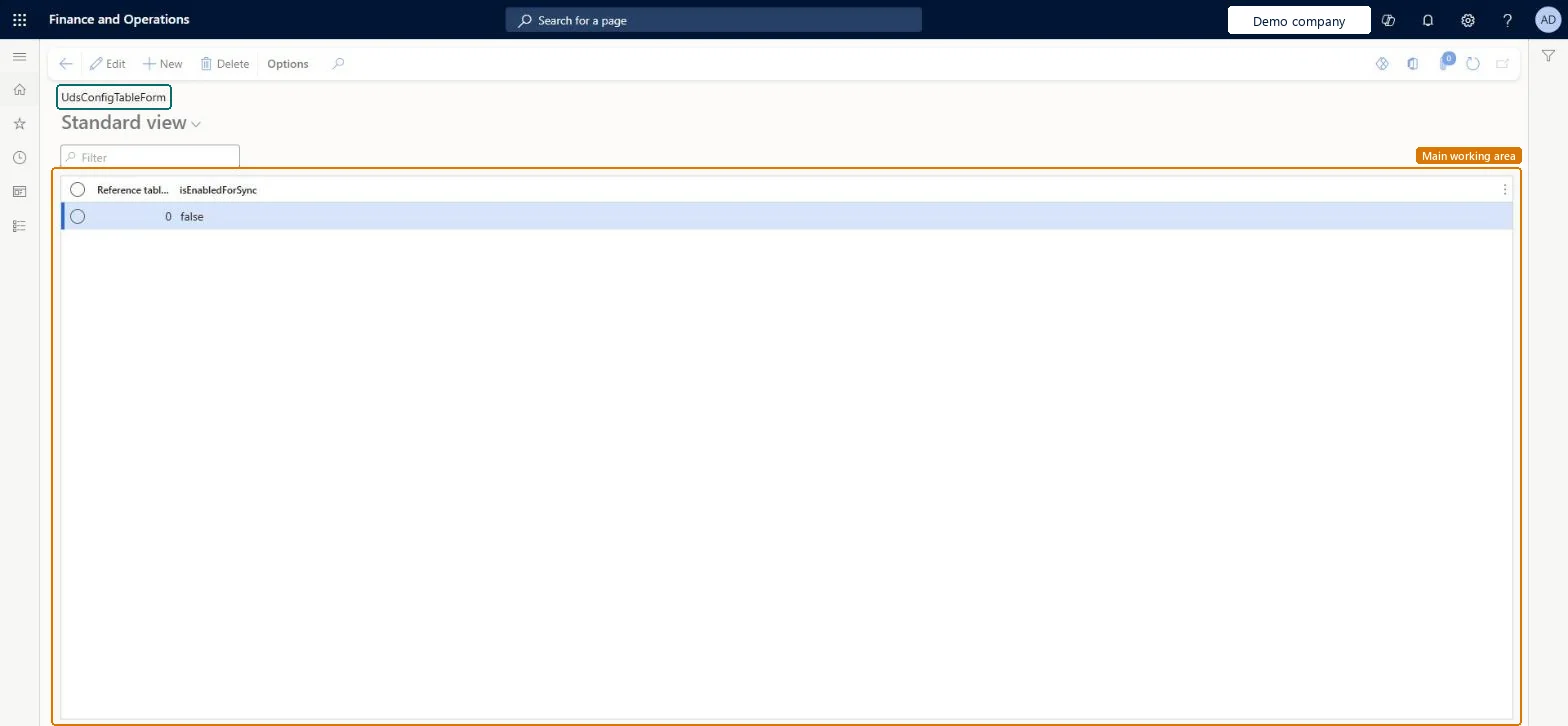
A list page, captioned UdsConfigTableForm, where each record names a reference table and whether that table is enabled for synchronization (column isEnabledForSync).
What you do here
Use it to see which reference tables are set up for synchronization, and to add, change or delete a record.
Example
For example, in BEAT the page holds one record with Reference table 0 and isEnabledForSync false, so no table is enabled for synchronization.
The page in Dynamics 365. page title tab to open what to set or check
About the examples: Examples and screenshots in this guide use BEAT, a demo company in a Dynamics 365 test environment. Use your own company's codes and values instead of copying them.
Setup steps on this page
Review synchronization records
See which reference tables are enabled for synchronization.
How to use it
Go to System administration > Uds Config > Uds Config Table Form.
Use the Filter box to find a record.
Read the Reference table and isEnabledForSync columns.
Select New to add a record, or select a record and choose Edit.
Select Delete to remove a selected record.
Source: Checked in Dynamics 365
Fields on the page
Field
What it means
Example
Reference table
The table the record is about, shown as a number.Checked in Dynamics 365
0
isEnabledForSync
Whether the table is enabled for synchronization.Checked in Dynamics 365
Leave the records as delivered unless the feature that uses them asks for a changeThe page has no Microsoft documentation of its own, so changes should come from the feature that relies on it.
No Feature management feature needs to be turned on for this page.
Checked in Dynamics 365
Solution architect
5Design impact
Shared or per company
One list for the environment as shown in BEAT; whether the table has a company key waits on a live check. Checked in Dynamics 365
Can it be undone
Reversible: Records can be edited or deleted.
If you change it later
A record with isEnabledForSync set to true marks its reference table as enabled for synchronization. Checked in Dynamics 365
Technical architect
6Technical
Menu item
UdsConfigTableChecked in Dynamics 365
Form
UdsConfigTableFormChecked in Dynamics 365
Table
UdsConfigTableChecked in Dynamics 365
Actions on the page
Options: Personalize, Page options, ShareChecked in Dynamics 365
Developer
7Developer
Open it by URL
https://<your-environment>/?mi=UdsConfigTable
Data migration
Load order: Uds Config Table Form has no data entity in Data management, so it can't be loaded from a file or a configuration template. Enter the records by hand in each environment.Checked in Dynamics 365
Everyone
8Sources
Checked in a working Dynamics 365 system, version 10.0.49: the menu item, form, table and security, the page.
To cite this step: SA-SETUP-810, Review synchronization records. Beyond ERP Atlas Hub, 2026-11-11. https://www.beyonderp.cloud/atlas/step/SA-SETUP-810