Setup step on the KPI cache configuration page · System administration
Set up KPI cache configuration
A setup page that lists the key performance indicators (KPIs) whose values the data cache holds, one row per KPI, with its refresh frequency and switches.
SETUP GUIDEHow to set it up8 sections. Choose a role to highlight what matters to you.
Everyone
1What it is and why
What it is
A setup page that lists the key performance indicators (KPIs) whose values the data cache holds, one row per KPI, with its refresh frequency and switches.
What you do here
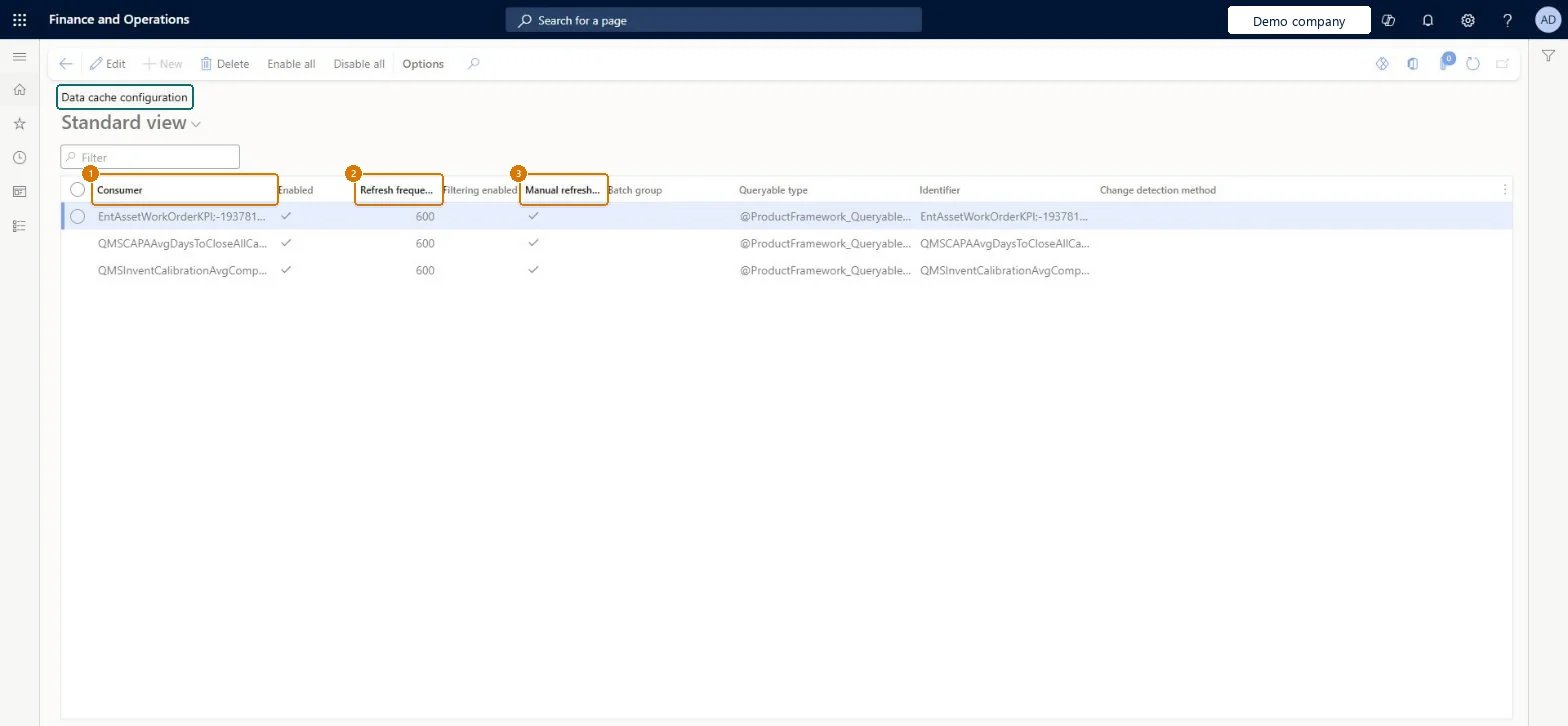
Use this page to review and change, for each KPI, its refresh frequency, whether it is enabled, and whether filtering and manual refresh are allowed, and to enable or disable all of them at once.
Example
For example, a KPI whose value the finance team in BEAT checks once a day can use a 24-hour refresh, so its query doesn't run every few minutes.
The page in Dynamics 365. page title tab to open what to set or check
About the examples: Examples and screenshots in this guide use BEAT, a demo company in a Dynamics 365 test environment. Use your own company's codes and values instead of copying them.
Step by step, with screenshots
Set up KPI cache configuration1 screen
Screen 1
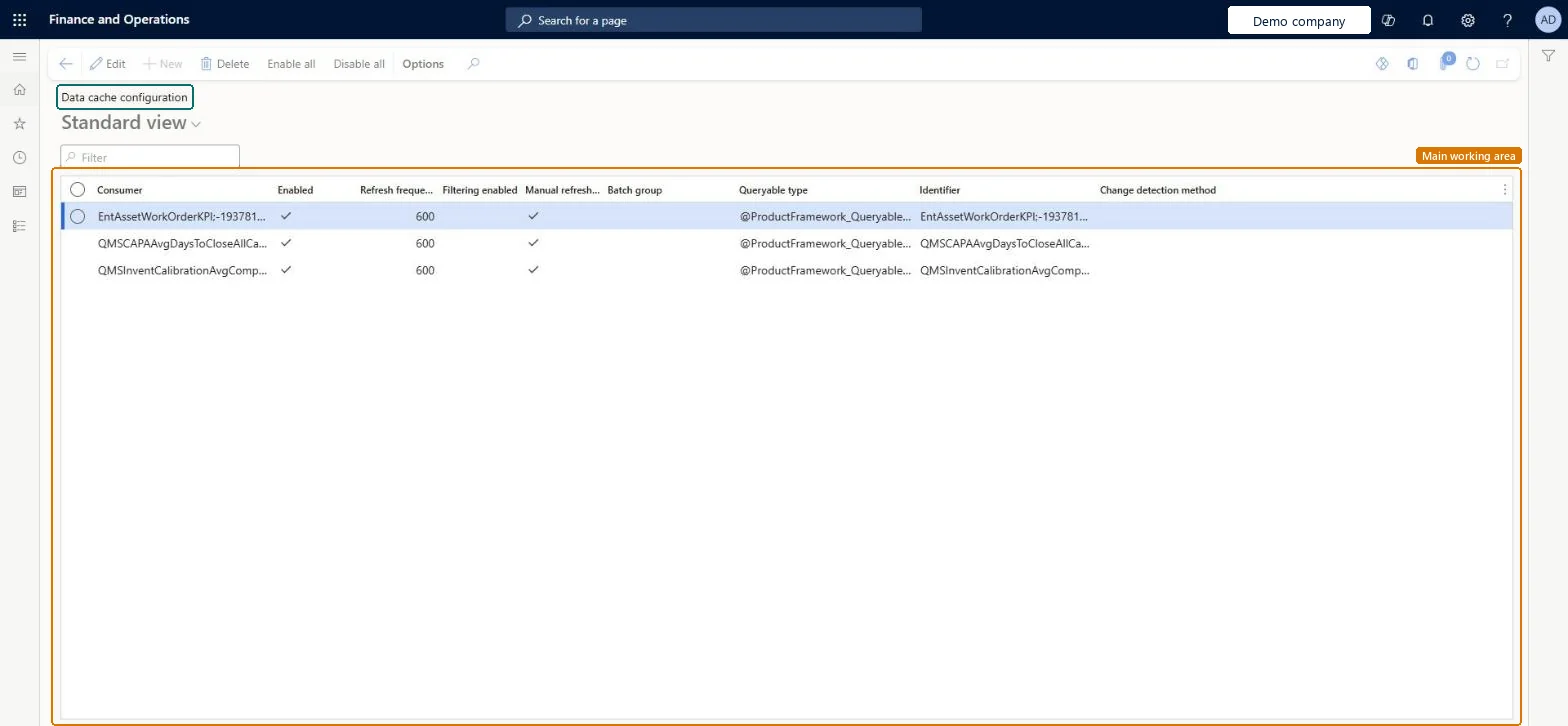
Review the KPI cache configuration
Go to System administration > Setup > Data cache > KPI cache configuration
Find the KPI in the list
Review whether it is enabled and how often it refreshes
Select Edit to change the refresh frequency, then select Save
Show the full screen page title tab to open what to set or check
How to use it
Go to System administration > Setup > Data cache > KPI cache configuration.
Use the Filter box to find a KPI in the Consumer column.
Select Edit, then change Enabled, Refresh frequency, Filtering enabled or Manual refresh for the KPI.
Select Enable all or Disable all to change all the KPIs at once.
Select Delete to remove a selected record.
Source: Checked in Dynamics 365
Fields on the page
Field
What it means
Example
Refresh frequency
How often the cached KPI value is refreshed; the administrator can change it at run time.Microsoft Learn
24 hours
Enabled
When cleared, the KPI's cached value isn't updated.Checked in Dynamics 365
Common errors and fixes
Message
What to do
A KPI shows an old value
Check that the KPI's row is Enabled and that its refresh frequency fits how current the value must be. Checked in Dynamics 365
Use the same rule Microsoft gives for cached tiles: a fast refresh only for KPIs whose queries are fast, otherwise 10 minutes or 24 hoursMicrosoft ties refresh frequency to query execution time so frequent refreshes don't load the system with slow queries.
Reversible: Enabled, refresh frequency and manual refresh can be changed at any time; Enable all and Disable all change every row at once.
If you change it later
A cached KPI shows its value as of the last refresh, so a slower refresh frequency means older values; the administrator can change the frequency at run time. Microsoft Learn
Technical architect
6Technical
Menu item
KPIDataCacheConfigurationChecked in Dynamics 365
Form
SysDataCacheConfigurationChecked in Dynamics 365
Table
SysDataCacheConfigurationTableShown as “Data cache configuration” in Record infoChecked in Dynamics 365
Who can open it
PrivilegesSysDataCacheConfigurationDutiesMaintain system settings SysServerSettingsMaintain1 security roleInformation technology manager SysServerITManagerChecked in Dynamics 365
Roles to set it up and use it
To set it up or change itInformation technology manager SysServerITManagerGive people one of these roles. On this system, 1 role can open this page.Checked in Dynamics 365
Actions on the page
Options: Personalize, Page options, ShareChecked in Dynamics 365
Load order: KPI cache configuration has no data entity in Data management, so it can't be loaded from a file or a configuration template. Change refresh settings by hand in each environment.Checked in Dynamics 365
Checked in a working Dynamics 365 system, version 10.0.49: the menu item, form, table and security, the page, the demo records and the values in the screenshots.
To cite this step: SA-SETUP-320, Set up KPI cache configuration. Beyond ERP Atlas Hub, 2026-11-11. https://www.beyonderp.cloud/atlas/step/SA-SETUP-320