About the examples: Examples and screenshots in this guide use BEAT, a demo company in a Dynamics 365 test environment. Use your own company's codes and values instead of copying them.
Step by step, with screenshots
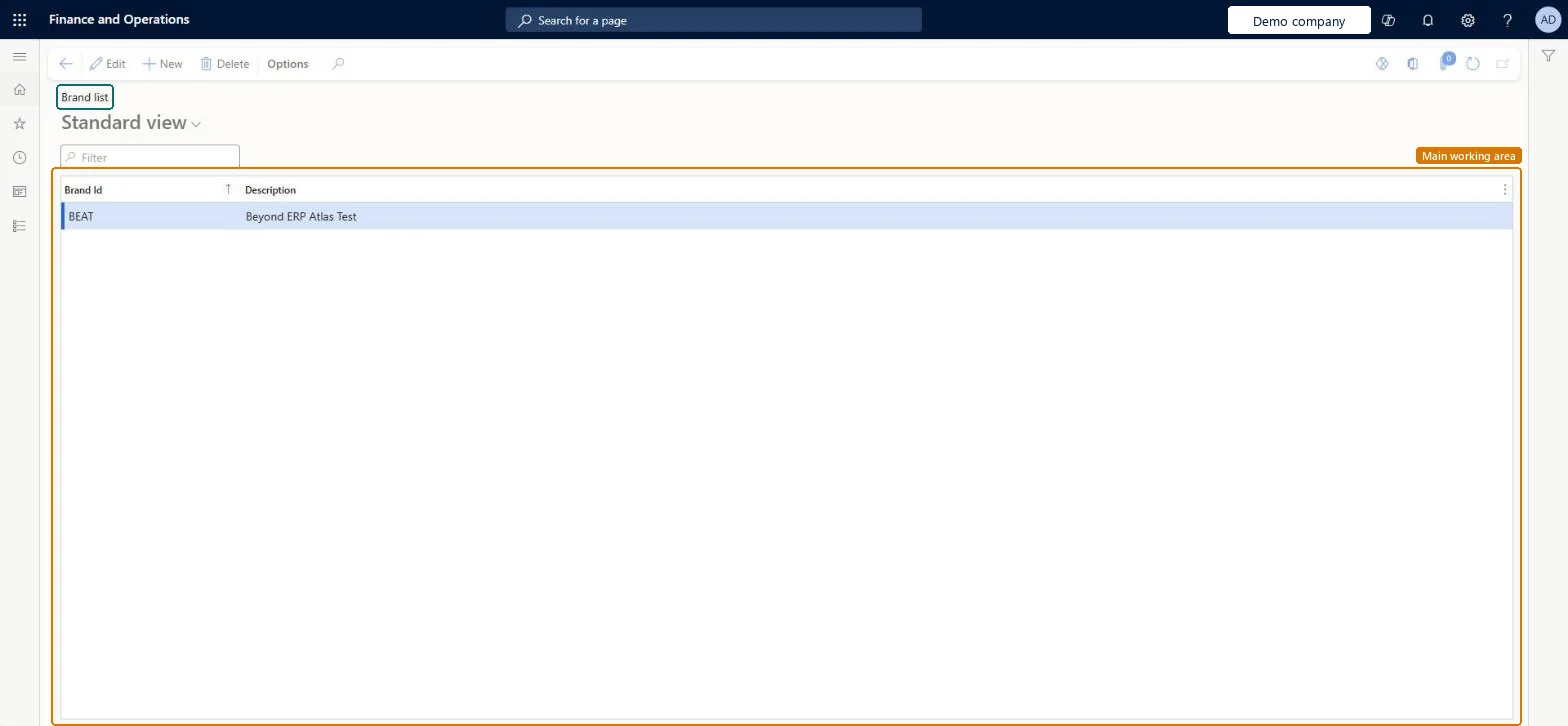
Set up Document brands1 screen
Screen 1
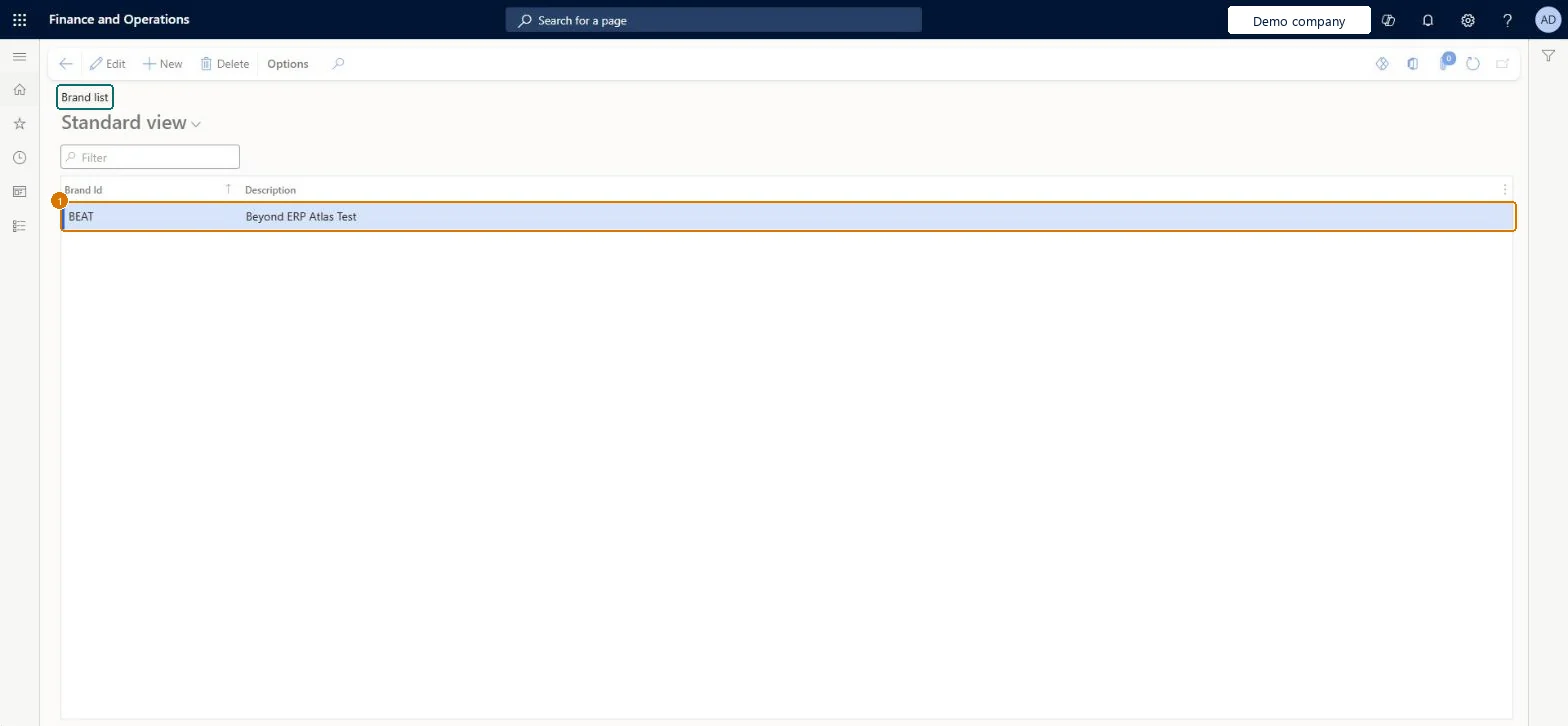
Check the document brands
Go to Organization administration > Setup > Document branding > Document brands
Find the brand in the list
Check its description
Select New to add another brand
1Brand Id
BEAT
Description
Beyond ERP Atlas Test
Show the full screen page title tab to open what to set or check
How to use it
Go to Organization administration > Setup > Document branding > Document brands.
Select New to add a brand.
Enter the Brand Id and Description.
To change an existing brand, select it and select Edit.
Source: Checked in Dynamics 365
Fields on the page
Field
What it means
Example
Table column
Brand Id
The unique ID of the document brand.Checked in Dynamics 365
CORPORATE
BrandId
Description
A short description of the brand.Checked in Dynamics 365
SysDocuBrandsShown as “Brands” in Record infoChecked in Dynamics 365
Who can open it
PrivilegesSysDocuBrandMaintainDutiesSysDocuBrandMaintain1 security roleSystem document branding administrator SysDocuBrandAdminChecked in Dynamics 365
Roles to set it up and use it
To set it up or change itSystem document branding administrator SysDocuBrandAdminGive people one of these roles. On this system, 1 role can open this page.Checked in Dynamics 365
Actions on the page
Options: Personalize, Page options, ShareChecked in Dynamics 365
Checked in a working Dynamics 365 system, version 10.0.49: the menu item, form, table and security, the page, the demo records and the values in the screenshots.
To cite this step: OA-SETUP-330, Set up Document brands. Beyond ERP Atlas Hub, 2026-11-11. https://www.beyonderp.cloud/atlas/step/OA-SETUP-330