SETUP GUIDEHow to set it up8 sections. Choose a role to highlight what matters to you.
Everyone
1What it is and why
What it is
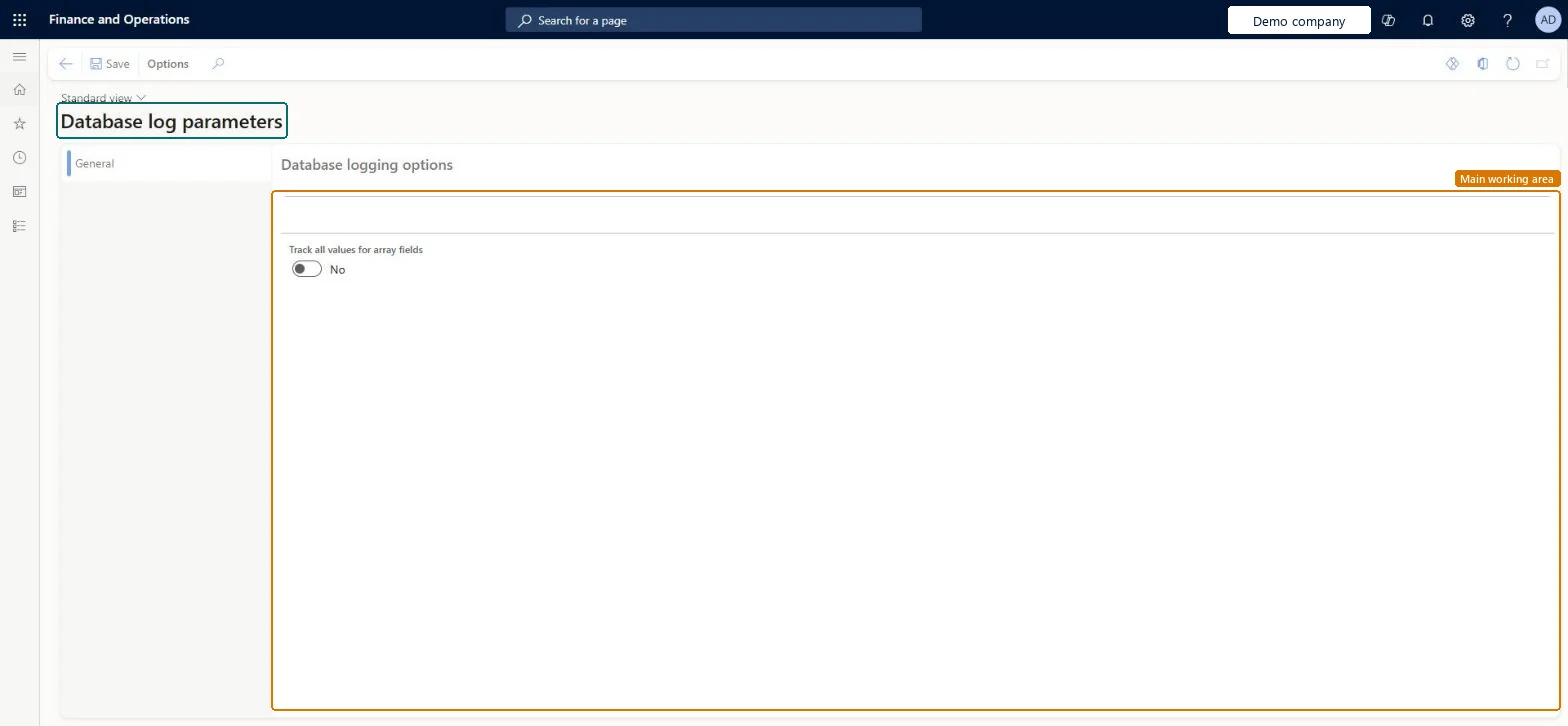
A setup page that holds the database logging options, which currently show one setting, Track all values for array fields.
What you do here
Use this page to choose whether database logging tracks all values for array fields.
Example
For example, before BEAT turns on logging for a table whose fields hold several values each (array fields), the administrator decides here whether the database log should track all values of those fields.
The page in Dynamics 365. page title tab to open what to set or check
About the examples: Examples and screenshots in this guide use BEAT, a demo company in a Dynamics 365 test environment. Use your own company's codes and values instead of copying them.
Step by step, with screenshots
Set up Database log parameters1 screen
Screen 1
Review the database log parameters
Go to System administration > Setup > Database log > Database log parameters
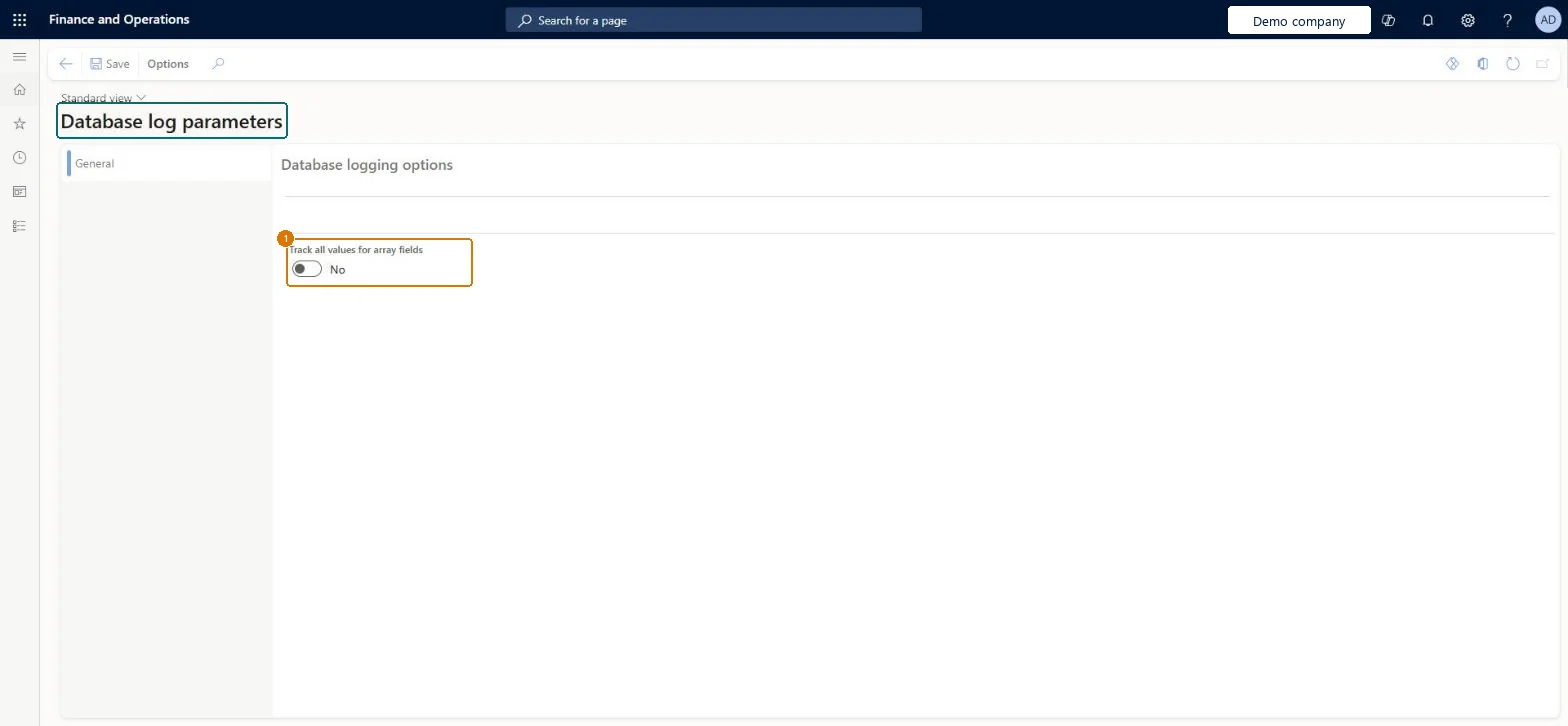
Review the database logging options
Select Edit if needed and choose whether to track all values for array fields
Select Save
Show the full screen page title tab to open what to set or check
How to use it
Go to System administration > Setup > Database log > Database log parameters.
On the General tab, set Track all values for array fields to Yes or No.
Select Save.
Source: Checked in Dynamics 365
Fields on the page
Field
What it means
Example
Track all values for array fields
Sets whether database logging tracks all values for array fields (field DatabaseLogArrayFields).Microsoft data model
No
Common errors and fixes
Message
What to do
The database log grows quickly and long processes slow down
Log specific fields instead of whole tables, plan how long logs are kept, and schedule Clean up log per company. Microsoft Learn
Test checklist
In Database log setup, use the wizard to log updates on one sensitive field (for example the vendor bank account number).
Change that field on a vendor.
Open System administration > Inquiries > Database > Database log and check the change is listed with user and time.
Schedule Clean up log per company and check old entries are removed.
Decide Track all values for array fields before you set up logging, and log specific fields rather than whole tablesLearn recommends limiting log entries by logging specific fields; the database log is meant for individual changes to sensitive data, and every extra value logged makes the log table larger.
Reversible: The option can be changed at any time; it applies to changes logged afterwards.
If you change it later
The setting is shared and applies to all database logging in the environment. Logging itself turns set-based operations into row-based ones and makes the log table grow, so keep the logged tables and fields few. Microsoft Learn
Technical architect
6Technical
Menu item
DatabaseLogParametersChecked in Dynamics 365
Form
DatabaseLogParametersChecked in Dynamics 365
Table
DatabaseLogParametersChecked in Dynamics 365
Who can open it
PrivilegesDatabaseLogParametersMaintainDutiesMaintain system settings SysServerSettingsMaintain1 security roleInformation technology manager SysServerITManagerChecked in Dynamics 365
Roles to set it up and use it
To set it up or change itInformation technology manager SysServerITManagerGive people one of these roles. On this system, 1 role can open this page.Checked in Dynamics 365
Actions on the page
Options: Personalize, Page options, Edit, ShareChecked in Dynamics 365
Load order: Database log parameters has no data entity in Data management, so it can't be loaded from a file or a configuration template. Set the option by hand in each environment.Checked in Dynamics 365
Checked in a working Dynamics 365 system, version 10.0.49: the menu item, form, table and security, the page, the demo records and the values in the screenshots.
To cite this step: SA-SETUP-270, Set up Database log parameters. Beyond ERP Atlas Hub, 2026-11-11. https://www.beyonderp.cloud/atlas/step/SA-SETUP-270