About the examples: Examples and screenshots in this guide use BEAT, a demo company in a Dynamics 365 test environment. Use your own company's codes and values instead of copying them.
Step by step, with screenshots
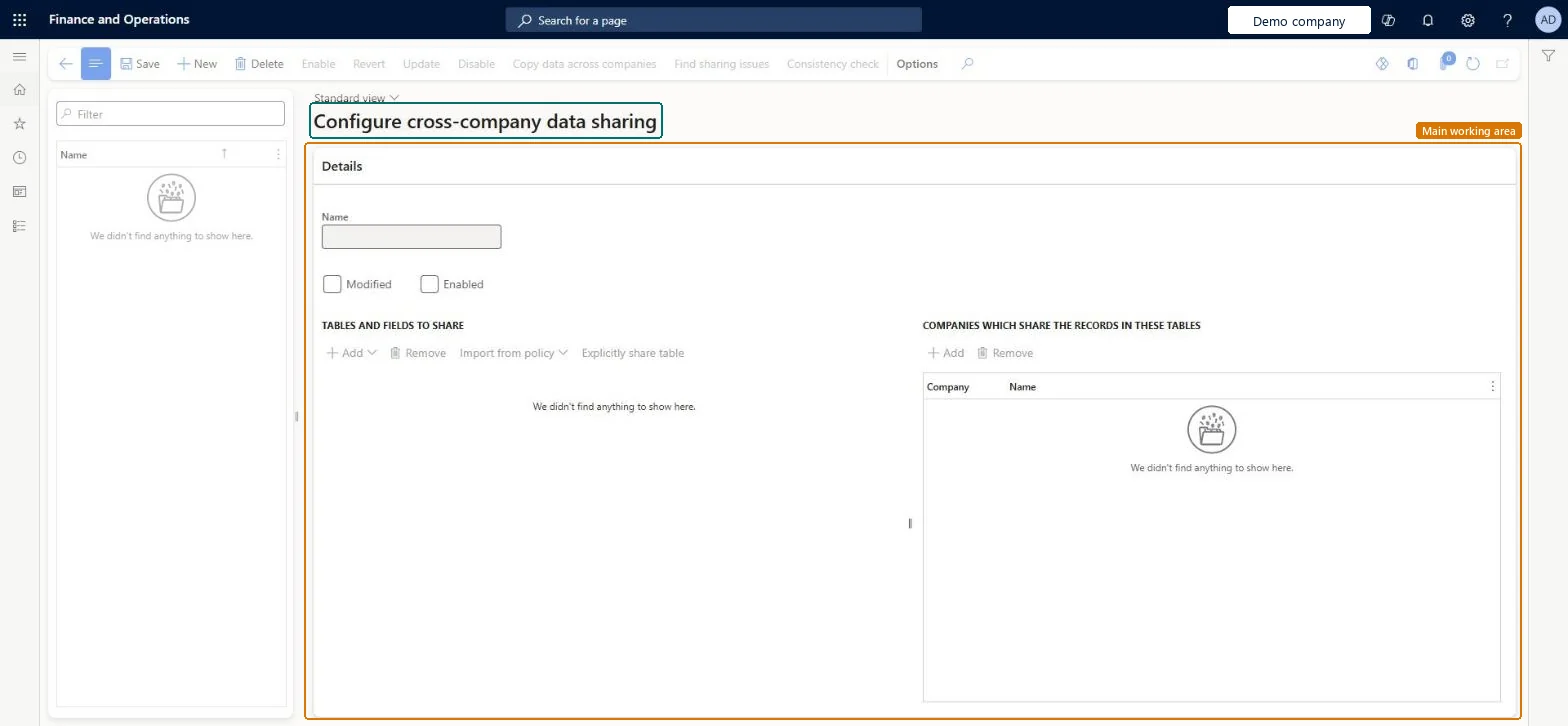
Configure cross-company data sharing1 screen
Use this page to choose which tables, fields and companies share data, so shared setup stays the same in every company in the policy.
Screen 1
Set up a data sharing policy
Go to System administration > Setup > Configure cross-company data sharing
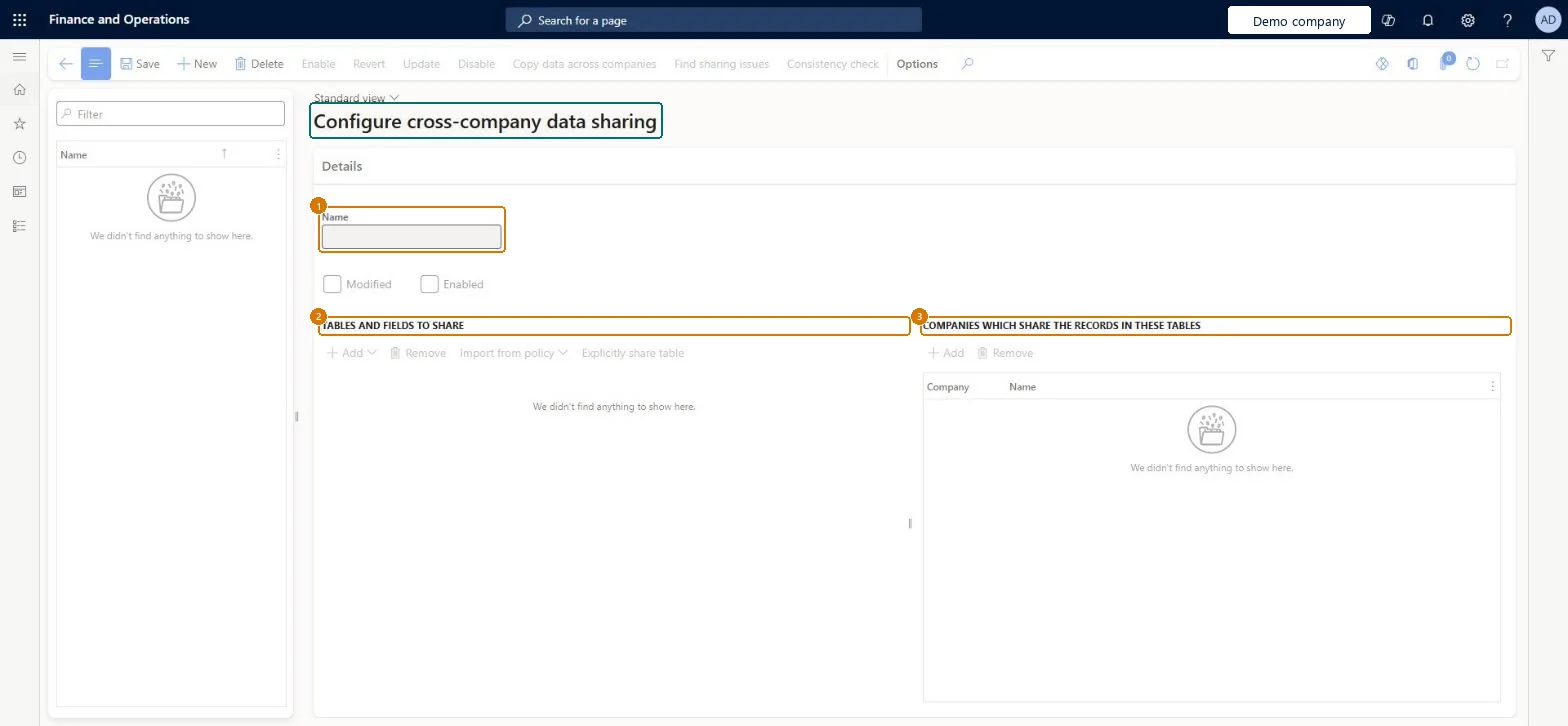
Select New and enter a name for the policy
Add the tables and fields to share
Add the companies that share the records in these tables, and select Save
Select Enable, and then select Yes
Select Find sharing issues and decide which company's values to keep
Show the full screen page title tab to open what to set or check
Steps from Microsoft
Import the data sharing template package in the Data management workspace.
Go to System administration > Setup > Configure cross-company data sharing.
Select the policy, for example Payment days.
Add each company that should share the data, and then select Save.
Select Enable, and then select Yes.
Select Find sharing issues and decide which company's values to keep.
The companies' data conflicts or their setup differs; for example number sequence types must match. Resolve the conflicts by choosing which company's records to keep, or leave that company out. Microsoft Learn
Test checklist
Import the Financial data sharing templates package and open the Payment terms policy.
Add two test companies and enable the policy, resolving any conflicts.
Create a payment term in the first company and check that it appears in the second.
Change a shared field in the second company and check that the first company shows the change.
Run the Find inconsistency checker for the policy.
Start from the Microsoft-tested data sharing templates in the Lifecycle Services Shared asset library, for simple reference and group data between companies that have the same setupLearn says to use cross-company sharing for simple reference and group data, among companies with similar configurations, in scenarios Microsoft has tested.
Which data is shared across companies?Enabling a policy across companies whose setup differs. For example, the Production group policy needs the same chart of accounts in every company, and number sequence types must match, so the policy can't be enabled or data becomes inconsistent.Test: A shared record is copied to every company
Feature management and licence
Licence or add-in
On this system the page opens for Information technology manager and Data management administrator. IT and data management administrators maintain policies. No Feature management feature needs to be turned on for this page.
Cross-company by design: a policy copies the shared tables' records among the companies in it. Microsoft Learn
Can it be undone
Hard to reverse: Once a policy is enabled, records created, changed or deleted in any company are replicated to all companies in it straight away, and conflicts found at enable time are settled by choosing which company's records win.
If you change it later
Once a policy is enabled, records created, changed or deleted in any of its companies are copied to all the others straight away. Microsoft Learn
Technical architect
6Technical
Menu item
SysDataSharingConfigurationChecked in Dynamics 365
Form
SysDataSharingConfigurationChecked in Dynamics 365
Table
SysDataSharingPolicyShown as “Data sharing policy” in Record infoChecked in Dynamics 365
Data entities
SysDataSharingPolicyEntityData sharing policy (the sharing policies; the Data management list gives it the same label as this page's table)
Who can open it
PrivilegesMaintain data sharing policies SysDataSharingMaintainDutiesMaintain data sharing policies SysDataSharingMaintain2 security rolesData management administrator DataManagementAdministratorInformation technology manager SysServerITManagerChecked in Dynamics 365
Roles to set it up and use it
To set it up or change itInformation technology manager SysServerITManagerData management administrator DataManagementAdministratorGive people one of these roles. On this system, 2 roles can open this page.Checked in Dynamics 365
Actions on the page
Options: Personalize, Page options, Edit, ShareChecked in Dynamics 365
SysDataSharingPolicyEntity (Data sharing policy): shared by all companies.Load order: SysDataSharingPolicyEntity isn't in any of Microsoft's default templates in BEAT, so add it to your own data project when you move this setup. Microsoft's tested policies come as a data package in the Lifecycle Services Shared asset library. Enable a policy after the shared data is loaded and its conflicts are resolved.Checked in Dynamics 365
Checked in a working Dynamics 365 system, version 10.0.49: the menu item, form, table and security, the page, the demo records and the values in the screenshots.
To cite this step: SA-SETUP-130, Configure cross-company data sharing. Beyond ERP Atlas Hub, 2026-11-11. https://www.beyonderp.cloud/atlas/step/SA-SETUP-130