About the examples: Examples and screenshots in this guide use BEAT, a demo company in a Dynamics 365 test environment. Use your own company's codes and values instead of copying them.
Step by step, with screenshots
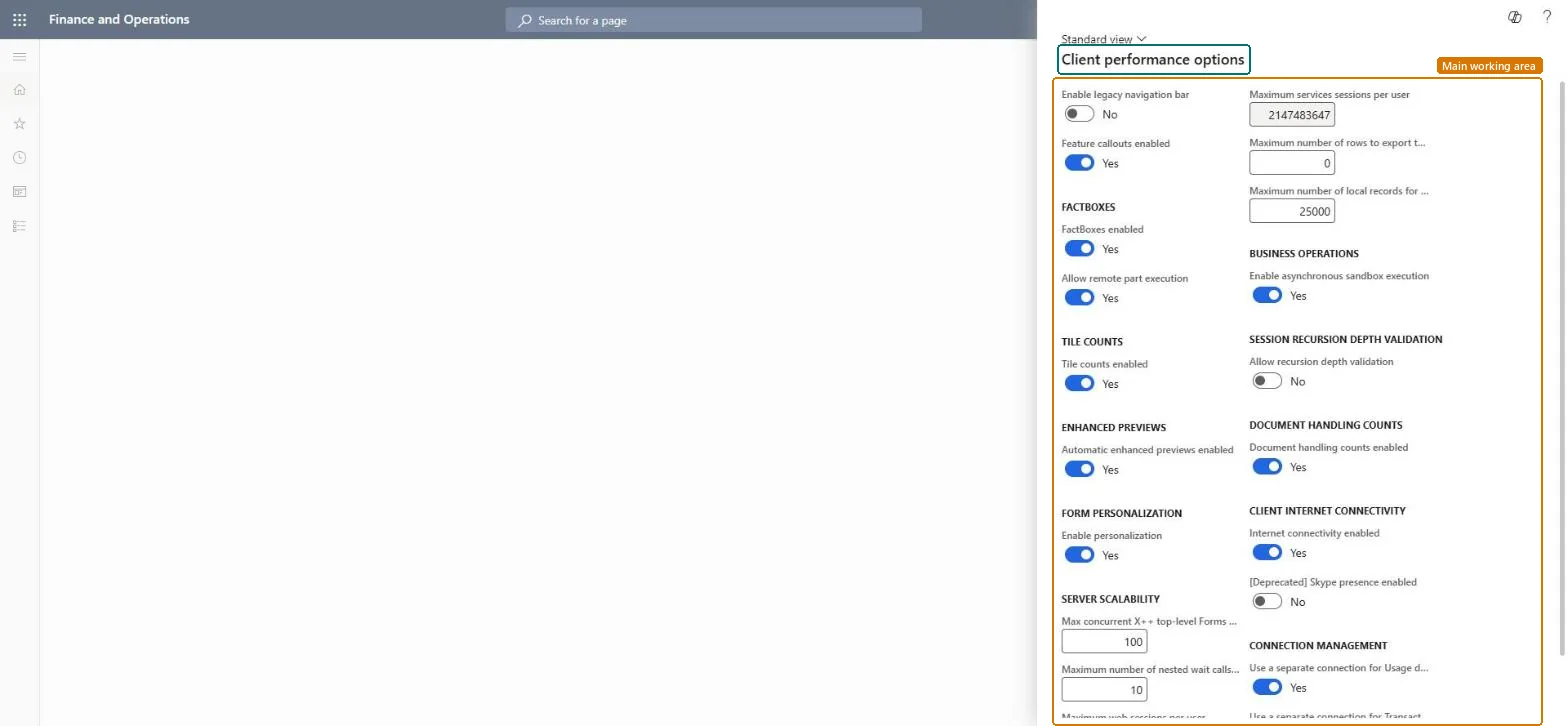
Set up Client performance options1 screen
Use this page to tune settings that affect users' experience, such as how many rows users can export to Excel.
Screen 1
Review the client performance options
Go to System administration > Setup > Client performance options
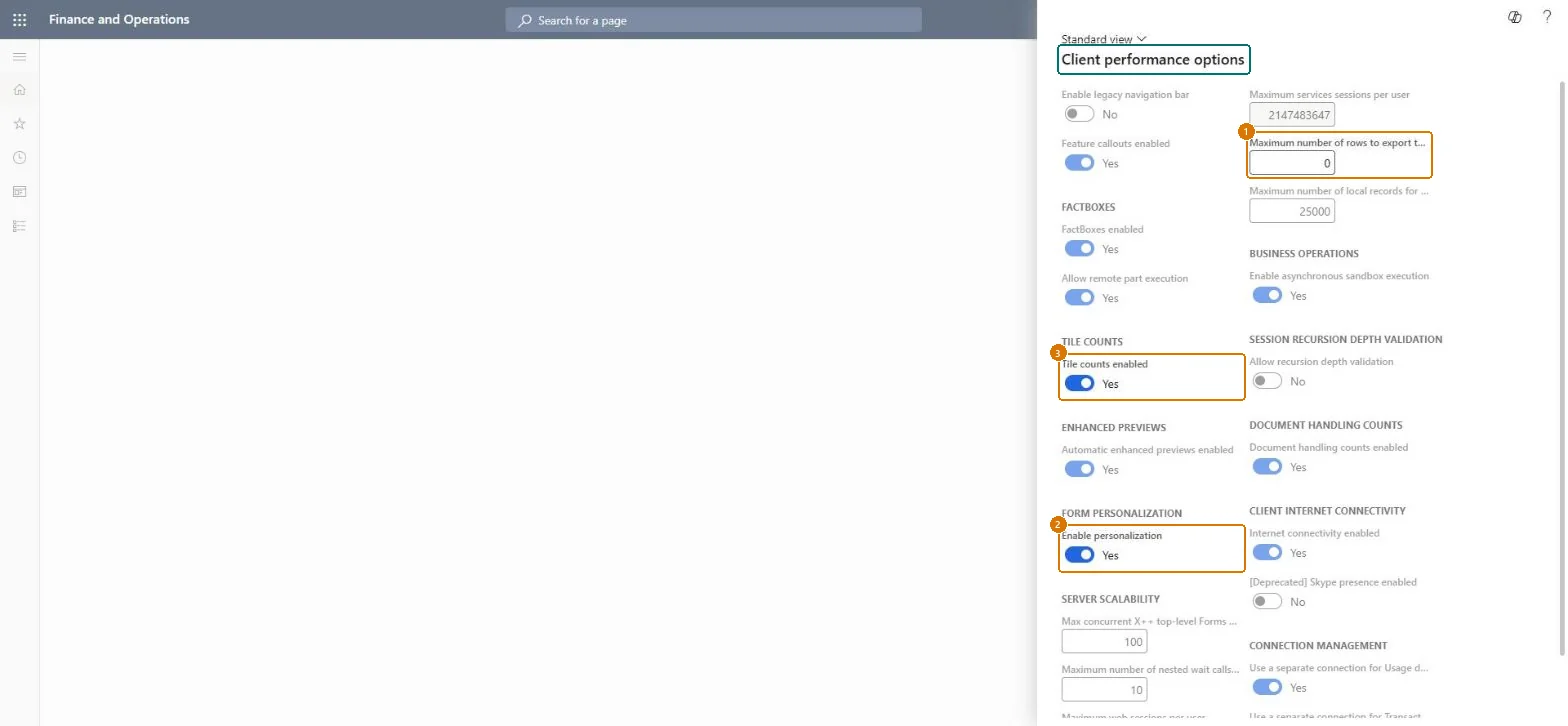
Review the options that affect how the client performs, for example tile counts and form personalization
Review the maximum number of rows users can export to Excel
Close the panel without changing anything, unless a change is needed
Show the full screen page title tab to open what to set or check
Steps from Microsoft
Go to System administration > Setup > Client performance options.
Find the Maximum number of rows to export to Excel field.
Change the value from 0 (up to 50,000 rows) to a higher number, up to 1,000,000.
Keep 0 (up to 50,000 rows) unless users regularly need larger exports, then set the smallest value that covers them, at most 1,000,0000 is the default and allows up to 50,000 rows; a higher value lets users export larger data sets in a single session.
On this system the page opens for Information technology manager. IT administrators maintain it. No Feature management feature needs to be turned on for this page.
Shared: one setting for all users and companies (the SysClientPerf table has no company field). Microsoft data model
Can it be undone
Reversible: The value can be changed back at any time.
If you change it later
A higher limit lets users export larger data sets to Excel in one go; the default 0 allows up to 50,000 rows and the highest value is 1,000,000. Microsoft Learn
Technical architect
6Technical
Menu item
SysClientPerfChecked in Dynamics 365
Form
SysClientPerfChecked in Dynamics 365
Table
SysClientPerfChecked in Dynamics 365
Roles to set it up and use it
To set it up or change itInformation technology manager SysServerITManagerGive people one of these roles. On this system, 1 role can open this page.Checked in Dynamics 365
Developer
7Developer
Open it by URL
https://<your-environment>/?mi=SysClientPerf
Data migration
Load order: Client performance options has no data entity in Data management, so it can't be loaded from a file or a configuration template. Set the value by hand in each environment.Checked in Dynamics 365
Checked in a working Dynamics 365 system, version 10.0.49: the menu item, form, table and security, the page, the demo records and the values in the screenshots.
To cite this step: SA-SETUP-100, Set up Client performance options. Beyond ERP Atlas Hub, 2026-11-11. https://www.beyonderp.cloud/atlas/step/SA-SETUP-100