SETUP GUIDEHow to set it up8 sections. Choose a role to highlight what matters to you.
Everyone
1What it is and why
What it is
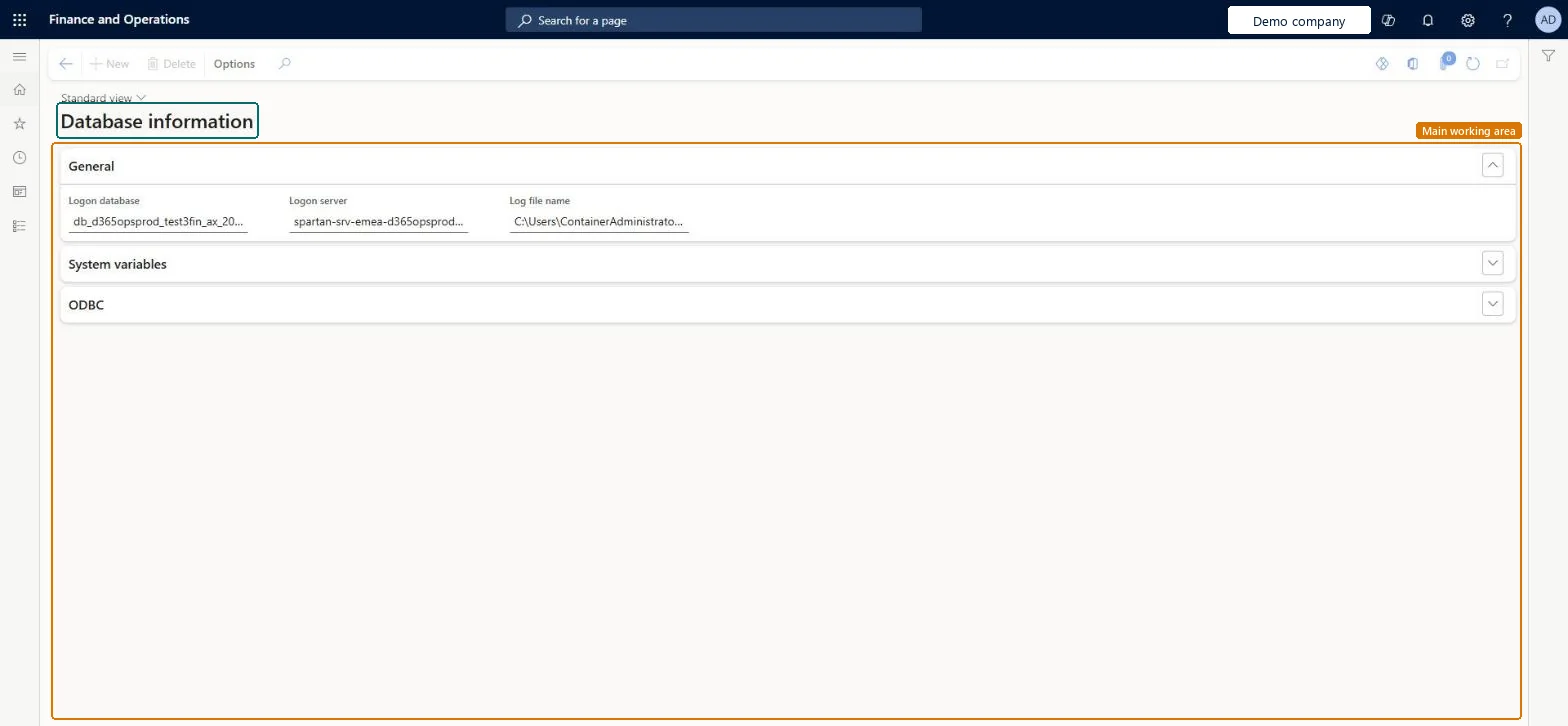
An inquiry page that shows details of the database connection, grouped into General, System variables and ODBC sections.
What you do here
Use this page to see the database and server the application is logged on to and the name of the log file.
Example
For example, after a database refresh the BEAT administrator opens the page to confirm the application is logged on to the refreshed database before releasing the environment to testers.
The page in Dynamics 365. page title tab to open what to set or check
About the examples: Examples and screenshots in this guide use BEAT, a demo company in a Dynamics 365 test environment. Use your own company's codes and values instead of copying them.
Setup steps on this page
Check the database connection
Use the page to confirm which database and server the environment uses.
How to use it
Go to System administration > Inquiries > Database > Database information.
In the General section, read the Logon database, Logon server and Log file name.
Expand the System variables section to read its details.
Expand the ODBC section to read its details.
Source: Checked in Dynamics 365
Fields on the page
Field
What it means
Logon database
The database the application is connected to.Checked in Dynamics 365
Logon server
The database server.Checked in Dynamics 365
Log file name
The name of the database log file.Checked in Dynamics 365
Common errors and fixes
Message
What to do
The page shows a different database name than expected
You may be in another environment; check the environment URL before acting. Checked in Dynamics 365
Test checklist
Open the page after an environment copy.
Check Logon database and Logon server match the environment you expect.
Check Logon database and Logon server after every environment copy, before testers sign inIt confirms the copy landed in the environment you think it did.
On this system the page opens for Information technology manager. No Feature management feature needs to be turned on for this page.
Checked in Dynamics 365
Solution architect
5Design impact
Shared or per company
Shared: one database serves the whole environment. Checked in Dynamics 365
Can it be undone
Reversible: Read only.
If you change it later
The page only reads connection details; nothing on it changes the database. Checked in Dynamics 365
Technical architect
6Technical
Menu item
SysSqlStatusChecked in Dynamics 365
Form
SysSqlStatusChecked in Dynamics 365
Table
SqlParametersShown as “Database parameters” in Record infoChecked in Dynamics 365
Who can open it
PrivilegesView database information SysSqlStatusViewDutiesMaintain system settings SysServerSettingsMaintain1 security roleInformation technology manager SysServerITManagerChecked in Dynamics 365
Roles to set it up and use it
To use itInformation technology manager SysServerITManagerGive people one of these roles. On this system, 1 role can open this page.Checked in Dynamics 365
Actions on the page
Options: Personalize, Page options, ShareChecked in Dynamics 365
Developer
7Developer
Open it by URL
https://<your-environment>/?mi=SysSqlStatus
Data migration
Load order: Database information has no data entity in Data management, so it can't be loaded from a file or a configuration template. It shows connection details of each environment; nothing to move.Checked in Dynamics 365