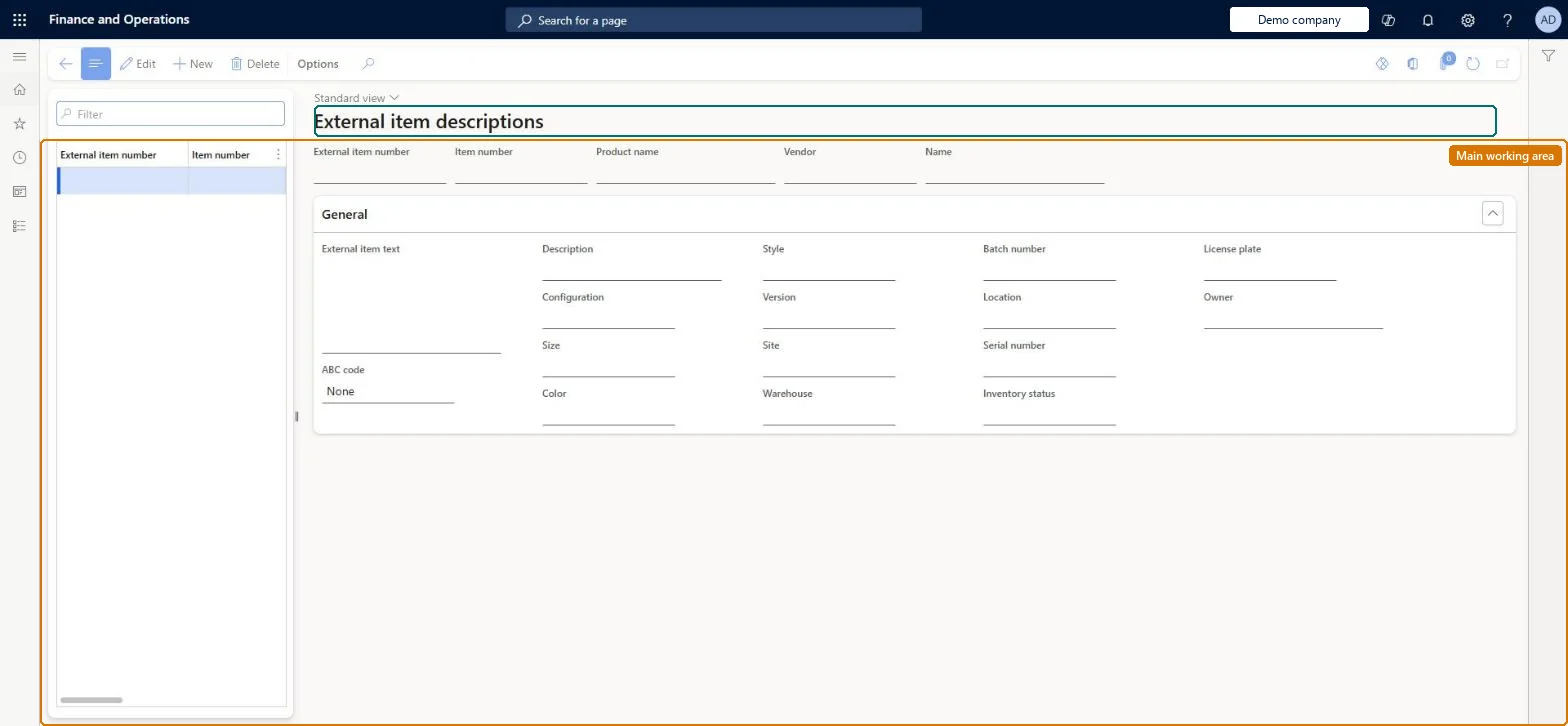
Setup step on the Vendor's product numbers page · Retail and Commerce
Set up Vendor's product numbers
Use this page to record the external item number a vendor uses for a product, link it to your item number and vendor, and add the vendor-specific description and dimensions so vendor catalog files and vendor documents can use the vendor's numbering.
Retail and CommerceProducts and categoriesVendor catalog import
RetailCustVendExternalItem_Vend
Used by
Retail catalog manager, Retail merchandising manager, Retail service
Business process
Manage sales channels
Menu item
RetailCustVendExternalItem_Vend
Main table
CustVendExternalItem
Data entity
PurchVendorProductDescriptionV2Entity
Setup steps
1 on this page
Show what matters for
SETUP GUIDEHow to set it up8 sections. Choose a role to highlight what matters to you.
Everyone
1What it is and why
What it is
A setup page (External item descriptions) that maps a vendor's own item number, description and variant dimensions to one of your internal products.
What you do here
Use this page to record the external item number a vendor uses for a product, link it to your item number and vendor, and add the vendor-specific description and dimensions so vendor catalog files and vendor documents can use the vendor's numbering.
Example
For example, print invoices that show the product numbers and descriptions a particular vendor uses instead of your internal ones.
The page in Dynamics 365. page title tab to open what to set or check
About the examples: Examples and screenshots in this guide use BEAT, a demo company in a Dynamics 365 test environment. Use your own company's codes and values instead of copying them.
Setup steps on this page
Set up Vendor's product numbers
Use this page to record the external item number a vendor uses for a product, link it to your item number and vendor, and add the vendor-specific description and dimensions so vendor catalog files and vendor documents can use the vendor's numbering.
Steps from Microsoft
Go to Retail and Commerce > Products and categories > Vendor catalog import > Vendor's product numbers.
Select an existing external item number, or select New to create one.
In the External item number field, enter the vendor's identifier for the product.
In the Item number field, select the internal product, and in the Vendor field select the vendor.
Enter the item description and select the inventory dimensions (configuration, size, colour, style) as appropriate.
One record per vendor and released product (and variant where needed); use an external item description vendor group when many vendors share the same numbersExternal identifiers can be kept by released product, variant, vendor or vendor group, and must be set up in each legal entity. Vendor groups simplify maintenance when vendors use the same item numbers.
Expecting the vendor's number to show on core pages. It appears on external documents such as purchase orders and invoices; the only core-page exception is the Product information dialog when a default vendor is set.
Solution architect
5Design impact
Can it be undone
Reversible: External item descriptions can be changed at any time; they are printed on external documents created afterwards.
Technical architect
6Technical
Menu item
RetailCustVendExternalItem_VendChecked in Dynamics 365
Form
RetailCustVendExternalItemChecked in Dynamics 365
Table
CustVendExternalItemShown as “EXTERNAL ITEM DESCRIPTIONS” in Record infoChecked in Dynamics 365
Data entities
PurchVendorProductDescriptionV2EntityExternal item descriptions for vendors V2 Microsoft data model SalesCustomerProductDescriptionV2EntityExternal item descriptions for customers V2 Microsoft data model
Who can open it
PrivilegesMaintain external item numbers and descriptions RetailExtItemNumbersDescriptionsMaintMaintain retail item packages RetailVendorsItemNumbersMaintainDutiesMaintain retail product reference data RetailItemReferenceDataMaintainMaintain retail product reference data RetailProductReferenceDataMaintain3 security rolesRetail catalog manager RetailCatalogManagerRetail merchandising manager RetailMerchandisingManagerRetail service RetailServiceChecked in Dynamics 365
Roles to set it up and use it
To set it up or change itRetail service RetailServiceRetail merchandising manager RetailMerchandisingManagerRetail catalog manager RetailCatalogManagerGive people one of these roles. On this system, 3 roles can open this page.Checked in Dynamics 365
PurchVendorProductDescriptionV2Entity (External item descriptions for vendors V2): loaded for each company, in Microsoft's default template 320 - Procurement and sourcing.SalesCustomerProductDescriptionV2Entity (External item descriptions for customers V2): loaded for each company, in Microsoft's default template 330 - Sales and marketing.Load order: Microsoft's default template 320 - Procurement and sourcing loads External item descriptions for vendors V2 at execution unit 1, level 320, sequence 10. Lower levels load first, and entities at the same level load in sequence order.Load first: External item description vendor groups, Vendors V2, Released products V2, the default templates at lower levels (System setup to Product management)Microsoft Learn
Checked in a working Dynamics 365 system, version 10.0.49: the menu item, form, table and security, the page.
To cite this step: RC-VENDCAT-030, Set up Vendor's product numbers. Beyond ERP Atlas Hub, 2026-11-11. https://www.beyonderp.cloud/atlas/step/RC-VENDCAT-030