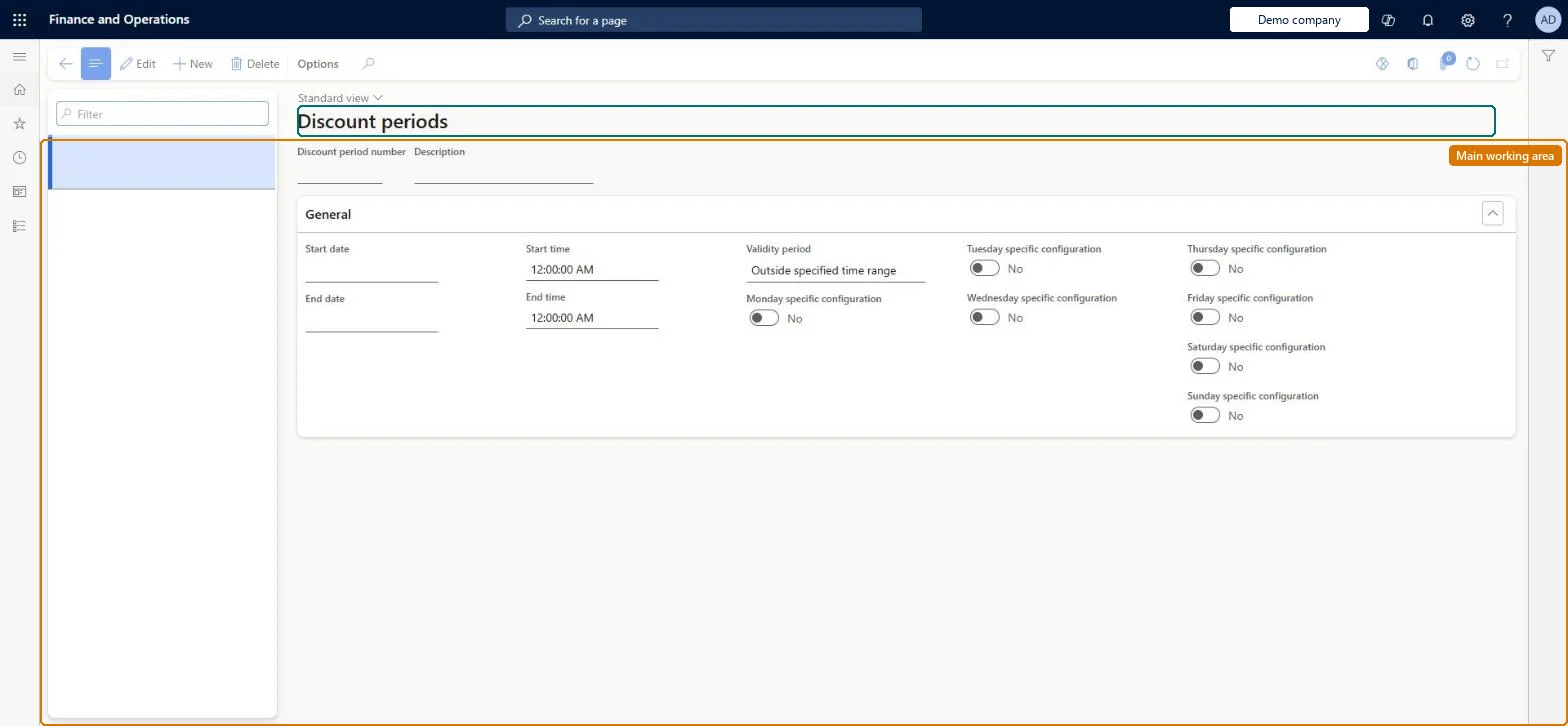
Setup step on the Discount periods page · Retail and Commerce
Set up Discount periods
Use this page to create a named period, with start and end dates and per-day start and end times, that you then assign to one or more discounts or price adjustments.
Retail merchandising manager, Retail operations manager, Retail service and 1 more role
Business process
Manage sales channels
Menu item
RetailDiscountValidationPeriod
Main table
RetailDiscountValidationPeriod
Data entity
RetailDiscountValidationPeriodEntity
Setup steps
1 on this page
Show what matters for
SETUP GUIDEHow to set it up6 sections. Choose a role to highlight what matters to you.
Everyone
1What it is and why
What it is
A setup page where you define discount periods, each a reusable window of dates, times and weekdays during which a price adjustment or discount is valid.
What you do here
Use this page to create a named period, with start and end dates and per-day start and end times, that you then assign to one or more discounts or price adjustments.
Example
For example, if multiple discounts are in effect during a particular period, you can assign one discount period to all the discounts.
The page in Dynamics 365. page title tab to open what to set or check
About the examples: Examples and screenshots in this guide use BEAT, a demo company in a Dynamics 365 test environment. Use your own company's codes and values instead of copying them.
Setup steps on this page
Set up Discount periods
Use this page to create a named period, with start and end dates and per-day start and end times, that you then assign to one or more discounts or price adjustments.
Steps from Microsoft
Go to Retail and Commerce > Pricing and discounts > Discount periods.
Select New to create a discount period.
Enter a unique Discount period number and a Description.
On the General FastTab, enter the start and end dates and times, and select the Dates within bounds days.
On the FastTab for each day of the week, enter that day's start and end times if they differ.
Select Time within bounds or Ending time after midnight where needed, then save.
To set it up or change itRetail service RetailServiceRetail merchandising manager RetailMerchandisingManagerTo use itRetail operations manager RetailOperationsManagerRetail store manager RetailStoreManagerGive people one of these roles. On this system, 4 roles can open this page.Checked in Dynamics 365
RetailDiscountValidationPeriodEntity (Discount validation period): loaded for each company, in Microsoft's default template 500 - Retail.Load order: Microsoft's default template 500 - Retail loads Discount validation period at execution unit 1, level 30, sequence 10. Lower levels load first, and entities at the same level load in sequence order.Load first: the default templates at lower levels (System setup to General ledger)Microsoft Learn