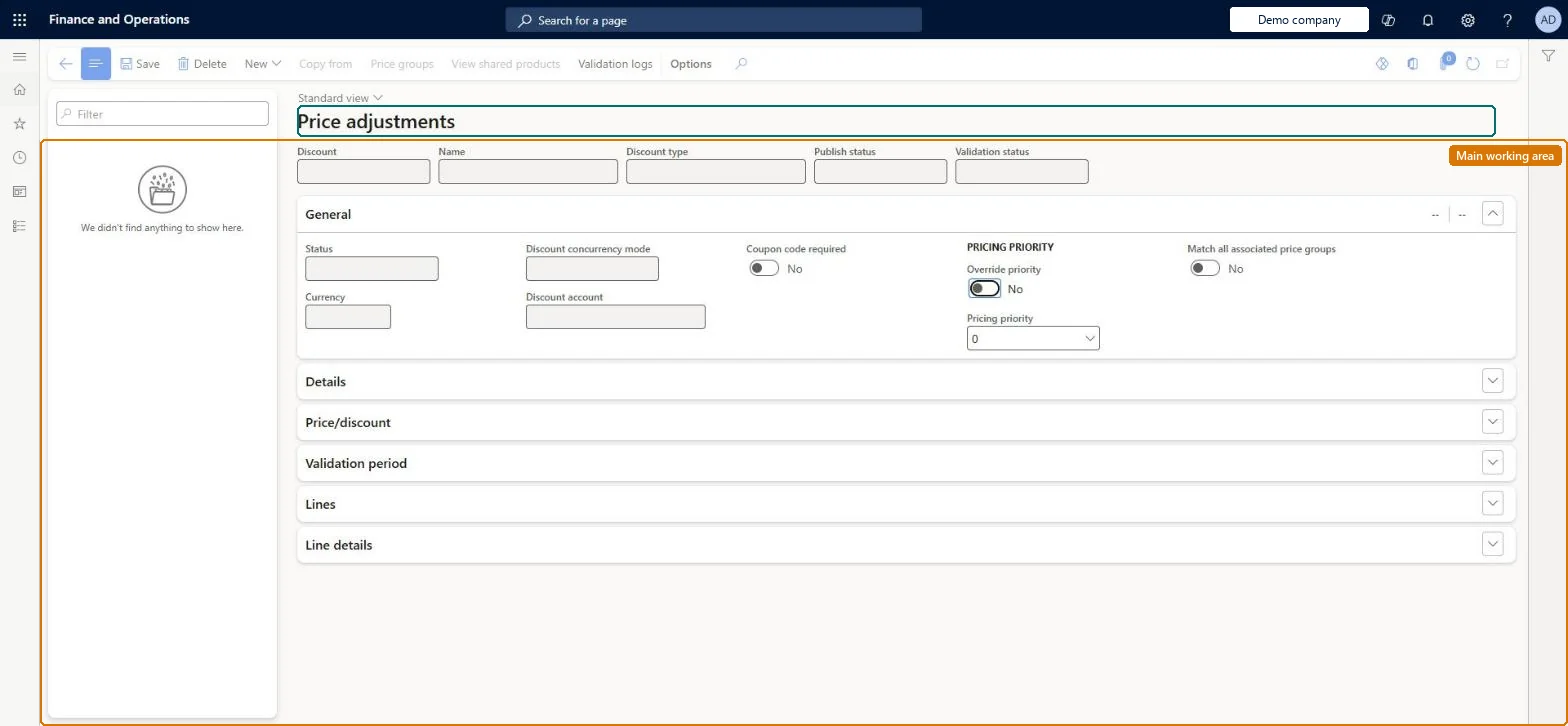
A setup page where you create price adjustments, which change the base or trade agreement price of products, variants or categories by a percentage, an amount, or a new unit price for the price groups and dates you choose.
Retail merchandising manager, Retail operations manager, Retail service and 1 more role
Business process
Set product prices
Menu item
RetailDiscountPromotion
Main table
RetailPeriodicDiscount
Data entity
RetailDiscountEntity
Show what matters for
PAGE GUIDEWhat the page does and how to use it8 sections. Choose a role to highlight what matters to you.
Everyone
1What it is and why
What it is
A setup page where you create price adjustments, which change the base or trade agreement price of products, variants or categories by a percentage, an amount, or a new unit price for the price groups and dates you choose.
What you do here
Use this page to create, track and manage markdowns (or increases) on product prices for specific channels, catalogs, affiliations or loyalty programs without changing the product's base price.
Example
For example, mark down a category of last-season products by 20 percent for the stores linked to a regional price group.
The page in Dynamics 365. page title tab to open what to set or check
About the examples: Examples and screenshots in this guide use BEAT, a demo company in a Dynamics 365 test environment. Use your own company's codes and values instead of copying them.
Steps from Microsoft
Go to Retail and Commerce > Pricing and discounts > Price adjustments.
Select New and enter an ID and name for the price adjustment.
Select Price groups and choose the price groups it applies to.
On the Price/discount FastTab, enter the default discount percentage.
On the Validation period FastTab, set the start and end dates.
On the Lines FastTab, select Add and set the discount method and value for each product, variant or category.
New records on this page take their Discount from the RetailOfferIdEx3 reference; BEAT uses number sequence Comm_79. Checked in Dynamics 365
Solution architect
5Design impact
Can it be undone
Hard to reverse: An adjustment can be disabled or expired, but deleting it loses its statistics. A Unit price adjustment above the current price is ignored. Microsoft Learn
If you change it later
The largest applicable price adjustment changes the active price in every channel on the price group; a unit-price adjustment higher than the current price is ignored, and deleting an adjustment loses its statistics. Microsoft Learn
Technical architect
6Technical
Menu item
RetailDiscountPromotionChecked in Dynamics 365
Form
RetailPeriodicDiscountChecked in Dynamics 365
Table
RetailPeriodicDiscountShown as “PERIODIC DISCOUNT” in Record infoKey field: OfferIdChecked in Dynamics 365
To set it up or change itRetail service RetailServiceRetail merchandising manager RetailMerchandisingManagerTo use itRetail operations manager RetailOperationsManagerRetail store manager RetailStoreManagerGive people one of these roles. On this system, 4 roles can open this page.Checked in Dynamics 365
Actions on the page
(Action Pane without tabs): New, Copy from, Price groups, View shared products, Validation logsChecked in Dynamics 365