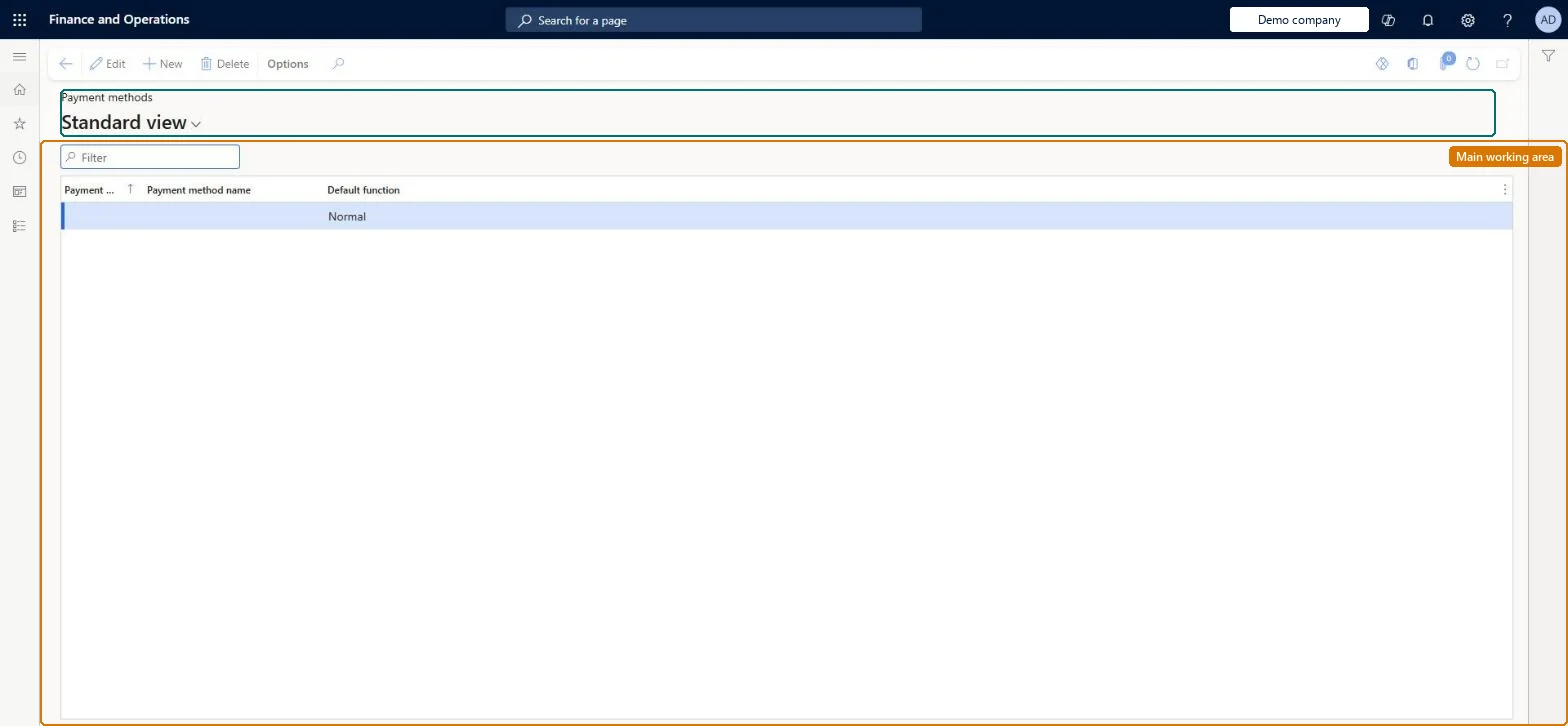
Setup step on the Payment methods page · Retail and Commerce
Set up Payment methods
Use this page to create each payment method with an ID, name and default function; afterwards you set up card types and card numbers and then assign the methods to channels with store-specific settings.
SETUP GUIDEHow to set it up8 sections. Choose a role to highlight what matters to you.
Everyone
1What it is and why
What it is
A setup page where you define the organization-wide payment methods (cash, check, card, currency, gift card, credit memo, customer account, loyalty points) that are later assigned to each store, call center and online channel.
What you do here
Use this page to create each payment method with an ID, name and default function; afterwards you set up card types and card numbers and then assign the methods to channels with store-specific settings.
Example
For example, one Card payment method is created for all cards, and separate card types and numbers then distinguish Visa, Mastercard and gift cards.
The page in Dynamics 365. page title tab to open what to set or check
About the examples: Examples and screenshots in this guide use BEAT, a demo company in a Dynamics 365 test environment. Use your own company's codes and values instead of copying them.
Setup steps on this page
Set up Payment methods
Use this page to create each payment method with an ID, name and default function; afterwards you set up card types and card numbers and then assign the methods to channels with store-specific settings.
Steps from Microsoft
Go to Retail and Commerce > Channel setup > Payment methods > Payment methods.
Select New.
In the Payment method field, enter a number that isn't yet used.
In the Payment method name field, enter a name.
In the Default function field, select the function (for example Card).
One organization-wide payment method per payment type accepted, with a single Card payment method representing all cards; store-level methods then split cards by processing settingsLearn says to set up one card payment method at organization level and then, at store level, one method per card or set of cards processed with the same settings.
Forgetting that only Cash and Currency can tender change. Without a Change tender set on the store payment method, other methods can't give change back.
Solution architect
5Design impact
Can it be undone
Reversible: New methods can be added and store settings changed; the default function drives the settings available at store level.
If you change it later
The default function chosen here determines which settings the store-level payment methods based on it will have. Microsoft Learn
Technical architect
6Technical
Menu item
RetailTenderTypeTableChecked in Dynamics 365
Form
RetailTenderTypeTableChecked in Dynamics 365
Table
RetailTenderTypeTableShown as “PAYMENT METHODS” in Record infoKey field: tenderTypeIdChecked in Dynamics 365
PrivilegesMaintain retail tender types RetailTenderTypesMaintainDutiesMaintain retail store tenders RetailStoreTendersMaintain2 security rolesRetail operations manager RetailOperationsManagerRetail service RetailServiceChecked in Dynamics 365
Roles to set it up and use it
To set it up or change itRetail service RetailServiceRetail operations manager RetailOperationsManagerGive people one of these roles. On this system, 2 roles can open this page.Checked in Dynamics 365
RetailTenderTypeEntity (Payment methods): shared by all companies, in Microsoft's default template 500 - Retail.Load order: Microsoft's default template 500 - Retail loads Payment methods at execution unit 1, level 30, sequence 10. Lower levels load first, and entities at the same level load in sequence order.Load first: the default templates at lower levels (System setup to General ledger)Microsoft Learn