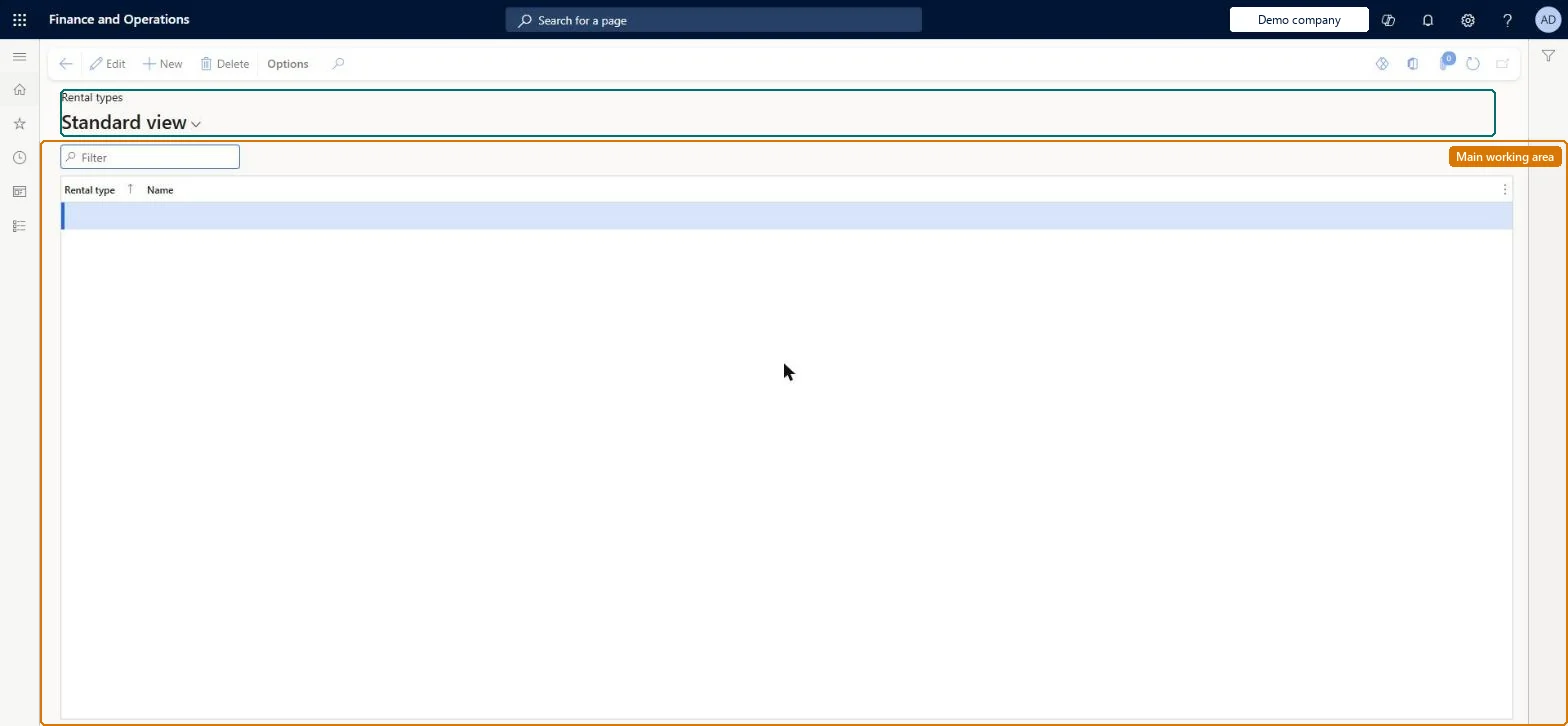
Setup step on the Rental types page · Retail and Commerce
Set up Rental types
Use this page to maintain the rental types that can be recorded on a rented target-market list, alongside the list types and list brokers used for catalog source-code tracking.
SETUP GUIDEHow to set it up6 sections. Choose a role to highlight what matters to you.
Everyone
1What it is and why
What it is
A setup page in the call center module where you define rental types, which classify customer lists (target markets) that were rented from a list broker for catalog mailings.
What you do here
Use this page to maintain the rental types that can be recorded on a rented target-market list, alongside the list types and list brokers used for catalog source-code tracking.
The page in Dynamics 365. page title tab to open what to set or check
About the examples: Examples and screenshots in this guide use BEAT, a demo company in a Dynamics 365 test environment. Use your own company's codes and values instead of copying them.
Setup steps on this page
Set up Rental types
Use this page to maintain the rental types that can be recorded on a rented target-market list, alongside the list types and list brokers used for catalog source-code tracking.
How to use it
Go to Retail and Commerce > Channel setup > Call center setup > Rental types.
Use the Filter box to find a row.
Select New and enter the Rental type code and its Name.
Review the Rental type and Name columns.
Select Save; select Delete to remove a selected row.
Source: Checked in Dynamics 365
Technical architect
4Technical
Menu item
MCRRentalTypeTableChecked in Dynamics 365
Form
MCRRentalTypeTableChecked in Dynamics 365
Table
MCRRentalTypeTableShown as “RENTAL TYPES” in Record infoChecked in Dynamics 365
Who can open it
PrivilegesMaintain rental types MCRRentalTypeTableMaintainDutiesMaintain rental list MCRRentalListMaintain1 security roleMarketing manager CRMMarketingManagerChecked in Dynamics 365
Roles to set it up and use it
To set it up or change itMarketing manager CRMMarketingManagerGive people one of these roles. On this system, 1 role can open this page.Checked in Dynamics 365