About the examples: Examples and screenshots in this guide use BEAT, a demo company in a Dynamics 365 test environment. Use your own company's codes and values instead of copying them.
Step by step, with screenshots
Set up Solicitation type1 screen
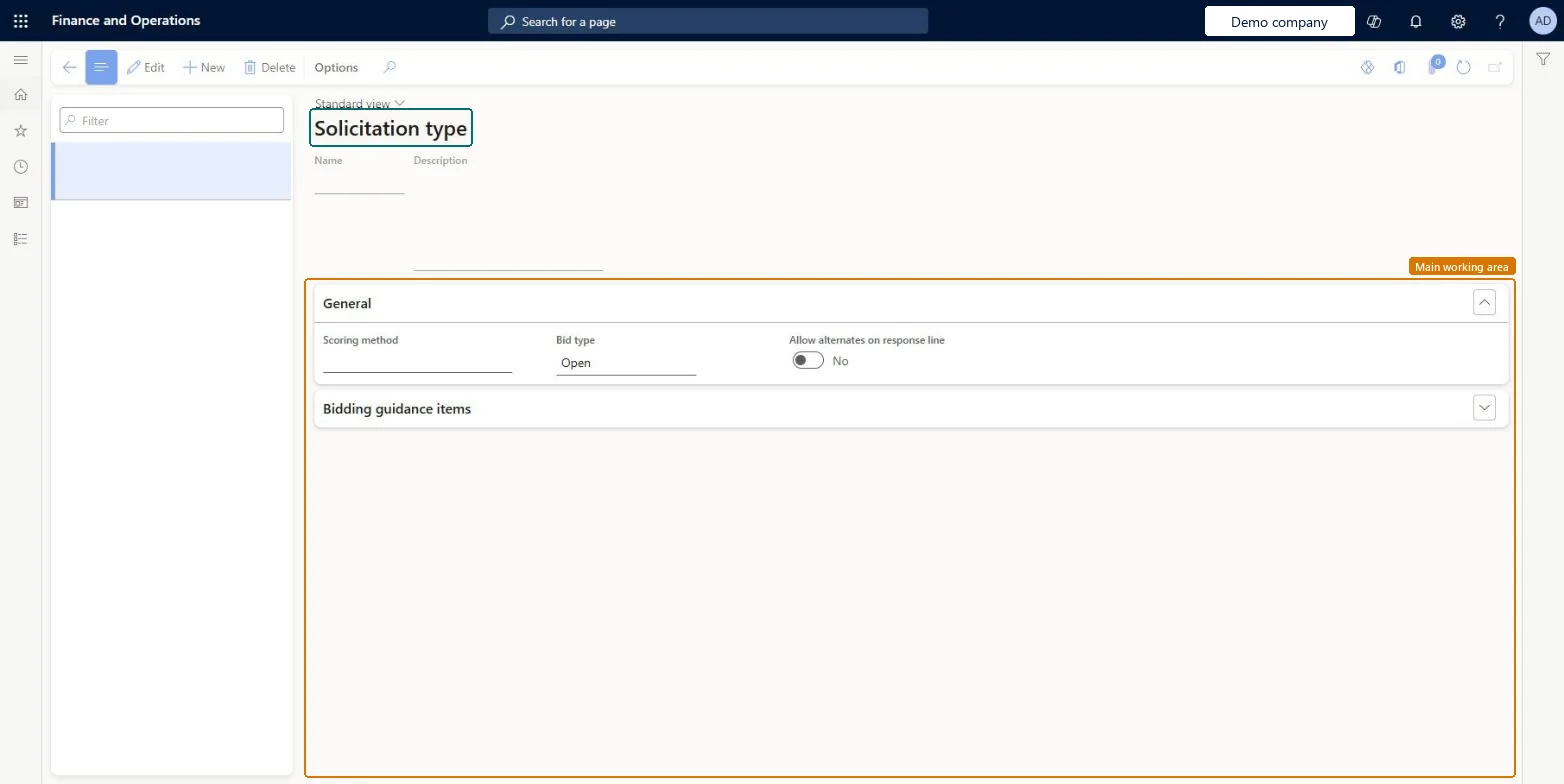
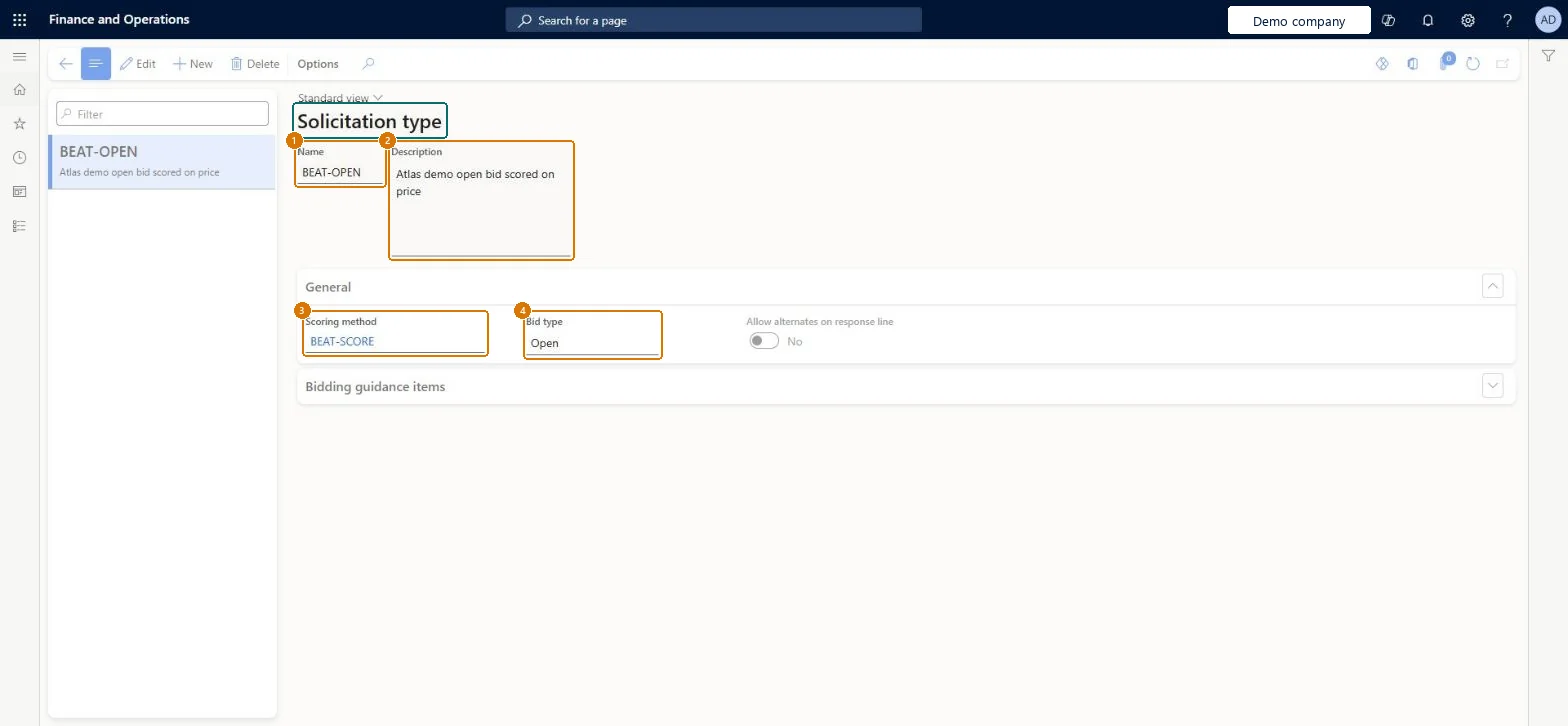
Use this page to set which scoring criteria, and which default bid type, new RFQ cases of that type use.
Screen 1
Create the solicitation type
Go to Procurement and sourcing > Setup > Request for quotation > Solicitation type
Select New
Enter the name and description
On the General FastTab, choose the scoring method and bid type
Select Save
1Name
BEAT-OPEN
2Description
Open bid scored on price
3Scoring method
BEAT-SCORE
4Bid type
Open
Show the full screen page title tab to open what to set or check
Steps from Microsoft
Go to Procurement and sourcing > Setup > Request for quotation > Solicitation type.
Select New.
In the Name field, enter a name.
In the Description field, enter a description.
In the Scoring method field, select the scoring method for this solicitation type.
One solicitation type per sourcing scenario, each linked to the scoring method buyers should start fromThe solicitation type chosen on a new RFQ case sets its default scoring method, so the case starts with the right scoring criteria. It can also be defaulted from Procurement and sourcing parameters.
Setting up solicitation types before any scoring method exists. A scoring method must be available first, otherwise the type has no criteria to hand to new RFQ cases.
Reversible: The scoring criteria are copied to the RFQ case when it is created. Buyers can still add, delete or copy criteria on the case, and changing the type only affects new cases.
Technical architect
6Technical
Menu item
PurchRFQSolicitationTypeChecked in Dynamics 365
Form
PurchRFQSolicitationTypeChecked in Dynamics 365
Table
PurchRFQSolicitationTypeShown as “PurchSolicitationType” in Record infoChecked in Dynamics 365
Data entities
PurchRequestForQuotationSolicitationTypeEntityRequest for quotation solicitation types Microsoft data model
Who can open it
PrivilegesMaintain solicitation type PurchRFQSolicitationTypeMaintainDutiesMaintain solicitation type PurchRFQSolicitationTypeMaintain3 security rolesPurchasing manager TradePurchasingManagerPurchasing agent VendPurchasingAgentPurchasing Agent - Public Sector VendPurchasingAgent_PSNChecked in Dynamics 365
Roles to set it up and use it
To set it up or change itPurchasing manager TradePurchasingManagerPurchasing agent VendPurchasingAgentPurchasing Agent - Public Sector VendPurchasingAgent_PSNGive people one of these roles. On this system, 3 roles can open this page.Checked in Dynamics 365
Actions on the page
Options: Personalize, Page options, ShareChecked in Dynamics 365
PurchRequestForQuotationSolicitationTypeEntity (Request for quotation solicitation types): loaded for each company, in Microsoft's default template 320 - Procurement and sourcing.Load order: Microsoft's default template 320 - Procurement and sourcing loads Request for quotation solicitation types at execution unit 1, level 40, sequence 10. Lower levels load first, and entities at the same level load in sequence order.Load first: the default templates at lower levels (System setup to dependency bands 30 to 90)Microsoft Learn
Checked in a working Dynamics 365 system, version 10.0.49: the menu item, form, table and security, the page, the demo records and the values in the screenshots.
To cite this step: PS-SETUP-290, Set up Solicitation type. Beyond ERP Atlas Hub, 2026-11-11. https://www.beyonderp.cloud/atlas/step/PS-SETUP-290