BeyondERP.Newsletter
Menu

Setup step on the Procurement and sourcing parameters page · Procurement and sourcing

Set up Procurement and sourcing parameters

Use this page to automate data entry for procurement documents by setting default values.

Used by
Accounts payable manager, Purchasing agent, Purchasing Agent - Public Sector and 2 more roles
Business process
Determine the change order management process for purchase orders in Dynamics 365 Supply Chain Management
Menu item
SrmParameters
Main table
PurchParameters
Data entity
PurchProcurementDocumentEntryPolicyEntity
Setup steps
1 on this page
Show what matters for
SETUP GUIDEHow to set it up8 sections. Choose a role to highlight what matters to you.
Everyone

1What it is and why

What it isA setup page where you set the default values and options that Procurement and sourcing uses when purchase documents are created.
What you do hereUse this page to automate data entry for procurement documents by setting default values.
ExampleFor example, you set the default order type that new purchase orders get.
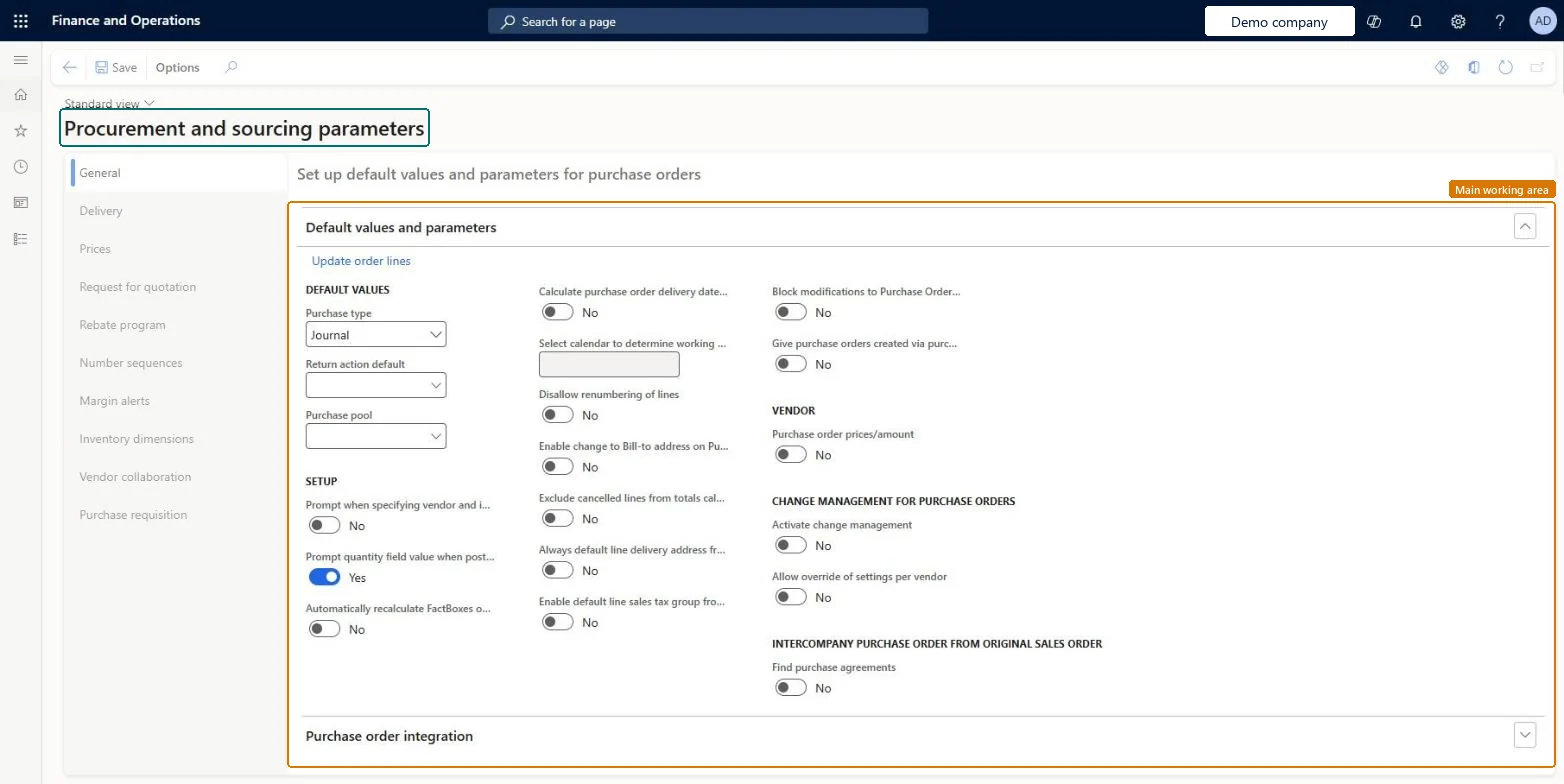
Procurement and sourcing parameters page in Dynamics 365
The page in Dynamics 365. page title tab to open what to set or check
Functional consultant · Solution architect

2Where it fits

End user · Functional consultant

3How to do it

About the examples: Examples and screenshots in this guide use BEAT, a demo company in a Dynamics 365 test environment. Use your own company's codes and values instead of copying them.

Step by step, with screenshots

Set up Procurement and sourcing parameters1 screen

Use this page to automate data entry for procurement documents by setting default values.

  1. Screen 1

    Review the purchasing defaults

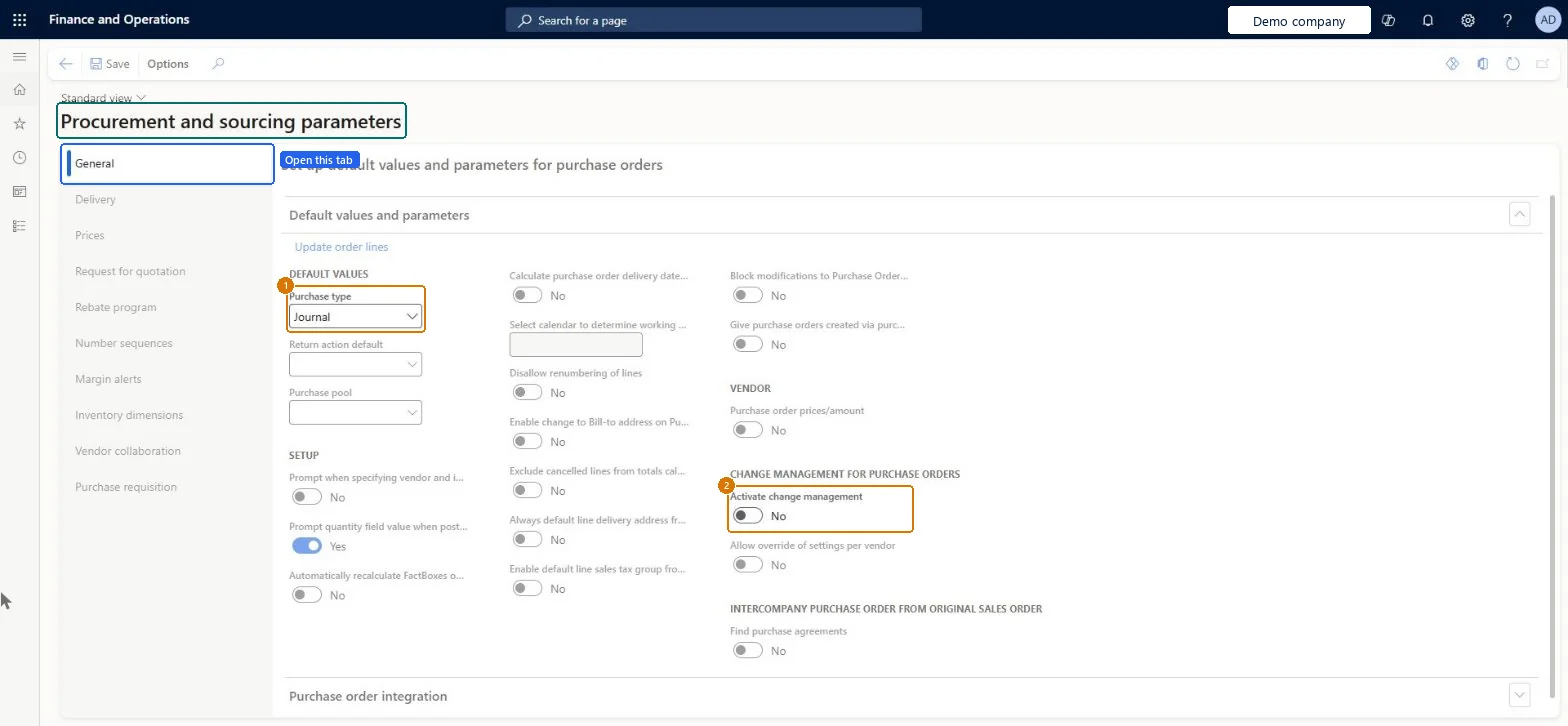
    Go to Procurement and sourcing > Setup > Procurement and sourcing parameters, General tab

    1. Open the General tab
    2. Check the default purchase type
    3. Decide whether purchase orders need change management
    4. Select Save after any change
    1Purchase typeJournal
    2Activate change managementNo
    Review the purchasing defaults (zoomed on the outlined fields)
    Show the full screenReview the purchasing defaults
    page title tab to open what to set or check

Steps from Microsoft

  1. Go to Procurement and sourcing > Setup > Procurement and sourcing parameters.
  2. On the General tab, set the default values used when purchase orders are created.
  3. On the Prices tab, set the options for prices, discounts and charges on purchase orders.
  4. On the Request for quotation tab, set the default values for new requests for quotation.
  5. On the Number sequences tab, set up the number sequences for vendors and documents.

Source: Microsoft Learn

Fields on the page

FieldWhat it meansExampleTable column
Activate change managementTurns on change management, so purchase orders must go through an approval workflow.Microsoft Learn NoChangeRequestEnabled
Find auto charges for headerApplies automatic charges to purchase order headers.Microsoft Learn MarkupHeading
Find auto charges for lineApplies automatic charges to purchase order lines.Microsoft Learn MarkupLine
Purchaser can edit vendors bidLets purchasers edit the bids that vendors submit on requests for quotation.Microsoft Learn IsBidEditByProcurementAgentEnabled
Allow vendor questionsTurns vendor questions on or off for request for quotation cases.Microsoft Learn
Lock RFQs when they are sentLocks requests for quotation once sent, so changes must go through the amendment process.Microsoft Learn LockRFQOnSend
Lines per taskLimits how many purchase order lines each batch task processes when confirmations and product receipts are posted.Microsoft Learn OrderBatchTaskSizeLines
Consolidate sales orders for direct deliveriesControls whether the Create direct delivery orders job combines qualifying sales orders into one purchase order.Microsoft Learn MCRDropShipConsolidate
Auto submit prospective vendor registration to workflowSubmits vendor requests to workflow automatically when the vendor registration wizard is completed.Microsoft Learn IsAutoSubmitProspectiveVendorRegistrationToWorkflow
Enable price detailsMust be set to Yes to view vendor rebates.Microsoft Learn MCREnablePriceDetails
Purchase order prices/amountThe default for whether new vendors see prices and amounts on purchase order confirmations.Microsoft Learn PrintAmountOnPurchaseOrder
Purchase typeJournalPurchaseType

Test checklist

  1. Set Activate change management to Yes and create a purchase order.
  2. Check the approval status is Draft and that no inventory transactions exist yet.
  3. Submit it to the purchase order workflow and approve it; check the status is Approved and Request change is enabled.
  4. Create a new vendor and check Purchase order prices/amount takes the parameter default.

Source: Microsoft Learn

Functional consultant

4Setup decisions

Setup stepRecommended value and whyDecision, common mistake and test
Set up Procurement and sourcing parametersActivate change management Yes when purchase orders must go through an approval workflow; Enable price details Yes if vendor rebates are used; set Purchase order prices/amount before vendors are createdWith change management on, new purchase orders start in Draft and must be approved through the purchase order workflow; rebates on a line can only be viewed when Enable price details is Yes.Should purchase orders use change management (approval workflow)?Changing Purchase order prices/amount and expecting existing vendors to follow. It sets the default only for vendors created afterwards and doesn't change existing vendors or confirmations already generated.Test: Purchase order goes through approval

Number sequences

ReferenceShared or per companyNote
Purchase orderPer companyBEAT uses number sequence Purc_4. Checked in Dynamics 365
Purchase order confirmationPer companyBEAT uses number sequence Purc_8. Checked in Dynamics 365
Receipts listPer companyBEAT uses number sequence Purc_12. Checked in Dynamics 365
Request for quotation case IDPer companyBEAT uses number sequence Purc_16. Checked in Dynamics 365
Request for quotationPer companyBEAT uses number sequence Purc_20. Checked in Dynamics 365
Internal request for quotation IDPer companyBEAT uses number sequence Purc_24. Checked in Dynamics 365
Consolidation opportunityPer companyBEAT uses number sequence Purc_28. Checked in Dynamics 365
Purchase agreement IDPer companyBEAT uses number sequence Purc_32. Checked in Dynamics 365
Purchase requisition voucherPer companyBEAT uses number sequence Purc_36. Checked in Dynamics 365
Confirmation of product receipt source documentPer companyBEAT uses number sequence Purc_40. Checked in Dynamics 365
Direct delivery numberPer companyBEAT uses number sequence Purc_44. Checked in Dynamics 365
Attribute-based pricing IDPer companyBEAT uses number sequence Purc_48. Checked in Dynamics 365
Consignment replenishment orderPer companyBEAT uses number sequence Purc_52. Checked in Dynamics 365
Inventory ownership change product receiptPer companyBEAT uses number sequence Purc_56. Checked in Dynamics 365
Rebate IDPer companyBEAT uses number sequence Vend_3. Checked in Dynamics 365
Vendor invoice numberPer companyBEAT uses number sequence Vend_7. Checked in Dynamics 365
Solution architect

5Design impact

Shared or per companyPer company: each legal entity has its own records. Microsoft data model
Can it be undoneReversible: Parameters can be changed at any time and act on records created afterwards; Purchase order prices/amount only affects vendors created after the change.
If you change it laterChanging the Purchase order prices/amount default affects only vendors created afterwards, not existing vendors or confirmations. Microsoft Learn
Technical architect

6Technical

Menu itemSrmParameters Checked in Dynamics 365
FormSrmParameters Checked in Dynamics 365
TablePurchParametersShown as “Purchase parameters” in Record infoChecked in Dynamics 365
Data entitiesPurchProcurementDocumentEntryPolicyEntityProcurement type document entry policies Microsoft data model PurchProcurementDocumentDefaultsEntityProcurement type document default values Microsoft data model PurchProcurementDocumentProcessingPolicyEntityProcurement type document processing policies Microsoft data model
Who can open itPrivilegesMaintain purchasing parameters SrmParametersMaintainView purchasing parameters SrmParametersViewDutiesEnable purchasing process ProcPurchasingProcessEnableInquire into purchasing policies ProcPurchasingProcessInquire
5 security rolesAuditor AuditPolicyManagerPurchasing manager TradePurchasingManagerAccounts payable manager VendInvoiceAccountsPayableManagerPurchasing agent VendPurchasingAgentPurchasing Agent - Public Sector VendPurchasingAgent_PSN
Checked in Dynamics 365
Roles to set it up and use itTo set it up or change itPurchasing manager TradePurchasingManagerAccounts payable manager VendInvoiceAccountsPayableManagerTo use itPurchasing agent VendPurchasingAgentPurchasing Agent - Public Sector VendPurchasingAgent_PSNAuditor AuditPolicyManagerGive people one of these roles. On this system, 5 roles can open this page.Checked in Dynamics 365
Actions on the pageOptions: Personalize, Page options, Edit, ShareChecked in Dynamics 365
Developer

7Developer

Open it by URLhttps://<your-environment>/?mi=SrmParameters
Integrate withPurchProcurementDocumentEntryPolicyEntity data entity Microsoft data model
Table definitionPurchParameters columns and relations Microsoft data model
Everyone

8Sources