About the examples: Examples and screenshots in this guide use BEAT, a demo company in a Dynamics 365 test environment. Use your own company's codes and values instead of copying them.
Setup steps on this page
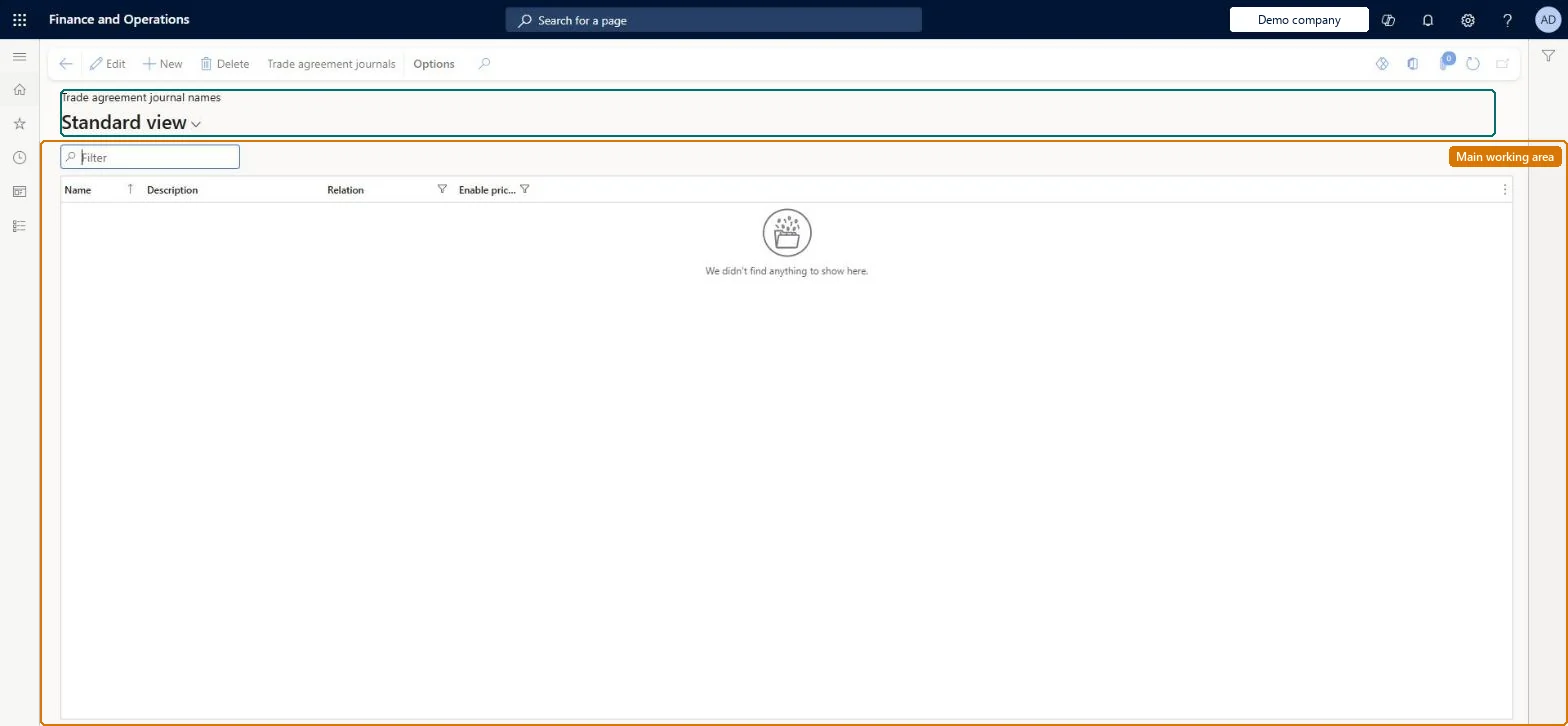
Set up Trade agreement journal names
Use this page to create journal names and, by selecting Enable price attributes, allow sales trade agreement journals that use price attributes.
Steps from Microsoft
Go to Pricing management > Setup > Trade agreement prices > Trade agreement journal names.
Enable price attributes = Yes on every journal name used for Unified pricing management trade agreementsSales trade agreement journals with price attributes need a journal name with Enable price attributes = Yes and Relation = Price (sales); the journal inherits the setting.
Creating journals on a name without Enable price attributes: the journal's own setting is read-only and taken from the name, so its lines can't use price attributes.
Hard to reverse: Each journal takes Enable price attributes from its name at creation and shows it read-only, so changing the name later doesn't fix existing journals.
Technical architect
6Technical
Menu item
GUPPriceDiscAdmName_SalesChecked in Dynamics 365
Form
PriceDiscAdmNameChecked in Dynamics 365
Table
PriceDiscAdmNameShown as “TRADE AGREEMENT JOURNAL NAME” in Record infoChecked in Dynamics 365
Data entities
PriceDiscTradeAgreementJournalNameEntityTrade agreement journal name Microsoft data model
Who can open it
PrivilegesMaintain sales trade agreement journal names GUPTradeAgreementJournalNameMaintainView sales trade agreement journal names GUPTradeAgreementJournalNameViewDutiesView sales trade agreement journal names GUPTradeAgreementJournalNameInquiryMaintain sales trade agreement journal names GUPTradeAgreementJournalNameMaintainMaintain retail product pricing RetailProductPricingMaintainEnable quotation to sales order process SalesQuotationToSalesOrderProcessEnableInquire into quotation to sales order reference data SalesQuotationToSalesOrderRefDataInquir9 security rolesAccounts receivable clerk CustInvoiceAccountsReceivableClerkAccounts receivable manager CustInvoiceAccountsReceivableManagerMCRTestUserRoleAccounts receivable centralized payments clerk PaymAccountsReceivableCentralPaymClerkAccounts receivable payments clerk PaymAccountsReceivablePaymentsClerkRetail merchandising manager RetailMerchandisingManagerRetail service RetailServiceSales clerk TradeSalesClerkSales manager TradeSalesManagerChecked in Dynamics 365
Roles to set it up and use it
To set it up or change itRetail service RetailServiceSales manager TradeSalesManagerRetail merchandising manager RetailMerchandisingManagerAccounts receivable manager CustInvoiceAccountsReceivableManagerTo use itSales clerk TradeSalesClerkAccounts receivable clerk CustInvoiceAccountsReceivableClerkAccounts receivable centralized payments clerk PaymAccountsReceivableCentralPaymClerkAccounts receivable payments clerk PaymAccountsReceivablePaymentsClerkGive people one of these roles. On this system, 8 roles can open this page.Checked in Dynamics 365
Actions on the page
(Action Pane without tabs): Trade agreement journalsChecked in Dynamics 365
PriceDiscTradeAgreementJournalNameEntity (Trade agreement journal name): loaded for each company, in Microsoft's default template 320 - Procurement and sourcing.Load order: Microsoft's default template 320 - Procurement and sourcing loads Trade agreement journal name at execution unit 1, level 30, sequence 10. Lower levels load first, and entities at the same level load in sequence order.Load first: the default templates at lower levels (System setup to General ledger)Microsoft Learn
Checked in a working Dynamics 365 system, version 10.0.49: the menu item, form, table and security, the page.
To cite this step: PRM-SETUP-070, Set up Trade agreement journal names. Beyond ERP Atlas Hub, 2026-11-11. https://www.beyonderp.cloud/atlas/step/PRM-SETUP-070