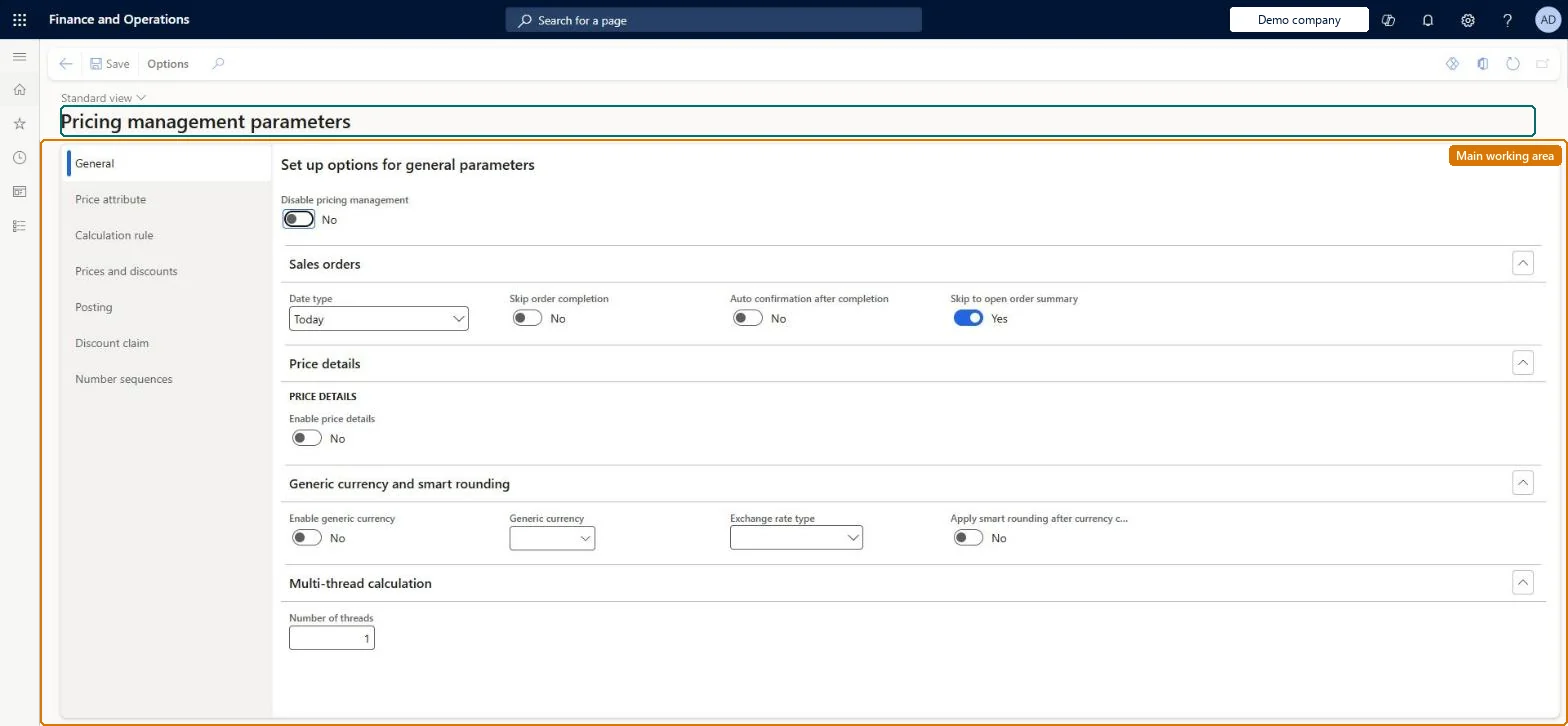
Setup step on the Pricing management parameters page · Pricing management
Set up Pricing management parameters
Use this page to choose which attribute groups supply customer, order and order line price attributes, whether the company uses one or several price trees, how competing discounts and trade agreements are resolved, and how price components are posted.
Accounts receivable manager, Retail merchandising manager, Retail operations manager and 5 more roles
Business process
Set product prices
Menu item
GUPParameters
Main table
GUPParameters
Data entity
GUPParametersEntity
Setup steps
1 on this page
Show what matters for
SETUP GUIDEHow to set it up8 sections. Choose a role to highlight what matters to you.
Everyone
1What it is and why
What it is
A setup page where you set the company-wide options for Unified pricing management, such as price attribute groups, price trees, concurrency rules, posting and dates.
What you do here
Use this page to choose which attribute groups supply customer, order and order line price attributes, whether the company uses one or several price trees, how competing discounts and trade agreements are resolved, and how price components are posted.
Example
For example, set Enable multiple price trees to Yes and choose a Price tree attribute so that the order attribute decides which price structure applies.
The page in Dynamics 365. page title tab to open what to set or check
About the examples: Examples and screenshots in this guide use BEAT, a demo company in a Dynamics 365 test environment. Use your own company's codes and values instead of copying them.
Setup steps on this page
Set up Pricing management parameters
Use this page to choose which attribute groups supply customer, order and order line price attributes, whether the company uses one or several price trees, how competing discounts and trade agreements are resolved, and how price components are posted.
Steps from Microsoft
Go to Pricing management > Setup > Pricing management parameters.
On the General tab, set the Date type field.
On the Price attribute tab, select the customer, sales order and sales line attribute groups.
On the Price attribute tab, set Enable multiple price trees and, if used, the Price tree attribute.
On the Prices and discounts tab, set the trade agreement and discount concurrency options.
On the Posting tab, set the price component posting options.
Separate attribute groups for Customer attribute group, Sales order attribute group and Sales line attribute group, each holding only Decimal, Integer, Text or TrueFalse attributes; set Date type and Enable default find next before the first pricing rule is createdThe page won't save if the sales order and sales line groups are the same or contain other data types. Microsoft asks you to set Enable default find next and Date type before you create any sales trade agreement pricing rules, because they decide how concurrent rules resolve and which date is matched.
Reversible: Parameters can be changed, but they decide how the pricing engine matches and resolves rules each time prices are calculated, so a change alters prices on orders priced afterwards.
If you change it later
Changing the discount concurrency model changes how competing discounts are calculated and can change how some price structure settings behave for discounts. Microsoft Learn
Technical architect
6Technical
Menu item
GUPParametersChecked in Dynamics 365
Form
GUPParametersChecked in Dynamics 365
Table
GUPParametersShown as “PRICING MANAGEMENT PARAMETERS” in Record infoChecked in Dynamics 365
Data entities
GUPParametersEntityPricing management parameters Checked in Dynamics 365CustomerParametersEntityCustomer parameters Microsoft data model RetailParameterEntityRetail Headquarters parameters Microsoft data model
Who can open it
PrivilegesMaintain pricing service parameters GUPParametersMaintainView pricing service parameters GUPParametersViewDutiesInquiries into policies governing pricing setting process GUPMasterDataInquiryEnable pricing setting process GUPMasterDataMaintainMaintain retail parameters GUPRetailParametersMaintainInquire into quotation to sales order policies GUPSalesOrderPolicyInquiry9 security rolesAccounts receivable manager CustInvoiceAccountsReceivableManagerMCRTestUserRoleRetail merchandising manager RetailMerchandisingManagerRetail operations manager RetailOperationsManagerRetail service RetailServiceRetail store IT RetailStoreITPurchasing manager TradePurchasingManagerSales clerk TradeSalesClerkSales manager TradeSalesManagerChecked in Dynamics 365
Roles to set it up and use it
To set it up or change itRetail service RetailServiceSales manager TradeSalesManagerRetail merchandising manager RetailMerchandisingManagerPurchasing manager TradePurchasingManagerRetail store IT RetailStoreITTo use itSales clerk TradeSalesClerkAccounts receivable manager CustInvoiceAccountsReceivableManagerGive people one of these roles. On this system, 8 roles can open this page.Checked in Dynamics 365
Developer
7Developer
Open it by URL
https://<your-environment>/?mi=GUPParameters
Integrate with
GUPParametersEntity data entity Checked in Dynamics 365
Checked in a working Dynamics 365 system, version 10.0.49: the menu item, form, table and security, the page.
To cite this step: PRM-SETUP-010, Set up Pricing management parameters. Beyond ERP Atlas Hub, 2026-11-11. https://www.beyonderp.cloud/atlas/step/PRM-SETUP-010